


Formatting in Power BI can sometimes be quite tedious, lots of dropdowns and hidden locations to change fonts/colours.
Within the view tab there is a section where you can select different theme presets already built in.
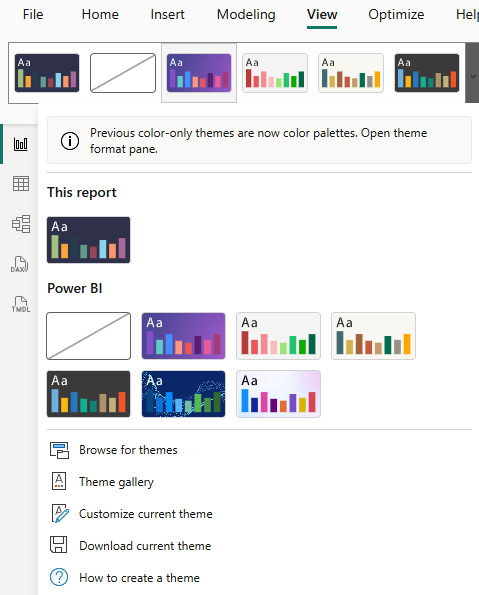
You are able to customise theme colours and edit preset themes. However, another way to approach themes is to generate your own theme from scratch. If you have specific hex codes/fonts/sizes and would like to customise all aspects of a dashboard then there is a quick solution to this.
Generate a custom theme JSON file
Using any AI tool of choice, if you specific colours/fonts etc, you can get it to generate you a JSON file which you can then save to your laptop and upload to Power BI by selecting ‘browse for themes’. Here is the kind of content a theme file will contain:
{
"name": "Custom Theme",
"dataColors": ["#1B3A5C", "#4C8BF5", "#8FBCFA", ...],
"background": "#FFFFFF",
"foreground": "#252423",
"tableAccent": "#1B3A5C",
"textClasses": {
"callout": { "fontFace": "Segoe UI Semibold" },
"title": { "fontFace": "Segoe UI Semibold", "fontSize": 14 }
}
}
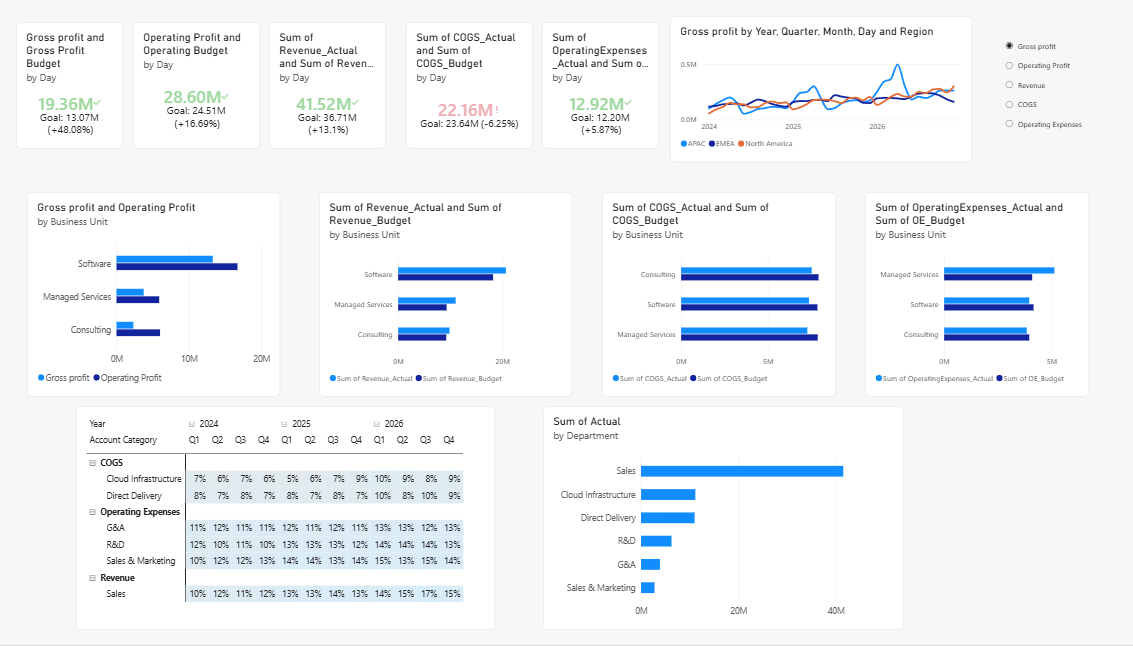
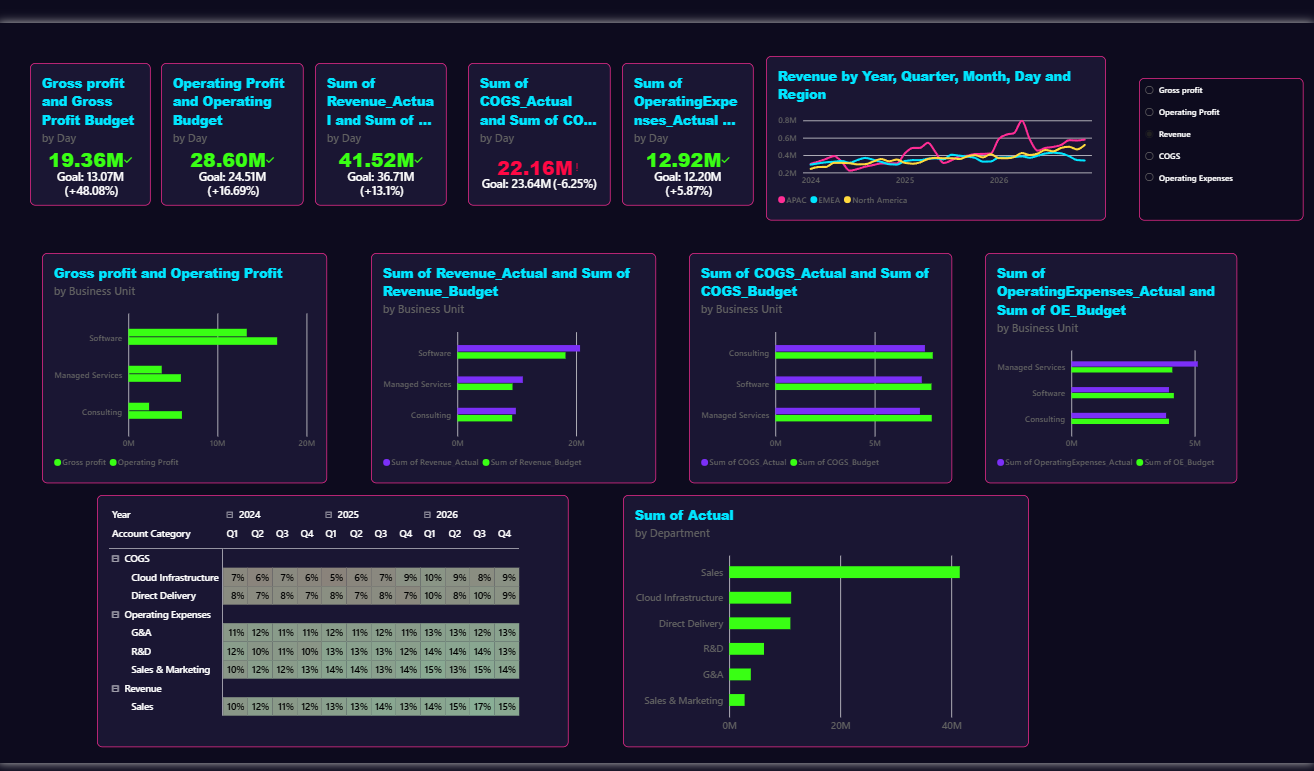
Before and after theme implementation for a recent Power BI dashboard build
This dashboard looks at fictional financial data.
I then asked AI to create me an ‘anime theme’ JSON file.
To summarise, it’s a really useful way to get some quick formatting down. I found it extremely helpful for dashboard week! Additionally, if you spend the time to craft a custom theme, this now becomes a standardised template you could use for lots of dashboards.