


When I first started learning Snowflake, I understood what a database table was, but I was less clear about one very basic question:
How does a file sitting on my laptop actually become usable data inside Snowflake?
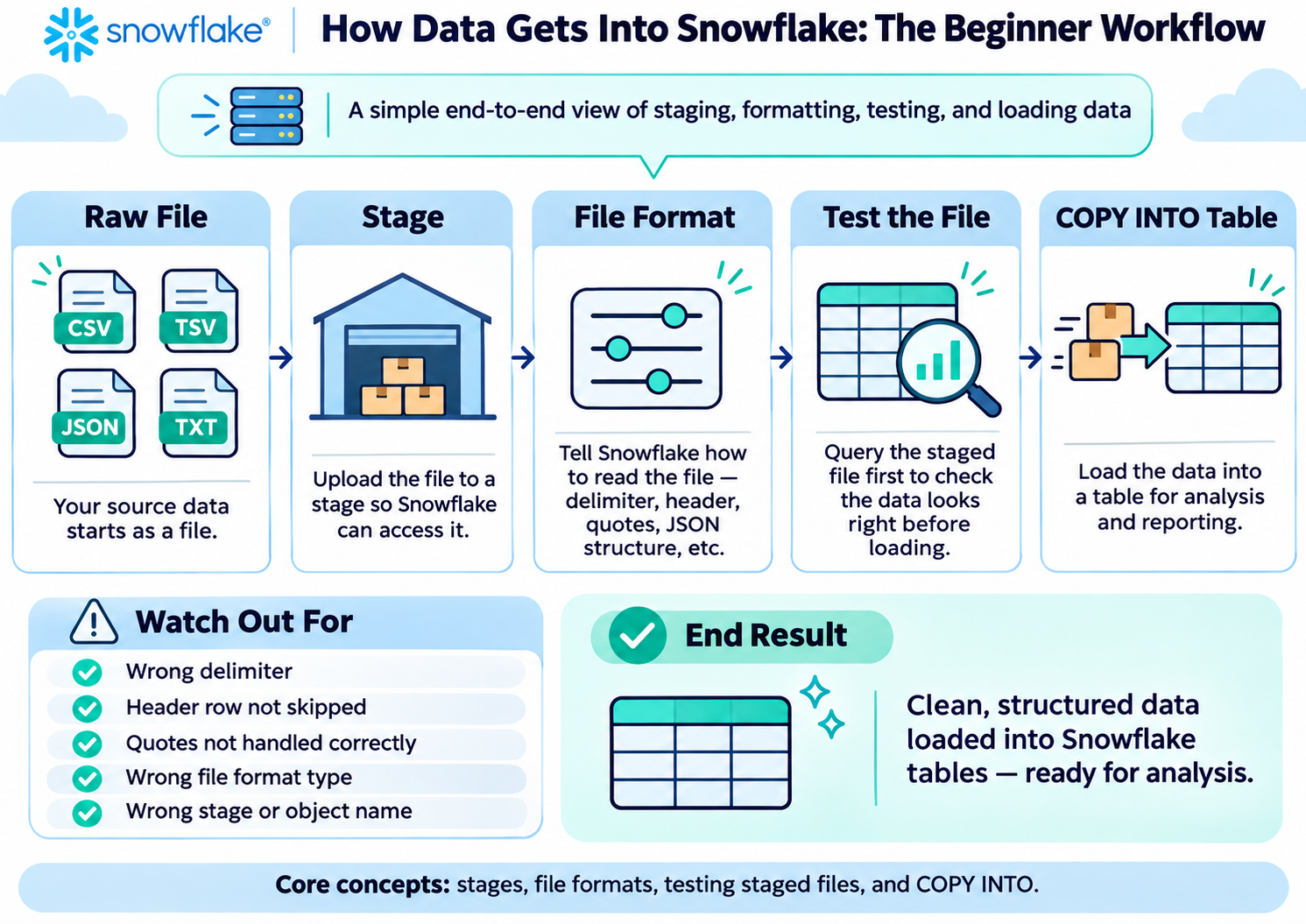
During the Snowflake Hands-On Essentials Data Warehouse workshop, the process started to make much more sense when I reduced it to four concepts:
Stage → File Format → COPY INTO → Table
In this post, I’ll explain each one from the perspective of someone completely new to Snowflake.
The warehouse analogy
Imagine Snowflake is a physical warehouse.
A delivery truck arrives carrying boxes.
The boxes do not magically appear on the correct warehouse shelves.
They first arrive at the loading bay.
Someone then needs instructions explaining how the delivery is organised.
Finally, someone moves the contents onto the correct shelves.
That maps surprisingly well to Snowflake:
Stage = the loading bay
File Format = the unpacking instructions
COPY INTO = the worker moving the goods
Table = the final warehouse shelves
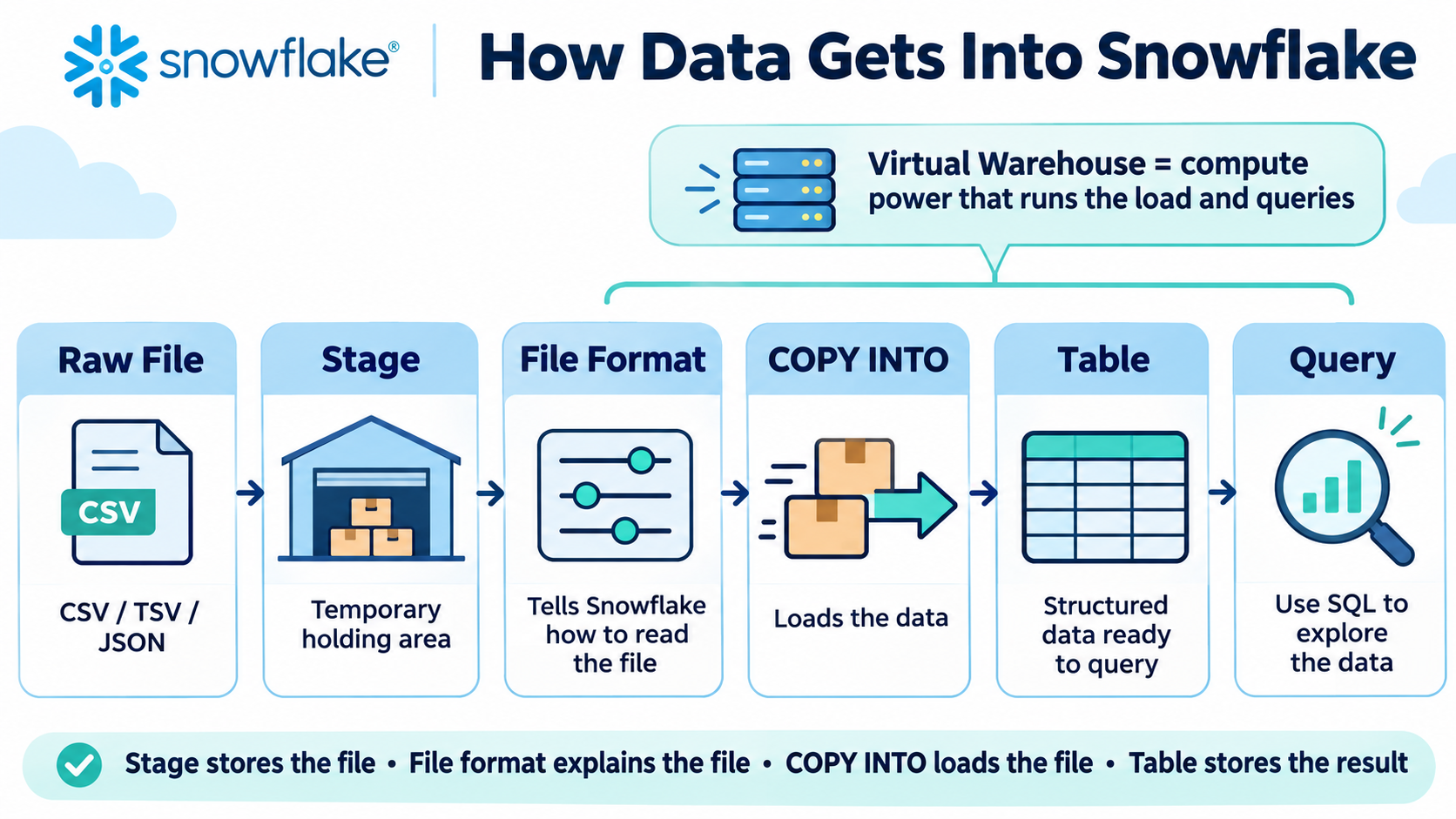
Once I understood that flow, Snowflake data loading stopped feeling like a collection of unrelated commands.
1. What is a Snowflake stage?
A stage is somewhere Snowflake can hold files before their contents are loaded into tables.
For example:
CREATE STAGE MY_INTERNAL_STAGE;Let’s translate that into normal English.
CREATE means:
Make a new object.
STAGE means:
The object I want to create is a staging area for files.
MY_INTERNAL_STAGEis simply the name I chose.
I could then upload files such as:
LU_SOIL_TYPE.tsv
veg_plant_height.csv
nutrition_tweets.json
into that stage.
The important beginner point is:
Uploading a file into a stage does not mean the data has been loaded into a table.
The file is simply sitting there waiting to be processed.
Think of it as a delivery waiting at the loading bay.
2. Why does Snowflake need a file format?
Once the file has arrived, Snowflake needs to know how to read it.
Consider this line:
Artichoke,F,4,5As humans, we can probably work out that there are four values.
But Snowflake needs explicit instructions.
For example:
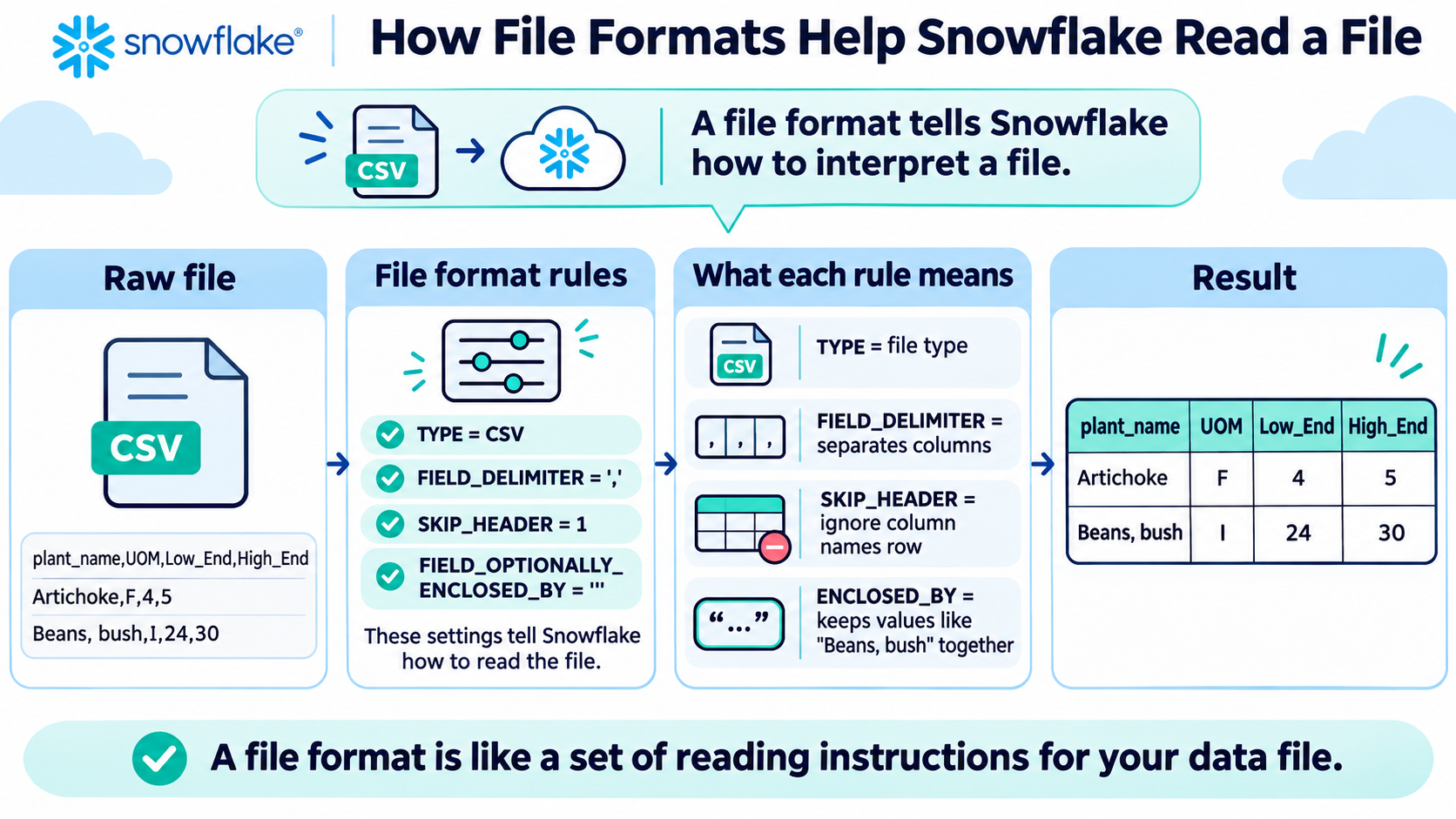
CREATE OR REPLACE FILE FORMAT MY_CSV_FORMAT
    TYPE = 'CSV'
    FIELD_DELIMITER = ','
    SKIP_HEADER = 1;
Let’s break that down.
CREATE OR REPLACE FILE FORMAT means:
Create a set of file-reading instructions.
OR REPLACE means that if an object with that name already exists, Snowflake can replace its definition.
That is useful while learning and developing, although in a production system I would be more careful about replacing existing objects.
TYPE = 'CSV'tells Snowflake that this is a delimited flat file.
Something that initially confused me was that Snowflake can also use this type for files such as TSV files.
The important setting is actually the delimiter.
3. What is a delimiter?
A delimiter is the character separating one field from another.
For a standard CSV:
Artichoke,F,4,5the delimiter is a comma:
FIELD_DELIMITER = ','Snowflake therefore interprets the row as:
Artichoke | F | 4 | 5But one of the files I worked with was:
LU_SOIL_TYPE.tsvTSV means: Tab-Separated Values
When I opened the raw file in a text editor, it looked roughly like:
1    Any     Any of the other types
2    Loam    Sticky and gritty. Combination of sand, silt, and clay.
3    Clay    Easily rolls into a ball...
Those large gaps were actually tab characters.
So the correct setting was:
FIELD_DELIMITER = '\t'\t means a tab.
This taught me an important lesson:
Don’t blindly trust the filename. Inspect the raw data and understand its structure.
4. Why does SKIP_HEADER matter?
Most files have a header row.
For example:
plant_name,UOM,Low_End_of_Range,High_End_of_Range
Artichoke,F,4,5
Arugula,I,8,10
The first row contains column names.
We don’t want Snowflake to treat:
plant_nameas an actual vegetable.
So:
SKIP_HEADER = 1means:
Ignore the first row when loading the data.
Without it, column headings can accidentally become part of your dataset.
5. What happens when the data itself contains commas?
This was one of my favourite examples because it shows why file formats actually matter.
My vegetable data contained values such as:
Beans, bush
Beans, lima (bush)
Peppers, hot
But the CSV file also used commas to separate columns.
So how does Snowflake know that:
Beans, bushis one plant name rather than two separate fields?
The raw CSV can store it like this:
"Beans, bush",I,24,30The quotes tell us that:
Beans, bushbelongs together.
The file format therefore used:
FIELD_OPTIONALLY_ENCLOSED_BY = '"'In plain English:
If a value is surrounded by double quotes, treat everything inside those quotes as one value.
So Snowflake interprets:
"Beans, bush",I,24,30as:
PLANT_NAME = Beans, bush
UOM        = I
LOW        = 24
HIGH       = 30
rather than incorrectly creating five fields.
This is a good example of why the file format is more than just technical syntax.
It is effectively teaching Snowflake how to interpret your data correctly.
6. Test the file before loading it
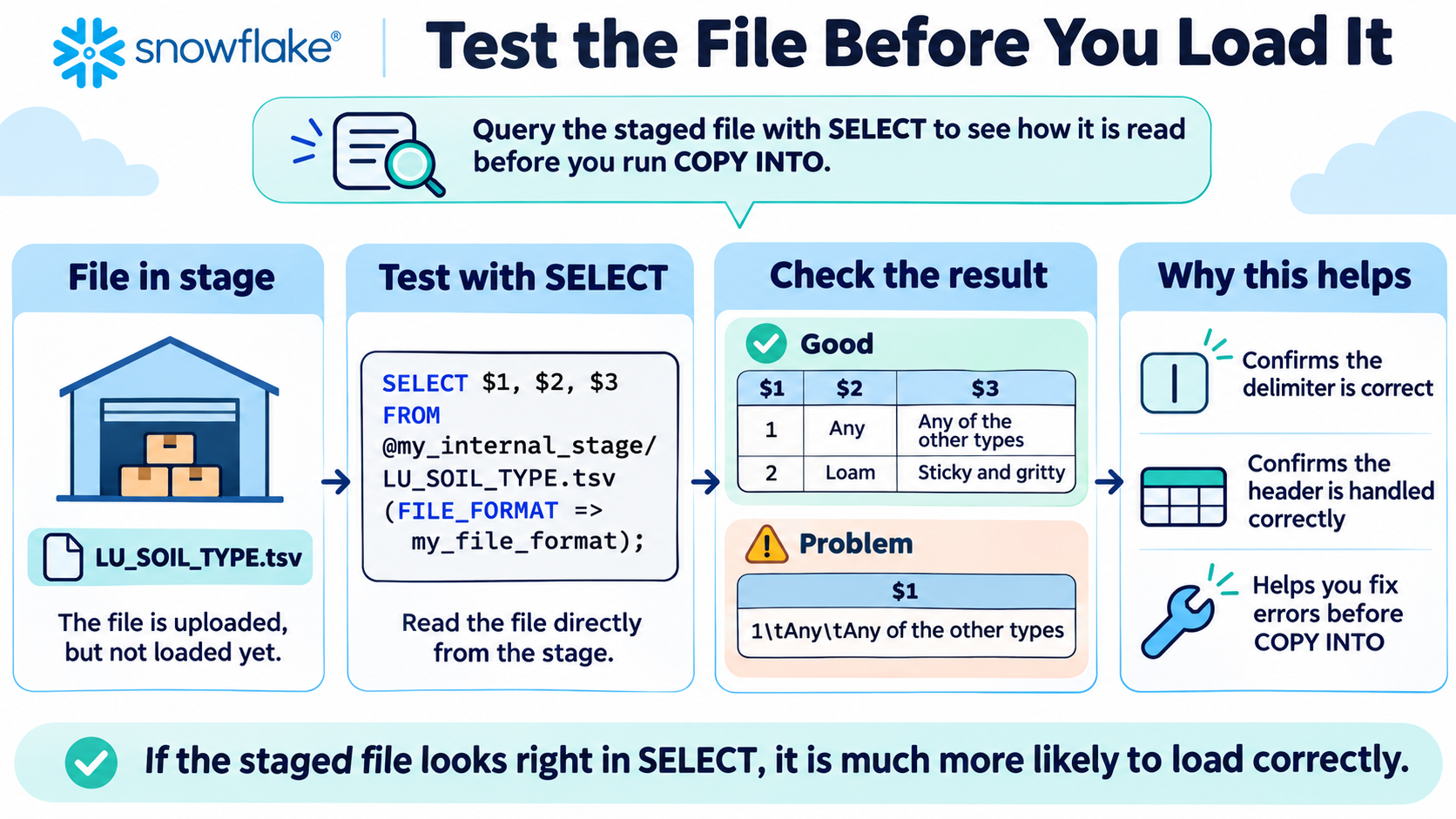
One of the most useful habits I learned was that I don’t have to immediately load a file into a table.
I can inspect how Snowflake interprets it first.
For example:
SELECT $1, $2, $3
FROM @UTIL_DB.PUBLIC.MY_INTERNAL_STAGE/LU_SOIL_TYPE.tsv
(
    FILE_FORMAT => GARDEN_PLANTS.VEGGIES.L9_CHALLENGE_FF
);
Let’s translate that.
SELECT $1, $2, $3means:
Show me the first, second and third fields Snowflake reads from the file.
Then:
FROM @UTIL_DB.PUBLIC.MY_INTERNAL_STAGE/LU_SOIL_TYPE.tsvmeans:
Read this particular file from this stage.
The @ symbol tells Snowflake that we are referring to a stage.
Finally:
FILE_FORMAT => GARDEN_PLANTS.VEGGIES.L9_CHALLENGE_FFmeans:
Use these file-reading instructions.
This became a useful debugging technique.
If everything appeared in $1, I knew Snowflake was probably using the wrong delimiter.
If I saw three clean columns, I knew the file format was doing its job.
That means I could fix a problem before loading bad data into a table.
7. Create the destination table
Once I knew Snowflake could read the file correctly, I needed somewhere permanent to store the data.
For example:
CREATE OR REPLACE TABLE LU_SOIL_TYPE (
    SOIL_TYPE_ID NUMBER,
    SOIL_TYPE VARCHAR(15),
    SOIL_DESCRIPTION VARCHAR(75)
);
This creates three columns.
SOIL_TYPE_ID NUMBERmeans:
Store a numeric soil ID.
SOIL_TYPE VARCHAR(15)means:
Store text up to 15 characters long.
And:
SOIL_DESCRIPTION VARCHAR(75)allows a longer piece of text.
This introduces another important concept:
The structure of your table should make sense for the structure and meaning of your data.
8. Finally: COPY INTO
Now everything is ready.
We have:
✓ File
✓ Stage
✓ File Format
✓ Table
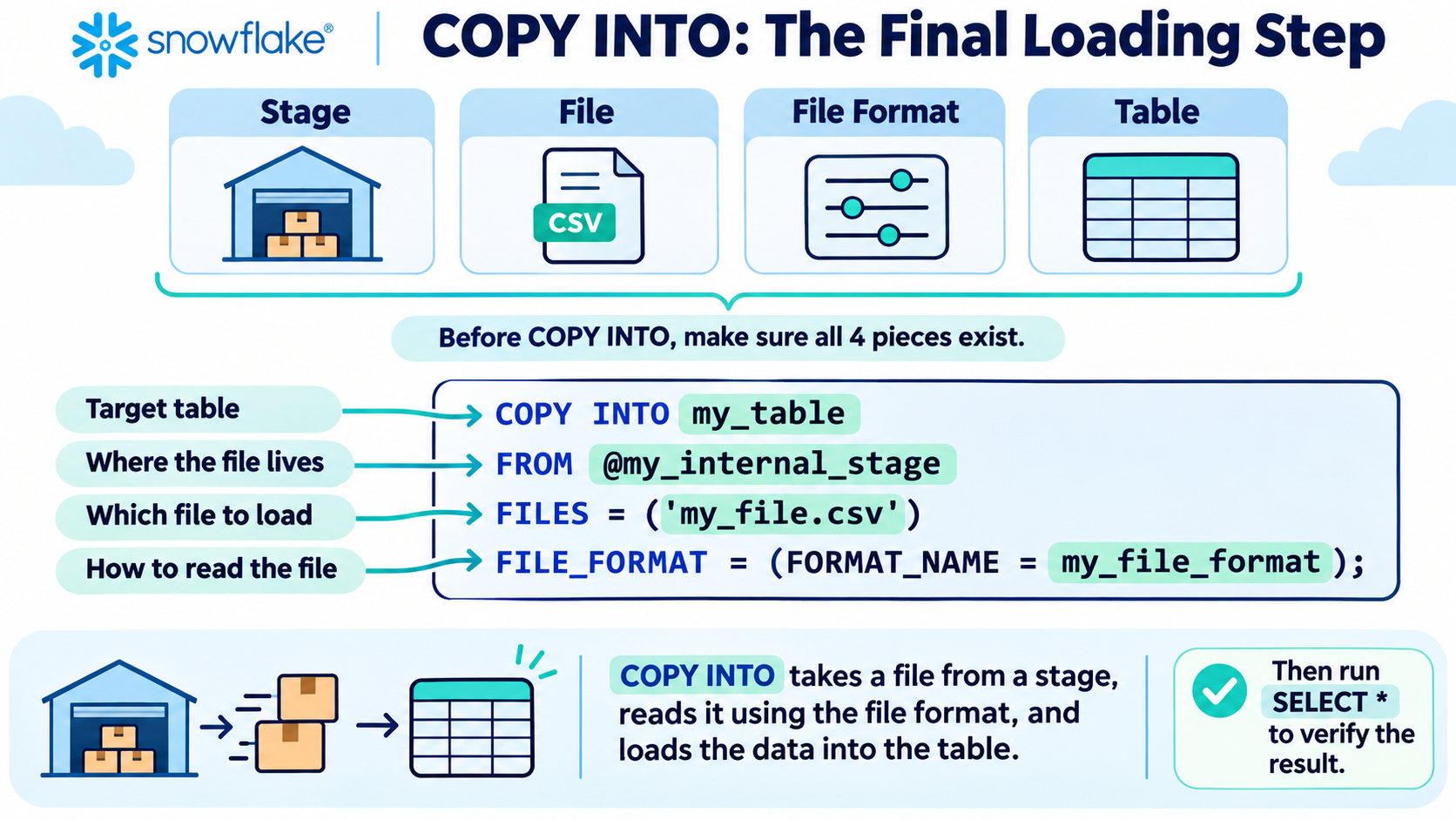
Now we can actually load the data.
COPY INTO GARDEN_PLANTS.VEGGIES.LU_SOIL_TYPE
FROM @UTIL_DB.PUBLIC.MY_INTERNAL_STAGE
FILES = ('LU_SOIL_TYPE.tsv')
FILE_FORMAT = (
    FORMAT_NAME = GARDEN_PLANTS.VEGGIES.L9_CHALLENGE_FF
);
This looked intimidating the first time I saw it.
But if we translate it into English, it becomes much easier.
COPY INTO GARDEN_PLANTS.VEGGIES.LU_SOIL_TYPEmeans:
Put the data into this table.
FROM @UTIL_DB.PUBLIC.MY_INTERNAL_STAGEmeans:
Get the data from this staging area.
FILES = ('LU_SOIL_TYPE.tsv')means:
Use this particular file.
And:
FILE_FORMAT = (
    FORMAT_NAME = GARDEN_PLANTS.VEGGIES.L9_CHALLENGE_FF
)
means:
Use these instructions to understand the file.
So the whole command is basically saying:
Take this file from this stage, read it using these rules, and put the result into this table.
That is COPY INTO.
9. Check the result
After loading the data, I can verify it with:
SELECT *
FROM GARDEN_PLANTS.VEGGIES.LU_SOIL_TYPE;
SELECT * means:
Show me every column.
This lets me check that the final table looks as expected.
10. Where compute fits in
Another concept covered in the workshop was Snowflake compute.
Snowflake separates storing data from the computing power used to work with it.
The compute resource is called a: Virtual Warehouse
So another useful mental model is:
Data Storage
= where the data lives

Virtual Warehouse
= the computing power doing the work
When I run queries or load data, a warehouse such as:
COMPUTE_WHprovides the compute resources needed to perform that work.
This separation is useful because compute can be sized and managed independently from the data itself.
What can go wrong?
Working through the exercises also taught me several things to watch for.
1)Wrong delimiter
If everything appears in one column, check:
FIELD_DELIMITERFor example, a TSV usually requires:
FIELD_DELIMITER = '\t'rather than a comma.
2)Header row appearing as data
Check:
SKIP_HEADER = 13)Values containing commas split incorrectly
Check whether you need:
FIELD_OPTIONALLY_ENCLOSED_BY = '"'4)File format doesn’t exist
A COPY INTO command depends on the referenced file format already existing.
That means I learned to think about dependencies:
Does my stage exist?
Does my file exist?
Does my file format exist?
Does my table exist?
Am I in the correct database/schema?
5)Accidentally loading data twice
Repeated loading can sometimes lead to unexpected results or duplicate data depending on what you are doing.
During training, I sometimes reset a table with:
TRUNCATE TABLE table_name;TRUNCATE removes all rows while keeping the table itself.
That was useful in a learning environment, although it is obviously a command to use carefully with real data.
The bigger picture
What looked at first like several disconnected Snowflake commands eventually became one logical pipeline:
And that is the biggest lesson I took away. Loading data isn’t simply about moving a file.
We need to understand:
Where is the data coming from?
How is it structured?
How should Snowflake interpret it?
Where should it live?
How do we check it has loaded correctly?
If you remember only one thing
Remember this:
A stage stores the file, a file format explains the file, COPY INTO loads it into a table, and a virtual warehouse provides the compute to do the work.Once I understood those pieces and how they fit together, the Snowflake loading process became much easier to reason about.
In Part 2, I’ll move beyond traditional rows and columns and look at JSON, VARIANT, nested data and FLATTEN.