


Today's dashboard challenge focused on accessibility, an area I hadn't previously prioritised. I realised I hadn't fully understood the impact accessible design can have on users, nor how to implement it effectively. This challenge helped me appreciate its importance by putting the session with Louisa into practice.
About the Accessibility Session
We started by learning the differences between accessible design, inclusive design, and universal design. Understanding when and why each approach is used was really useful, especially when thinking about designing for specific users while still creating something that works for a wider audience.
Brief
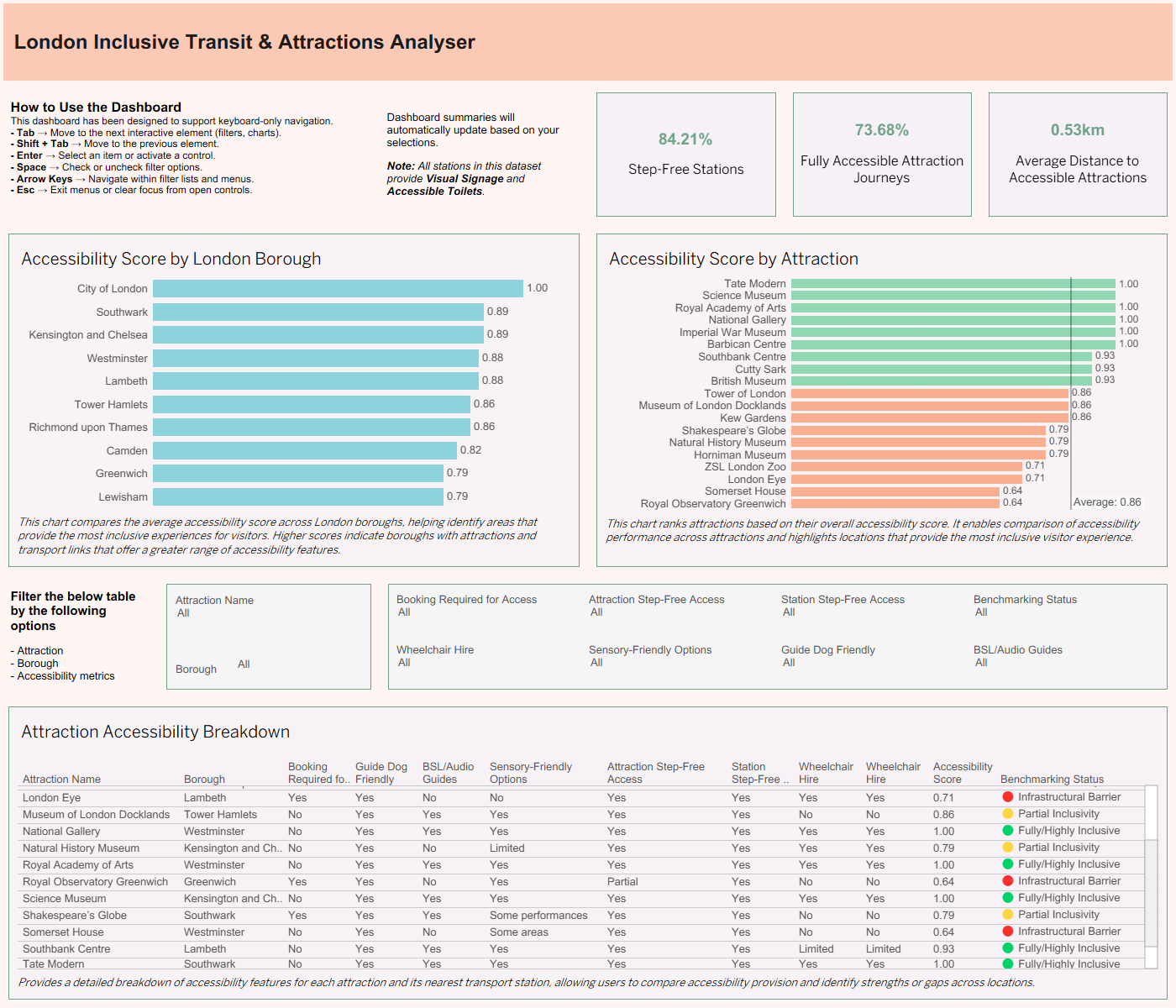
My brief was to create a Tableau dashboard for Access London. The user was an expert in accessible urban design with a visual impairment who relies on keyboard navigation and screen magnification. This meant one of the key requirements was ensuring there was no mouse dependency.
Final Dashboard
Key Learnings
One of the biggest things I learned was that accessibility goes far beyond colour choices and font sizes. I already (somewhat) understood the importance of colour contrast for visual impairments, but I hadn't fully considered how users with motor impairments or limb differences may rely entirely on keyboard navigation. I also learned more about screen readers and how dashboard content can be read aloud, allowing users to understand information without needing to see the visualisations directly.
Creating the dashboard made me realise how dependent I am on a mouse. Features I normally use, such as hover tooltips, aren't always accessible to keyboard-only users. As a result, I had to make sure important information was visible without requiring additional interactions. This made the dashboard more text-heavy than some of my previous work, but ultimately more accessible.
The main takeaway from this project was the importance of designing from the user's perspective. Small design decisions can have a huge impact on whether a dashboard is usable or not. Accessibility isn't just about meeting requirements; it's about making sure everyone can access and benefit from the information being presented. (There isn't one definitive solution but there most definitely are some wrong solutions!)
Next Steps
- Learn more about accessibility best practices in dashboard design (across different tools). Time to try it in Power BI.
- Explore screen readers and other assistive technologies in more detail - understanding the order and how to edit that order.
- User test where possible to understand real accessibility challenges.