This blog is about how to tackle a certain type of problem you might encounter when replacing data sources in Tableau.
Specifically, the trick covered in this blog is for when tableau renamed your field when replacing the data source, and you have many calculations that depend on that renamed field.
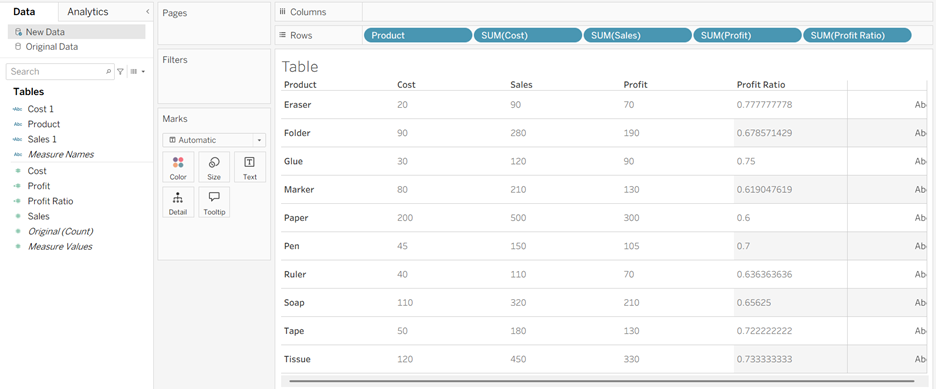
The table below is the original data that will get replaced.
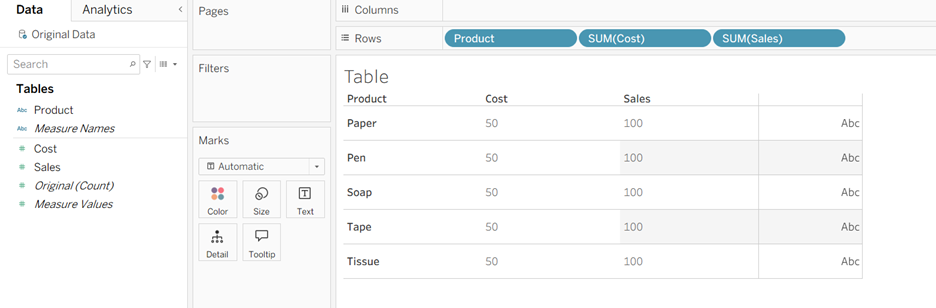
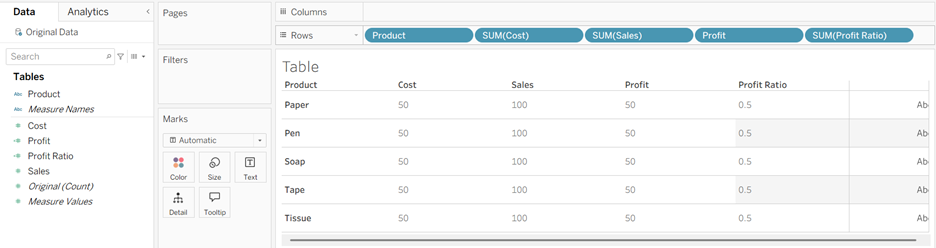
Here is the worksheet that uses the original data:
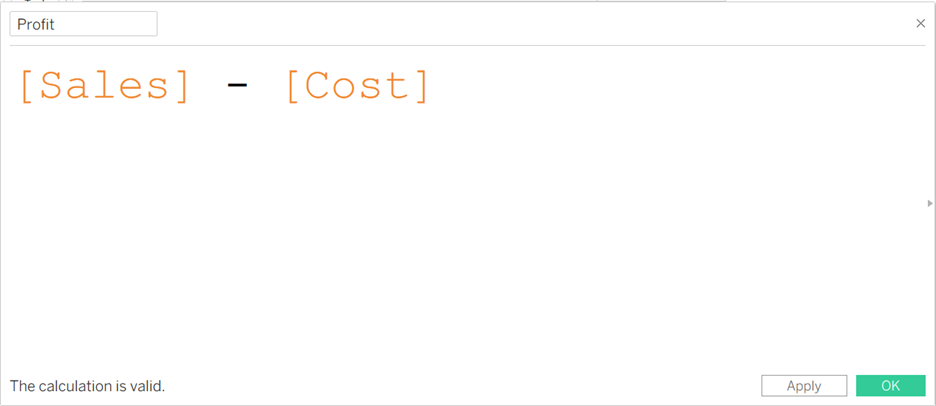
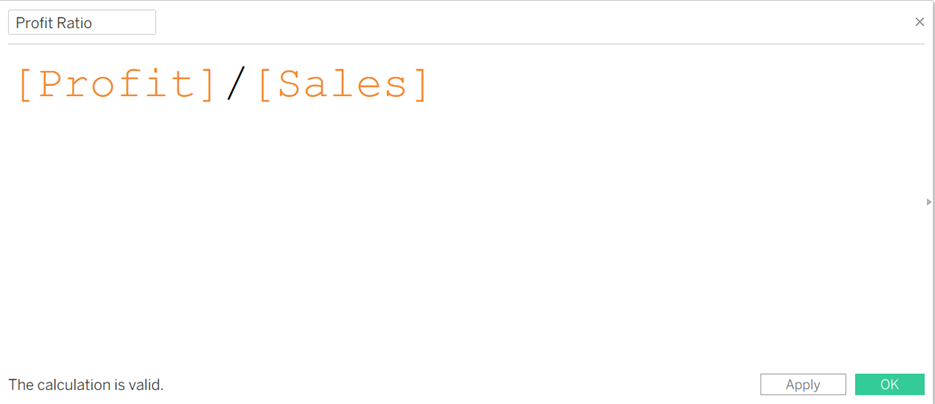
There are also calculated fields using fields from the original data.
In the end, this is the worksheet including the new calculated fields, and the goal is to replace the data source on this and keep the calculations!
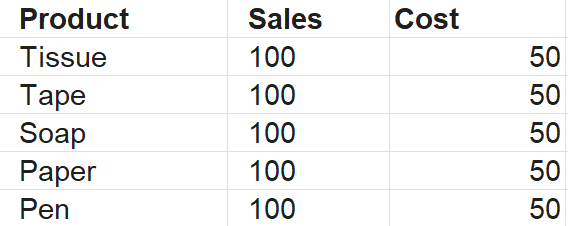
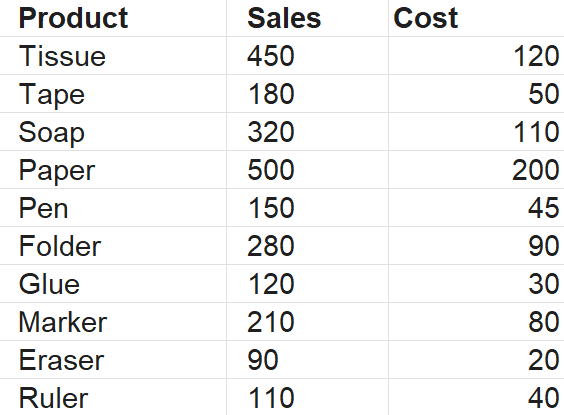
Now here is the new dataset that we want to replace the original data with. You can notice that there are more products and the values for Sales and Cost are not all the same.
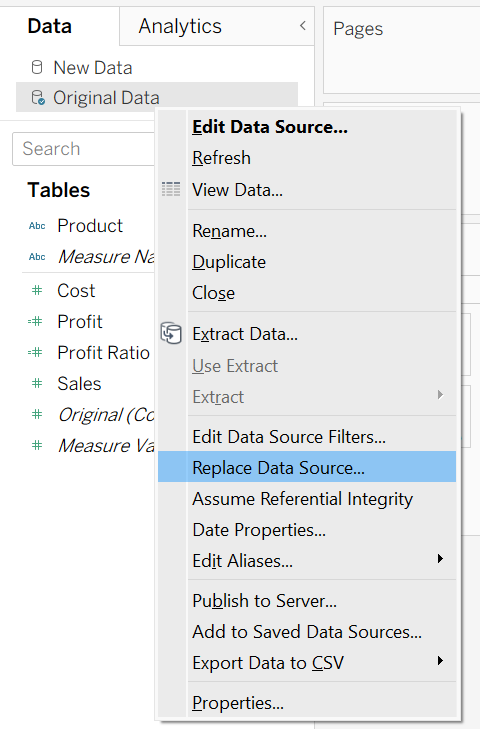
After adding the new dataset, you can replace the Original Data with the New Data.
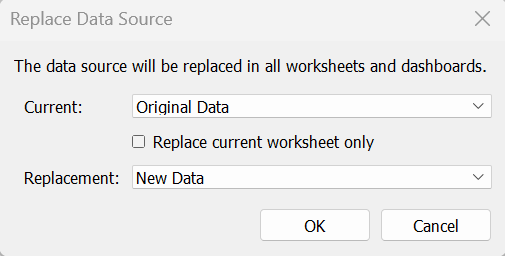
Now, your workbook could be functioning perfectly fine after this, but it is also very common to have problems with red cells like you see below.
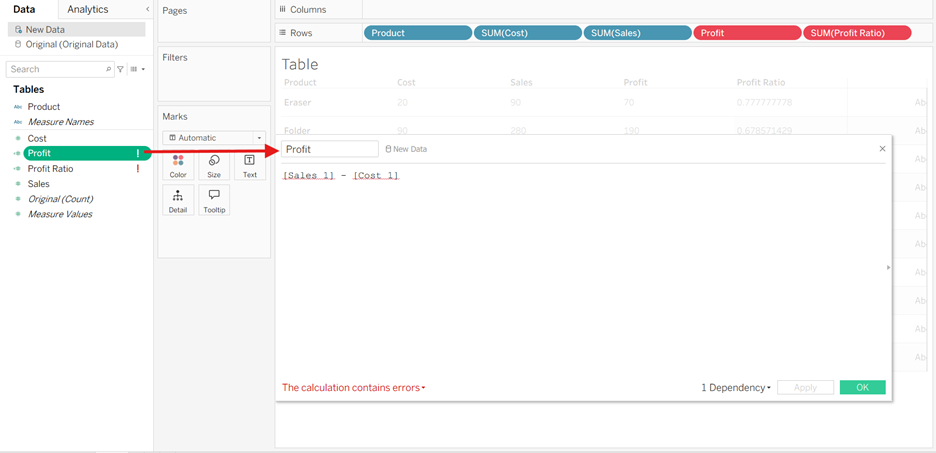
In this case, you see above that there is an error because adding the new data source changed the field names from [Sales] to [Sales 1], and [Cost] to [Cost 1].
This gives an error to the Profit calculation but also other calculations like the Profit Ratio.
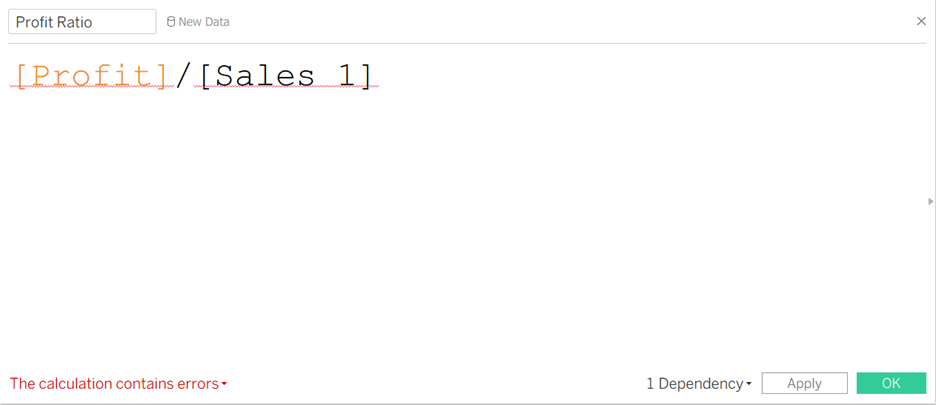
One way to solve this is to go into each calculation and manually change the [Sales 1] to [Sales] and [Cost 1] to [Cost]. However, if your workbook has a lot of calculations, you need a less repetitive method.
Here is one method to fix it.
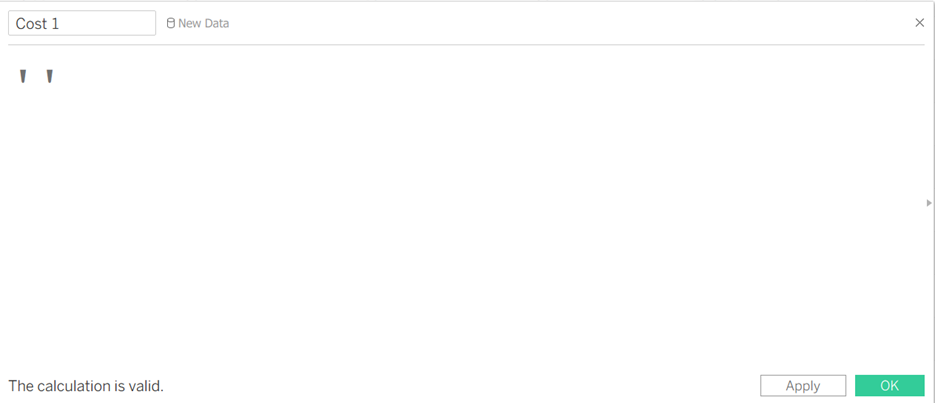
Step 1: Make a new calculated field of an empty string, and set the name of the calculated field to the field you want to replace the reference of.
Here, we want to replace the reference (change) the field [Sales 1] and [Cost 1] so we make new calculated fields for it.
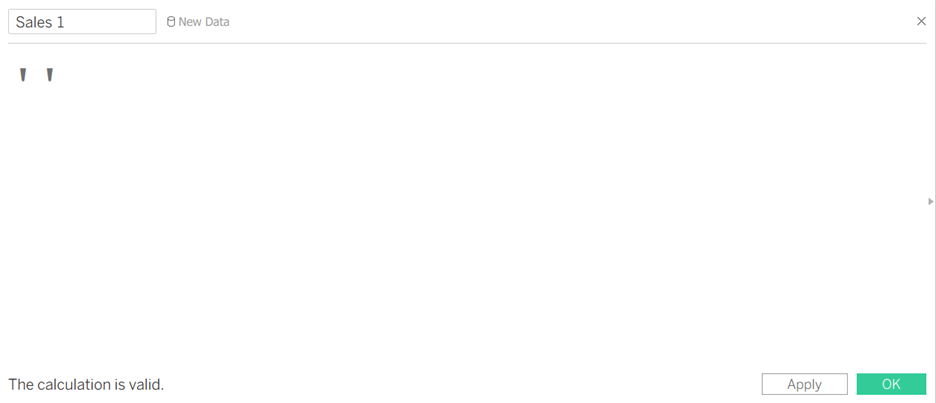
Step 2: Replace the reference on those new calculated fields
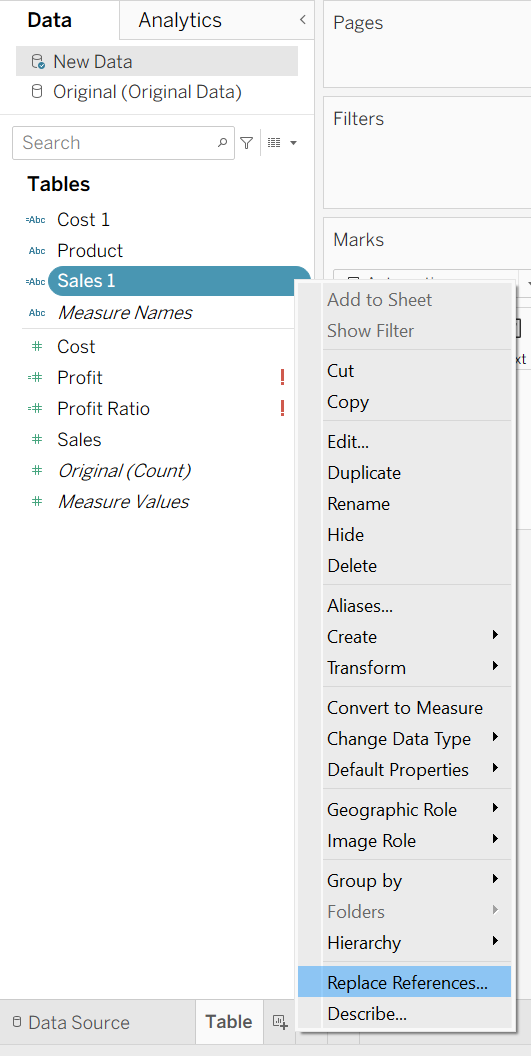
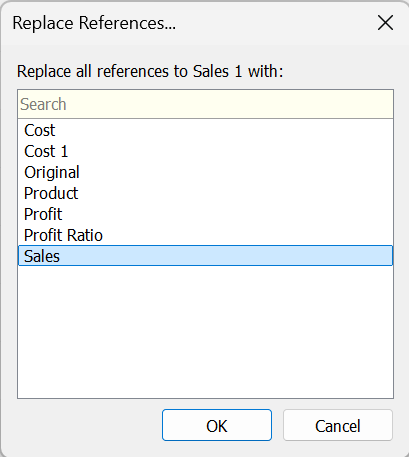
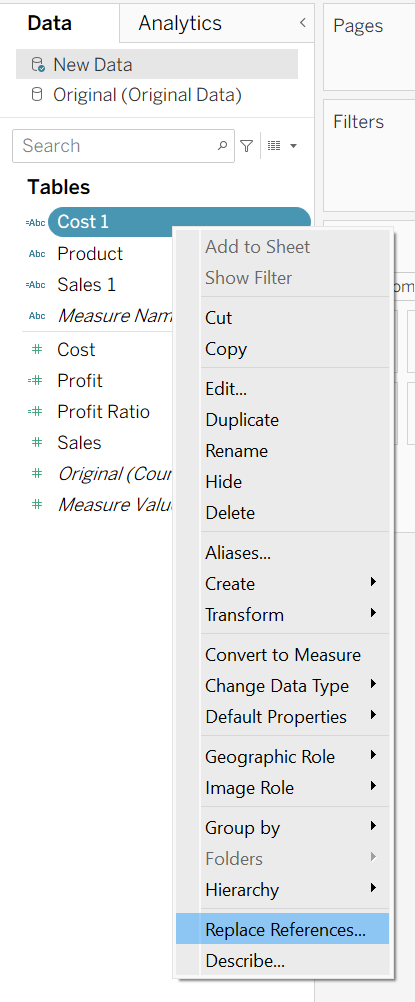
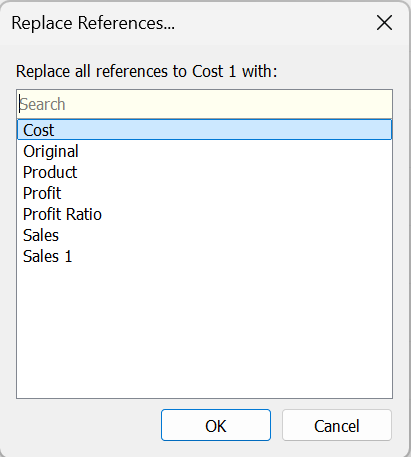
And this should do it! Below is the final output and you can see that the data and the calculations have updated.