


Alteryx Designer has many interface tools that provide user interactivity, but sometimes they can be difficult to understand. For that reason, I'll be guiding you through something I struggled with: the Update Value with Formula action type. For this I'll be using Alteryx Challenge #215: Gotta Catch 'em All, so feel free to follow along! ⚡🐭🧢
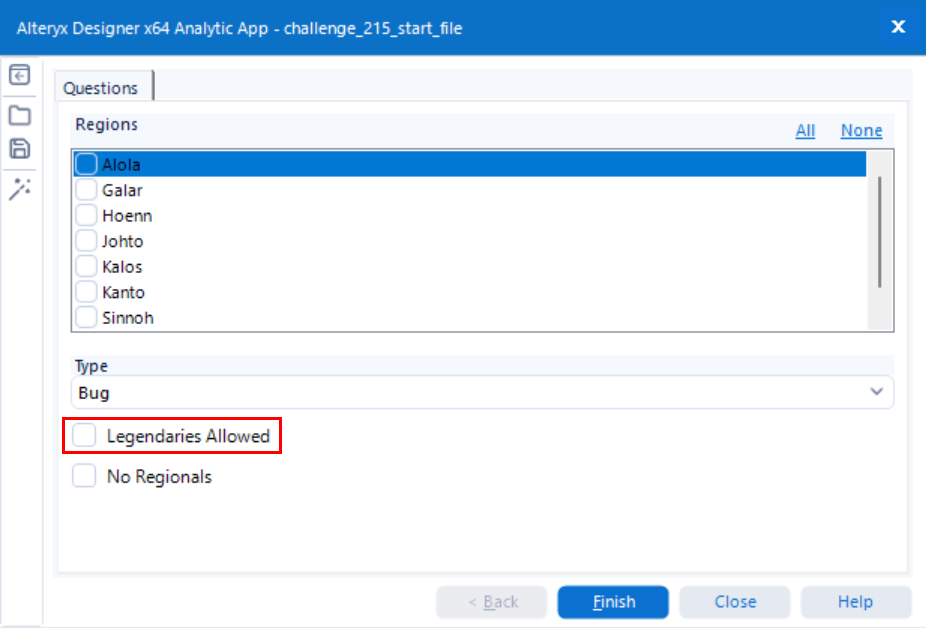
For context, this challenge required a check box that allowed legendaries. In other words, this meant:
- If the box is checked, keep all values
- Otherwise, filter out legendaries
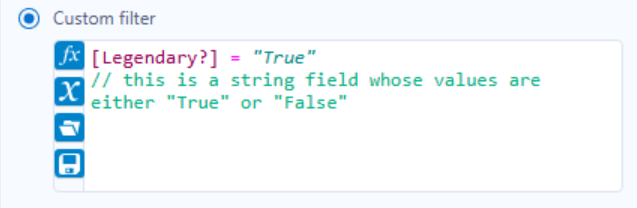
Our key word here is "filter", since it tells us we need a Filter tool! The problem is, filter conditions for interface tools are usually written like so:
Why is this a problem? Well, say we have a Check Box tool, along with an Action tool linking it to our filter:
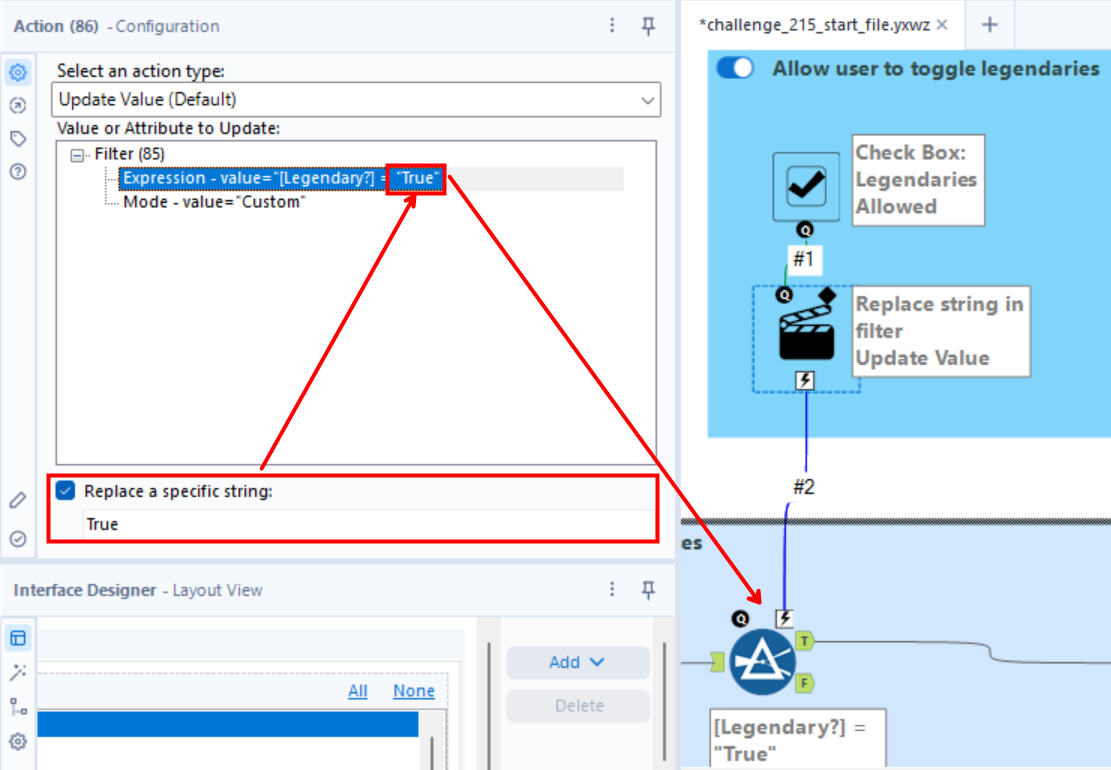
When working with this tool setup, we typically use the Update Value (Default) action type and replace the True in the filter expression with the user's input. This would make sense if we wanted:
- Only legendaries (
[Legendary?] = "True"), or - Only non-legendaries (
[Legendary?] = "False")
However, that's not what we want—we want to apply the filter when the box is checked and otherwise do nothing, which means we need to apply additional logic.
This is where the Update Value with Formula action type comes in!
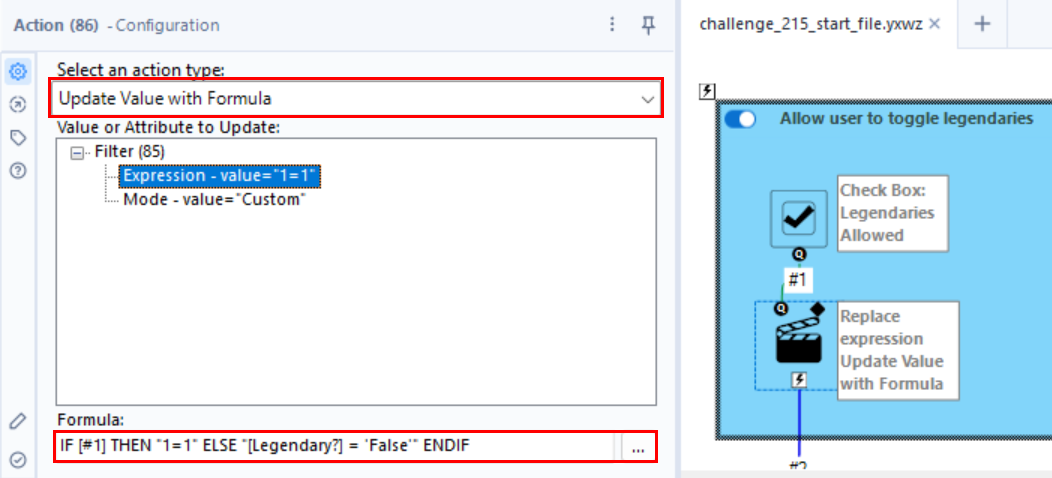
With this action type, we're not replacing a specific string, but rather the entire expression itself. This is why each case returns boolean logic in string form. Let's go through them together:
IF [#1] THEN "1=1"
[#1] is what contains the value of the check box input. You can figure this out by clicking on the ellipsis next to the formula and double clicking on the input line:
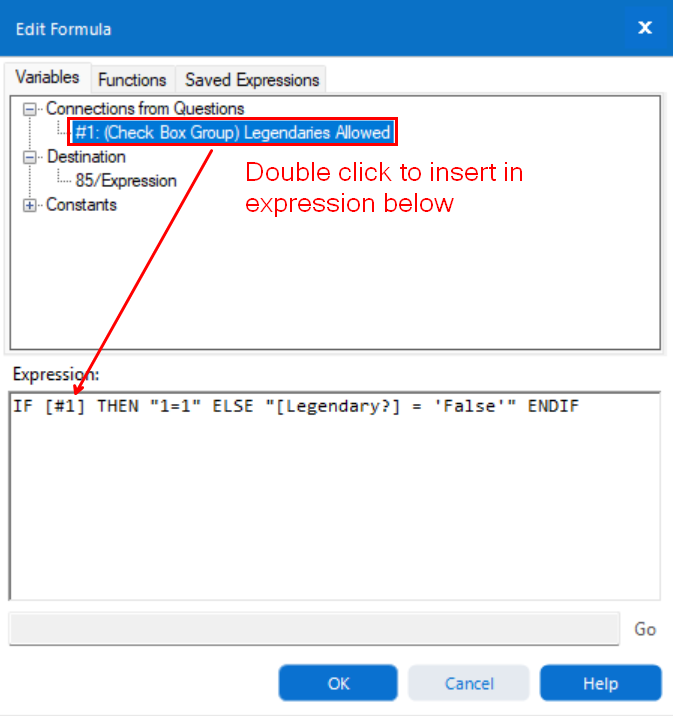
Knowing that, it follows that IF [#1] tests if the box is checked. Now, why are we returning "1=1"? In our case, it's because when the box is checked, we want to return all the rows in the table (i.e., don't filter to anything). This works because 1=1 will always evaluate to True. Moreover, we have it in quotation marks so that the entire expression is returned; otherwise, Alteryx will evaluate the expression as is and give you a syntax error.
Now for the second case:
ELSE "[Legendary?] = 'False'"This tells us that if the box is not checked, we want the filter expression to be [Legendary?] = 'False', which will effectively filter out all legendaries.
I've also changed the expression in the Filter tool itself, but since the entire expression will be replaced anyway, what you put in there is just the default behavior if you run the flow without the user input (in our case, that would be returning all rows).
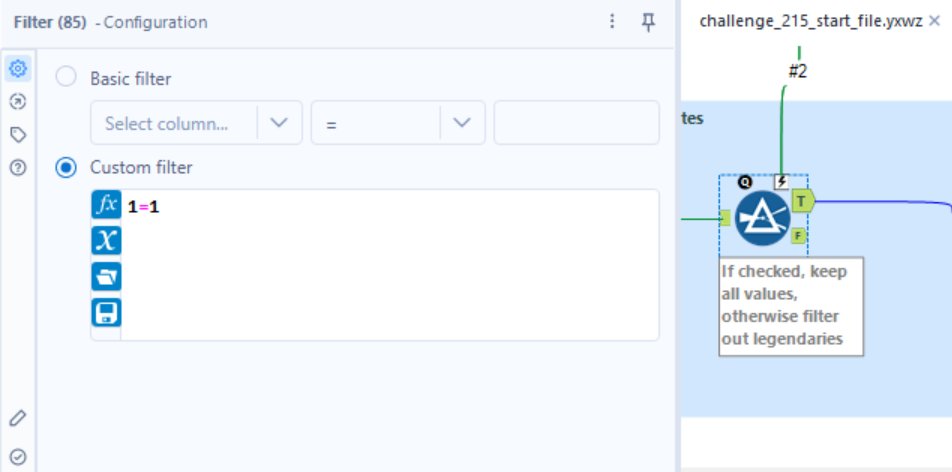
Now our user interface works as intended! So let's summarize the Update Value with Formula action type in more general terms:
- When using a Filter tool, you'll usually be replacing the entire expression.
- The formula should return a string to replace that expression.