


Alteryx Designer is a data preparation tool that can be very powerful if used to its full potential, but as with any software, there can be a learning curve. In this blog post, I'll cover 10 tips and tricks that can help beginners get used to the software and use it more efficiently.
1) Disabling "Start Here" Pop Up Window
When you first download Alteryx Designer, you'll get a "Start Here" window that pops up every time you open the software:
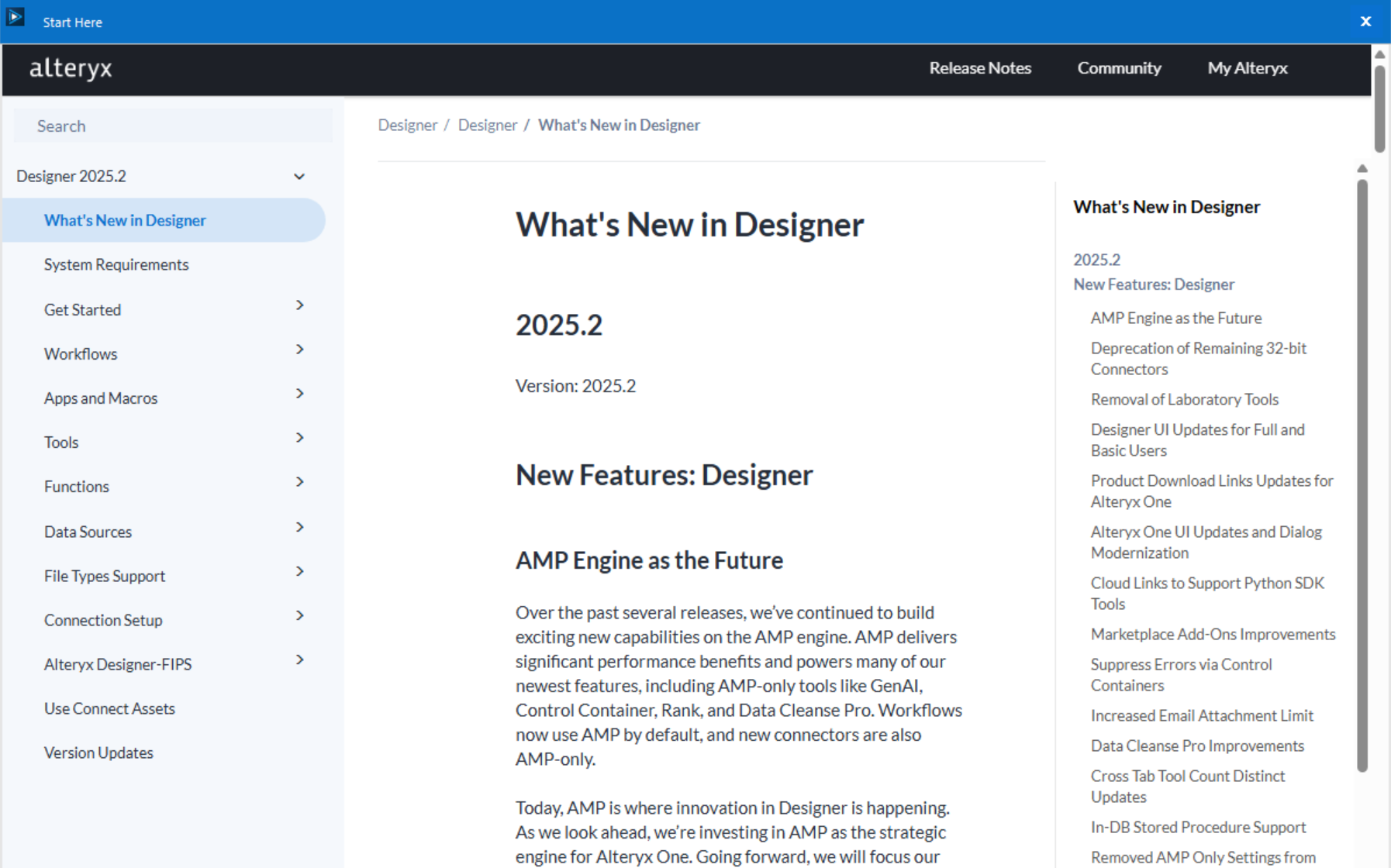
While this can certainly be helpful, we may not want to see information we've already seen before. To turn this off, you'll want to navigate to Options > User Settings > Edit User Settings:
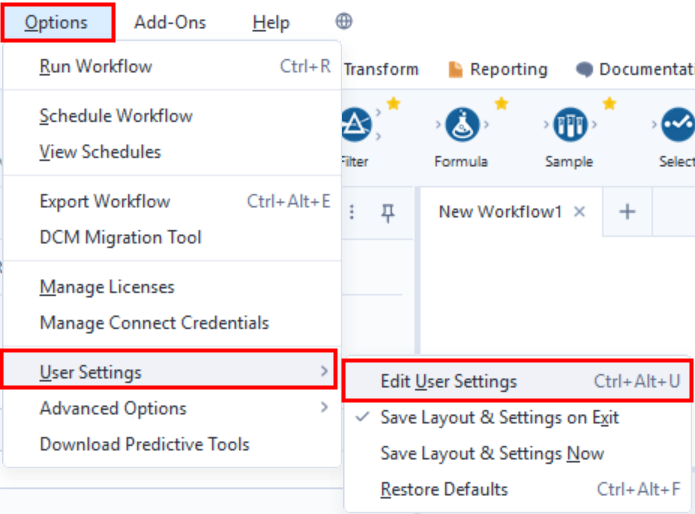
Then under General, you'll want to uncheck "Show Start Here at Startup" and hit Save:
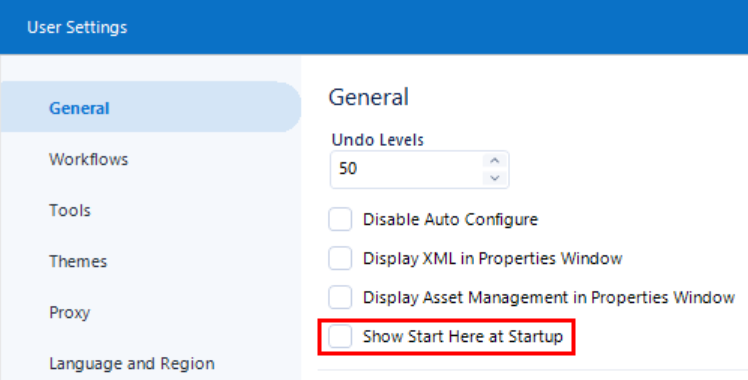
You can also play around with other settings (e.g., Themes to get dark mode) to personalize your workspace.
2) Dragging & Dropping Input Files Onto Canvas
When creating workflows, one way you can input a file is by dragging the Input Data tool onto the canvas and setting up a connection on the left pane, like so:
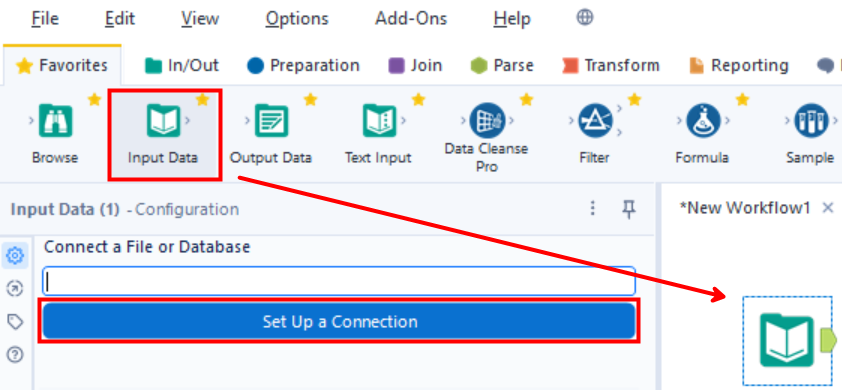
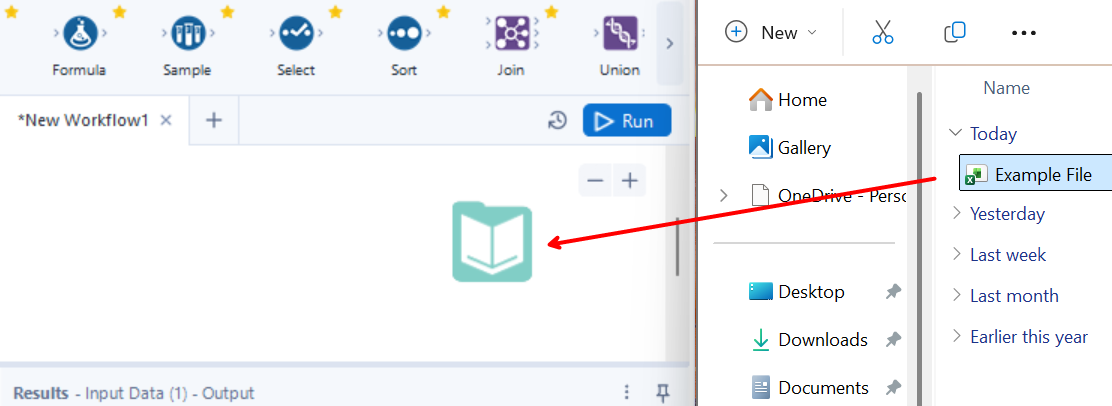
... but another way you can input is by dragging and dropping files from your file explorer directly onto the canvas:
3) Accessing Built-In Tool Examples
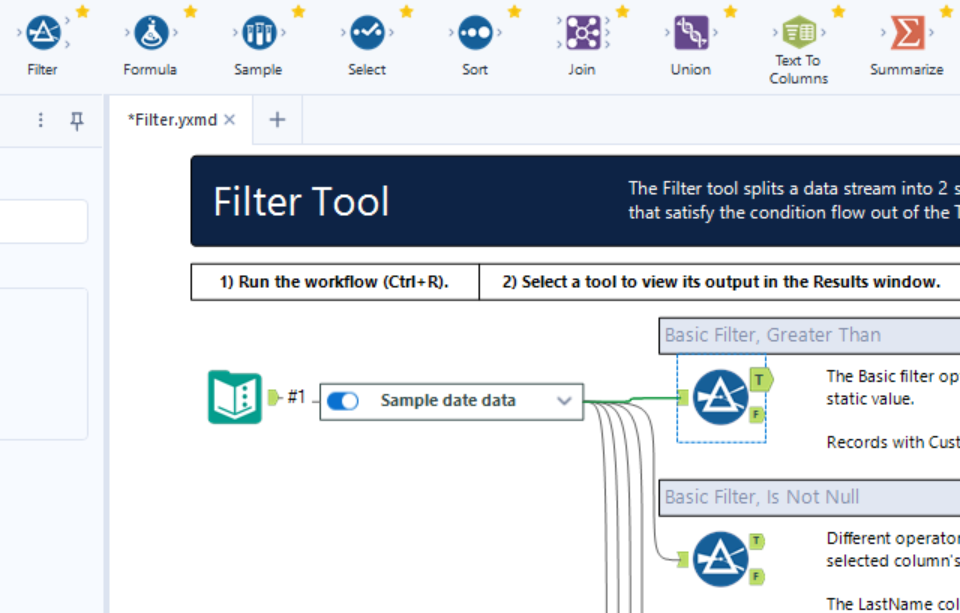
Working with a tool for the first time can be challenging, but one of the ways Alteryx makes this easier is by providing built-in examples for each tool. You can access these examples by clicking on a tool, clicking "Open Example", and running the workflow that pops up:
4) Utilizing Alteryx's Global Search
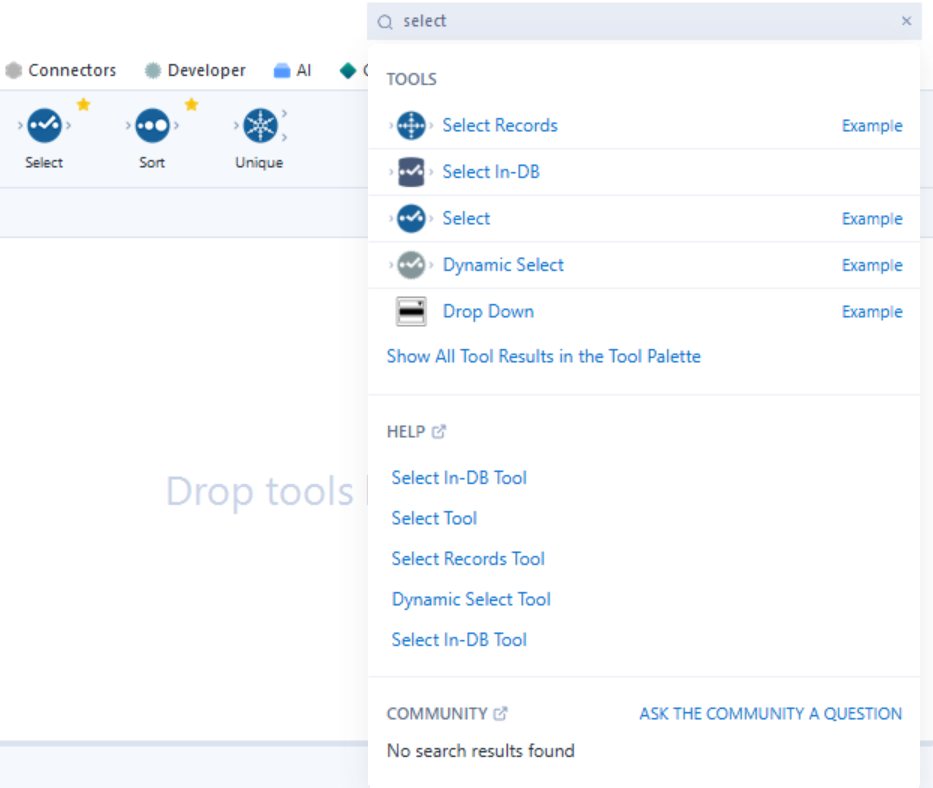
Sometimes, you'll want to explore other tools that don't live on Alteryx's tool palette by default. To do so, you can use the Global Search in the top right corner. Here, you can also find related documentation and Alteryx Community articles.
5) Customizing Your Tool Palette
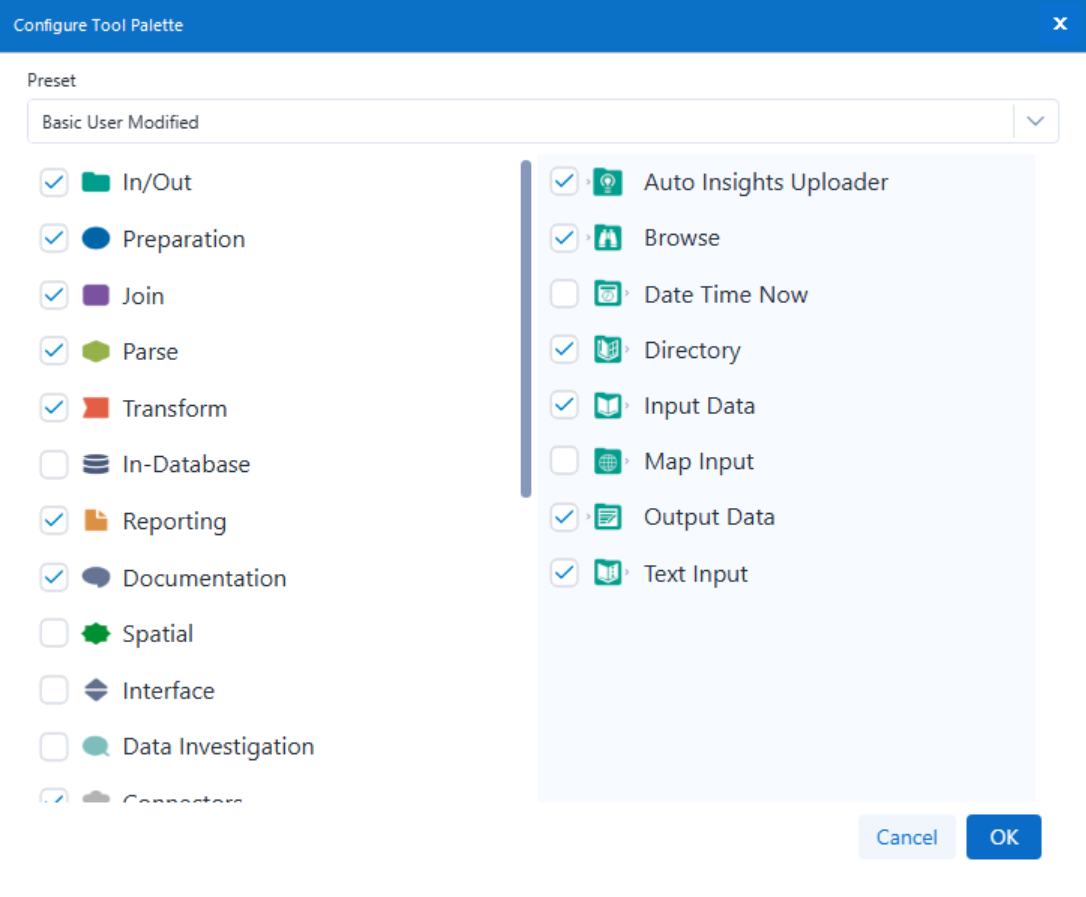
Speaking of Alteryx's tool palette, you can use the gear icon to the right of the tool categories to choose which tools you want on your palette:

6) Keyboard Shortcuts: Ctrl + R to Run/Stop Workflows
Instead of clicking the run button, you can use Ctrl + R to run or stop your current workflow. Plus, Alteryx has many other handy shortcuts that you can explore here!
7) Using the Browse Tool... With Intention
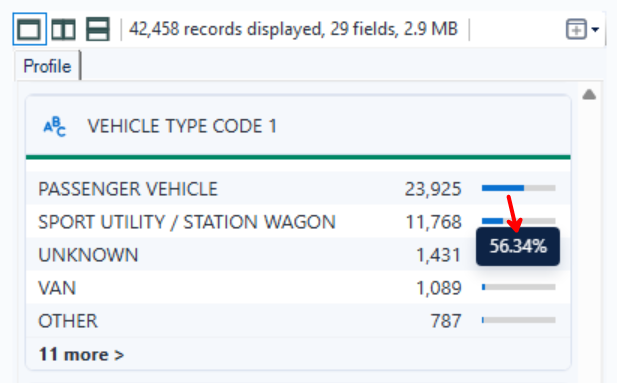
One function the Browse tool has is the ability to profile your data, or in other words, tell you how each field is broken down. You can see this on the left side of your canvas:
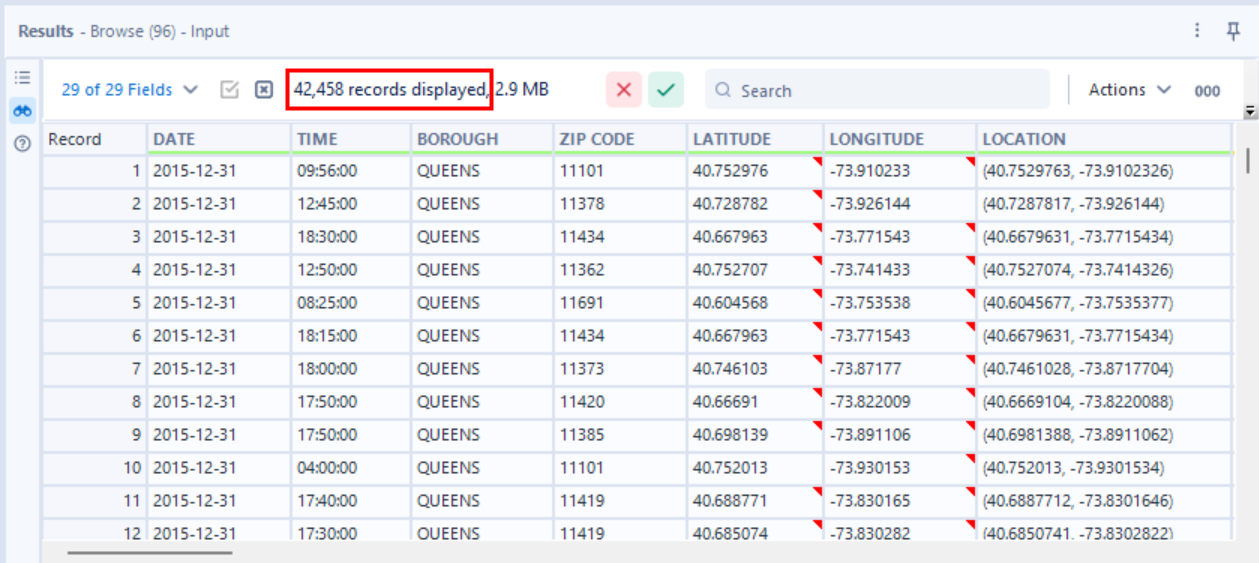
However, another reason why the Browse tool is useful is because it shows you all of your rows in the Results window, whereas other tools only show you a sample (up to 1 MB). This can be helpful in ensuring that your data cleaning accounts for all cases.
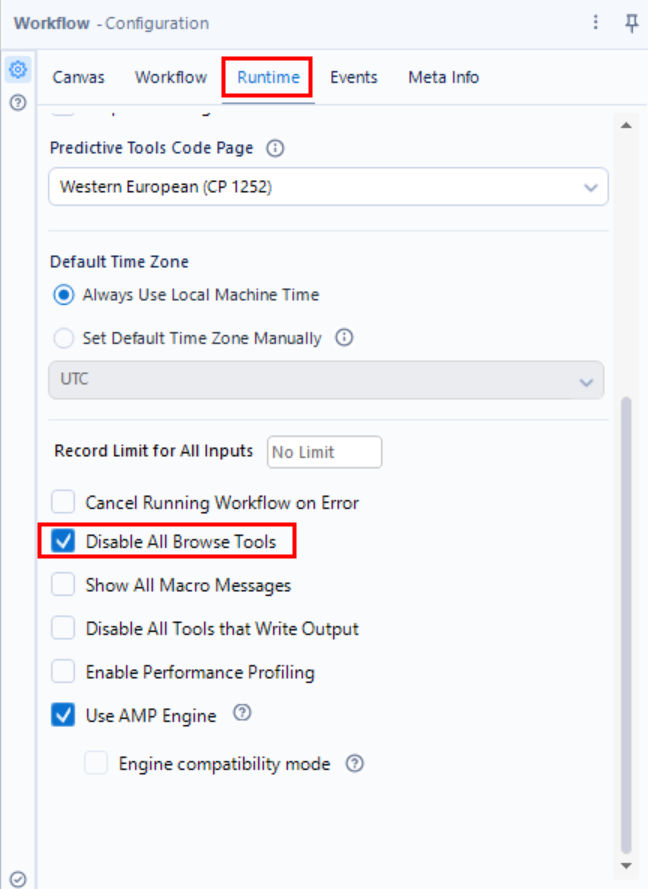
Be warned, though: since the Browse tool renders all of your data, it can make your workflow significantly slower. To account for this, you can delete Browse tools after you're done viewing them, or choose to disable Browse tools entirely. You can do the latter by clicking on a blank space in your canvas, then navigating to Configuration > Runtime > Disable All Browse Tools:
8) Annotating Tools
Documenting workflows makes it a lot easier for yourself and others to pick up where you left off. One way you can do this is by using annotations:
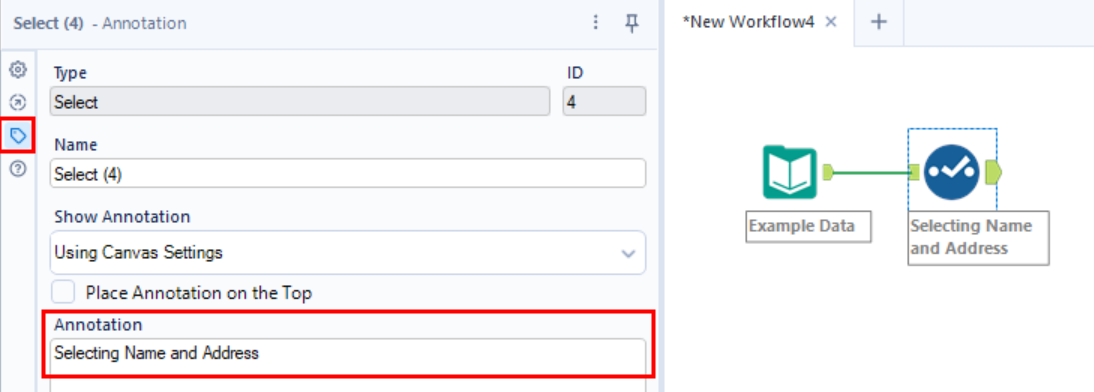
(Alternatively, you could also use the Comment tool, but I prefer annotations since they're attached to tools rather than free-floating.)
9) Using Tool Containers to Segment Your Workflow
Another way to document in Alteryx is by using Tool Containers. You can find them under the Documentation tab, from which you would drag and drop them onto your canvas as with any other tool:
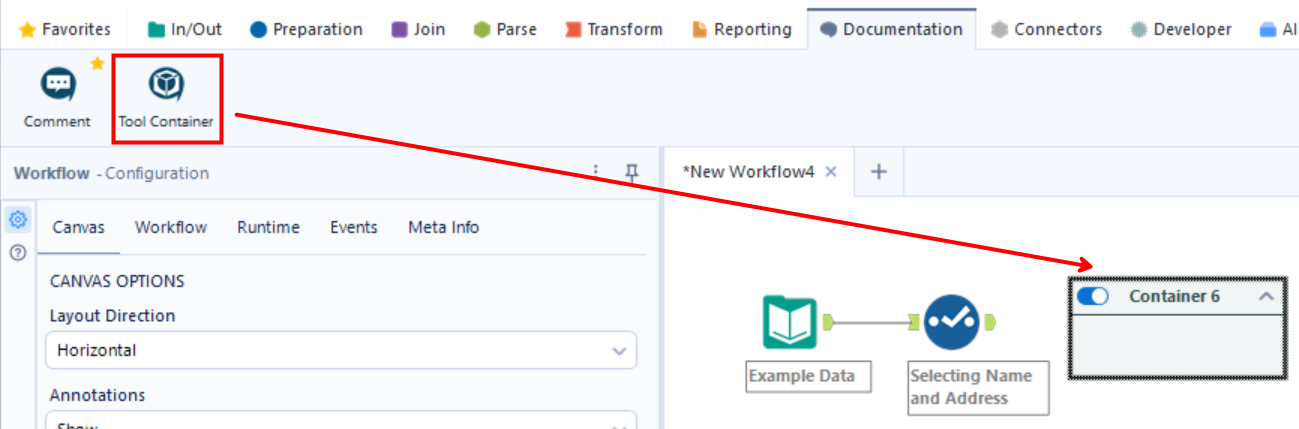
I personally find this method to be inefficient since you then have to drag your tools into the container as well. An easier way that puts them into the containers automatically is highlighting the tools you want to group, right clicking, and clicking "Add To New Container":
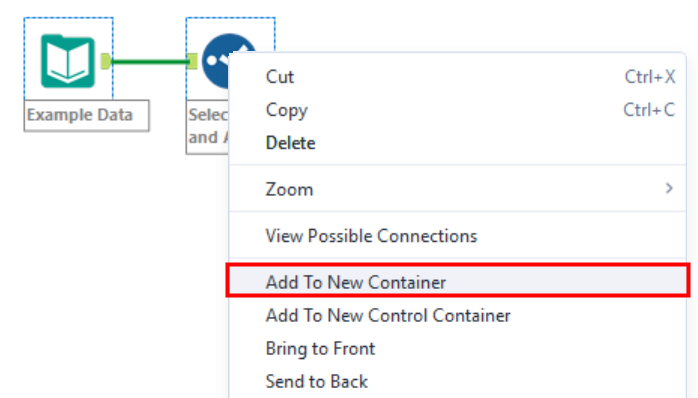
From there, you can customize your container's title and colors to make your workflow easier to digest. You can also use containers to disable specific tools so that they don't run with the rest of the workflow:
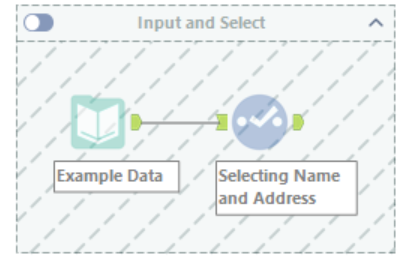
... or collapse them to make your workflow less cluttered:

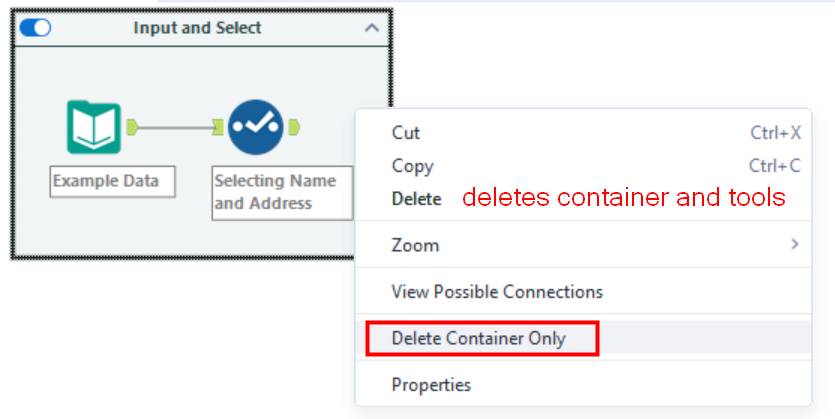
Just be mindful that clicking Delete will delete both the container and the tools inside it, so choose Delete Container Only if that's your intention:
10) Caching and Running Workflows
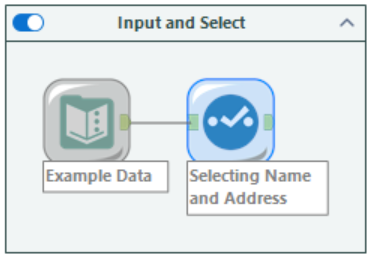
It can be time-consuming to re-run workflows every time you add a new step, especially if you're working with a large dataset. You can cache your tools to prevent having to re-run them. To do this, highlight the tool you want to cache up to, right click, and click Cache and Run Workflow:
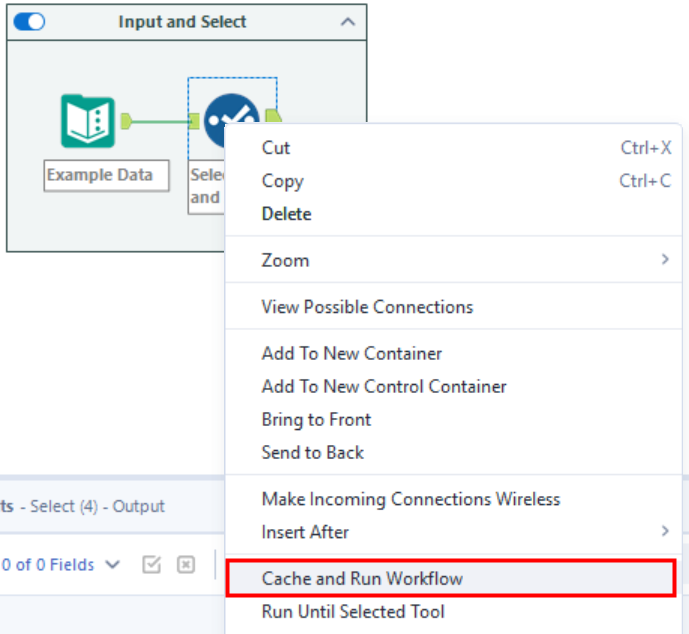
Now this tool and everything to the left of it will be cached, and your workflow will look like this:
These are just a few tips and tricks that I found useful when starting out, but there are so much more online. The Alteryx Community is a great resource for navigating any issues you might run into, no matter what stage you're at in your Alteryx journey, so I highly recommend it.