


For one of my personal projects, I was interested in using fragrance data. Rather than finding a dataset from Kaggle, I wanted to explore using an API to get data. This post walks through how I did it in Alteryx ending with a clean dataset of one row per fragrance, which would be ready to use in a visualisation tool such as Tableau.
What is an API?
An API (application programming interface) is a way for applications to communicate with each other. It acts as a bridge and enables one system to request data or a service from another system without needing to know about the other system. Think of a restaurant - you tell the waiter what you want and they will bring it from the kitchen. You don't need to have any knowledge about how things are handled in the kitchen, the waiter handles it all. The waiter in this case is the API and the kitchen is the other system that you are trying to get something from.
Why would you use it?
- Get data
- Post data
- Delete data
Documentation
The first thing you want to look for with any API is the documentation. Warning: the level of documentation you will find will vary. Luckily for me, the documentation found here in the Fragella API is quite extensive which made things a lot easier.
Steps in Alteryx
In simple terms, we need:
- Text Input tool - this is where we will paste in information related to the API such as the url.
- Download tool - this is what actually sends a request to the API and brings back the response
- Data cleaning steps - this is where we will use a handful of tools to turn the API response into a format that can be used for analysis.
Finding your endpoint
To pull data into Alteryx you need an endpoint - this is the url which we will put into our text input.
In this API our base url is https://api.fragella.com/api/v1/
We then have a few options depending on what it is we want to bring back:
- /usage = Checks the current status of your API key's monthly quota.
- /fragrances = Primary endpoint containing general information about a perfume.
- /fragrances/:id = Retrieves the full profile of a single fragrance using its unique identifier (slug).
- /fragrances/:match = Returns fragrances that satisfy all requested accords and notes.
- /fragrances/similar = Finds fragrances that are most similar to a given scent.
- /brands/:brandName = Retrieves all fragrances associated with a specific brand.
- /notes = Searches the database for individual fragrance notes.
- /accords = Searches the database for fragrance accords (scent families).
Note: where you see :id or :brandName this is a path parameter - you would replace it with the actual value. Always check the documentation for the exact format so you bring back the right thing e.g. if its case sensitive.
Query Parameters
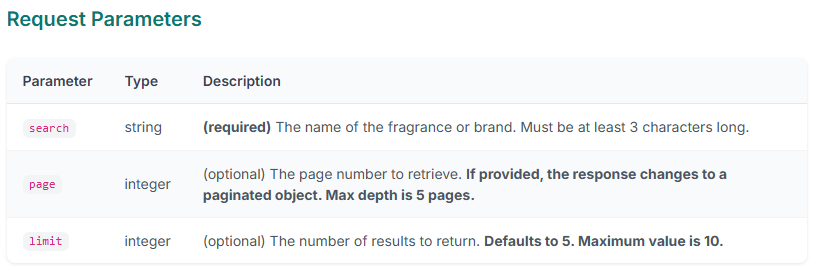
Within some endpoints, there may be some query parameters which are added to the end of the url after a "?". Unlike a path parameter, these are used for filtering or limiting results.
For example with the /fragrances endpoint, these are the parameters set out below. The default limit is intentionally kept small to help prevent abuse, reduce unnecessary load on the API, and keep response times fast. With a limit max of 10, this means that per page we will have 10 results.
Note: The default and maximum differ per endpoint so always refer to the documentation!
Authentication
- Not all APIs require this but some will need an API key.
- In the documentation you will find what the exact header you need to put this API key should be. For this API it is x-api-key
- To get this API key, you may have to create an account as I did in this case.
Usage
- APIs will have a limit on how many requests you can send. For this API I was limited to 20 requests/month with paid subscription tiers offering more.
- This is quite a tight limit so always check your usage (there was a usage dashboard on the site) as well as avoiding re running your workflow. (This is talked about more in the Cache and Run section further down.)
Adding this in Alteryx
- Let's go ahead and try to pull some data in Alteryx.
1.Text Input
First step is to add the url and API key into a text file.
- I'm interested in just finding perfumes from the brand Byredo so I will be using /brands/Byredo at the end of the base url.
- For the API key make sure the header is listed exactly as the documentation said.
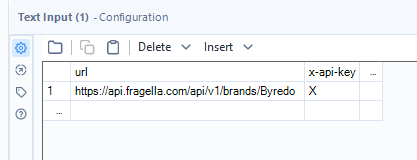
- Because I have not set a limit, it will return the default value (10) - as mentioned before this differs between the different endpoints.
- If I wanted to set a limit of 5, I would then add ?limit=5 to the end of the url.
2.Download Tool
Next, attach a download tool.
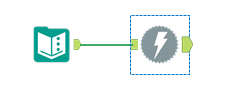
The download tool has 4 tabs: Basic, Headers, Payload and Connection.
Basic:
- For this tab, you just need to make sure that the column selected in the url field is where you put your url.
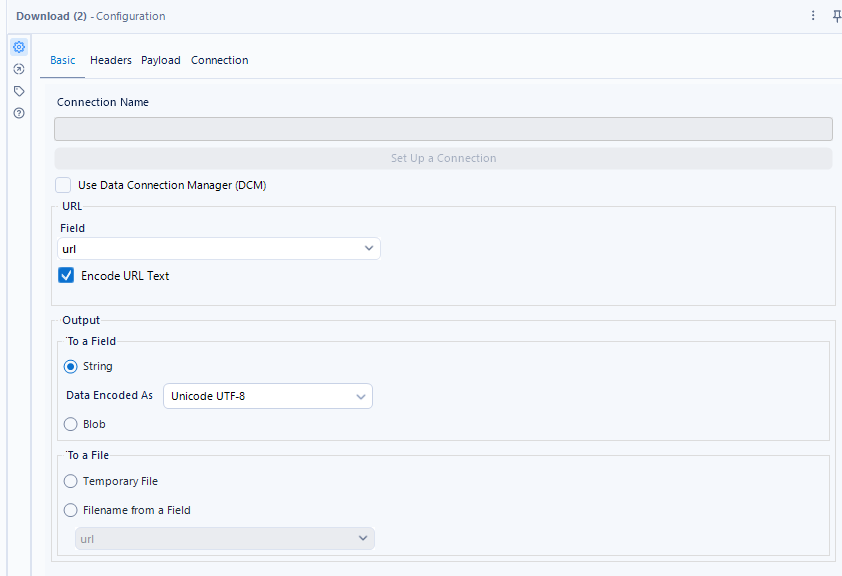
Headers:
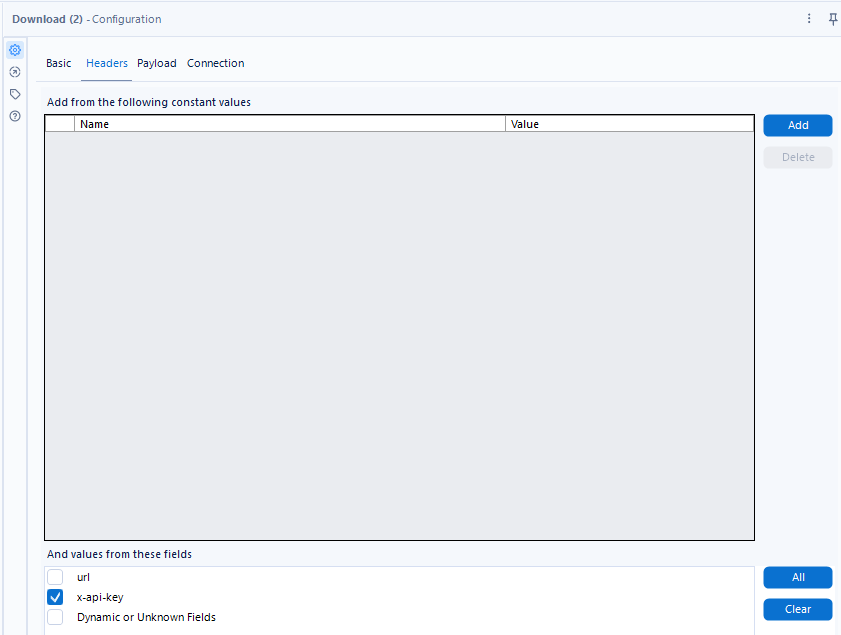
- The only thing required with this API is the key must be present. So in the headers tab, ensure that the API key column is selected.
Payload
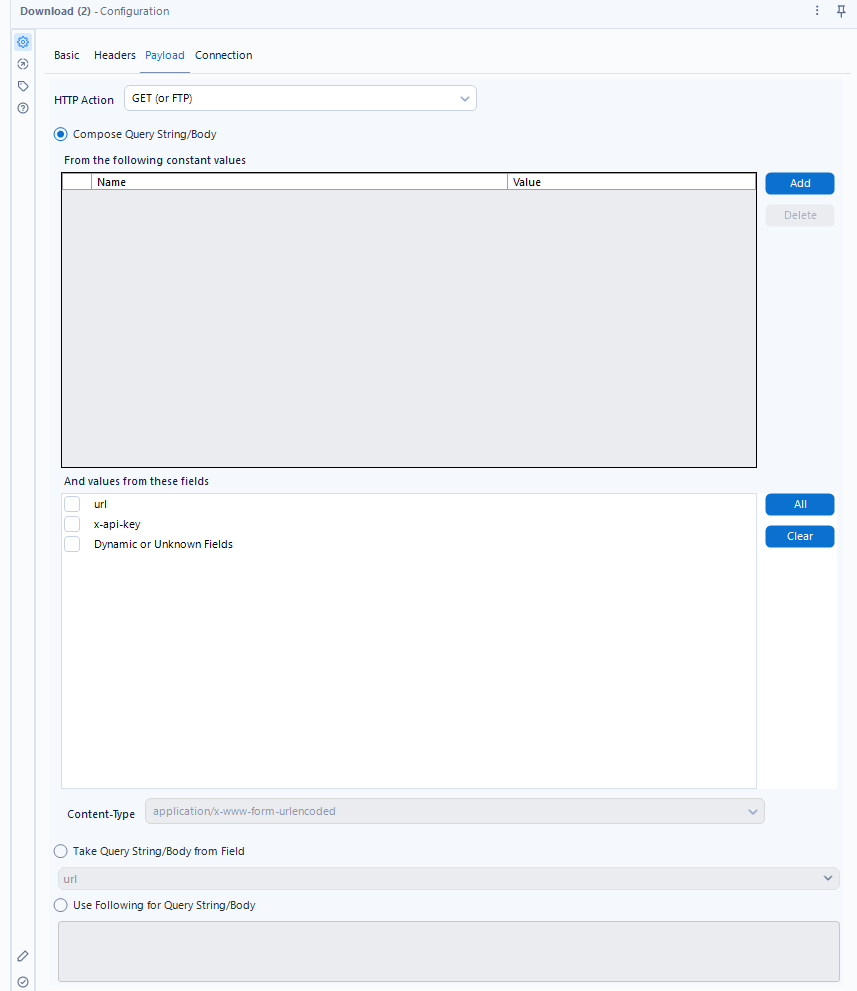
- The payload tab is where you set your HTTP method. As briefly mentioned in the intro, with an API we can do things such as get and delete data - these are the different HTTP methods.
- With this specific API, we are only able to GET data and so the HTTP action is set to GET. Aside from that, nothing else has been changed in this tab.
Connection:
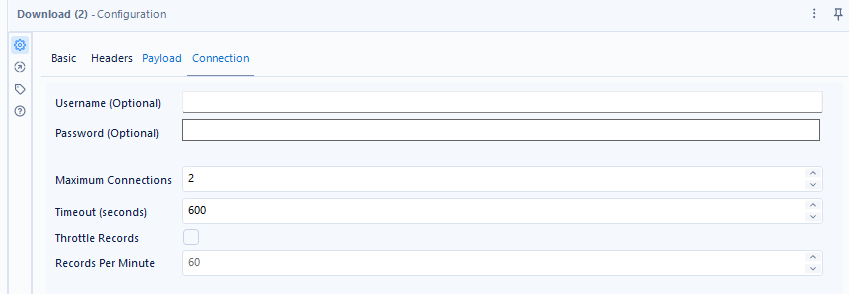
- This tab controls things such as timeouts and how many requests run at once.
- I've just left it at the default values.
Cache and Run
- With the limit being set to 20 requests per month, we do not want to be re running this tool multiple times.
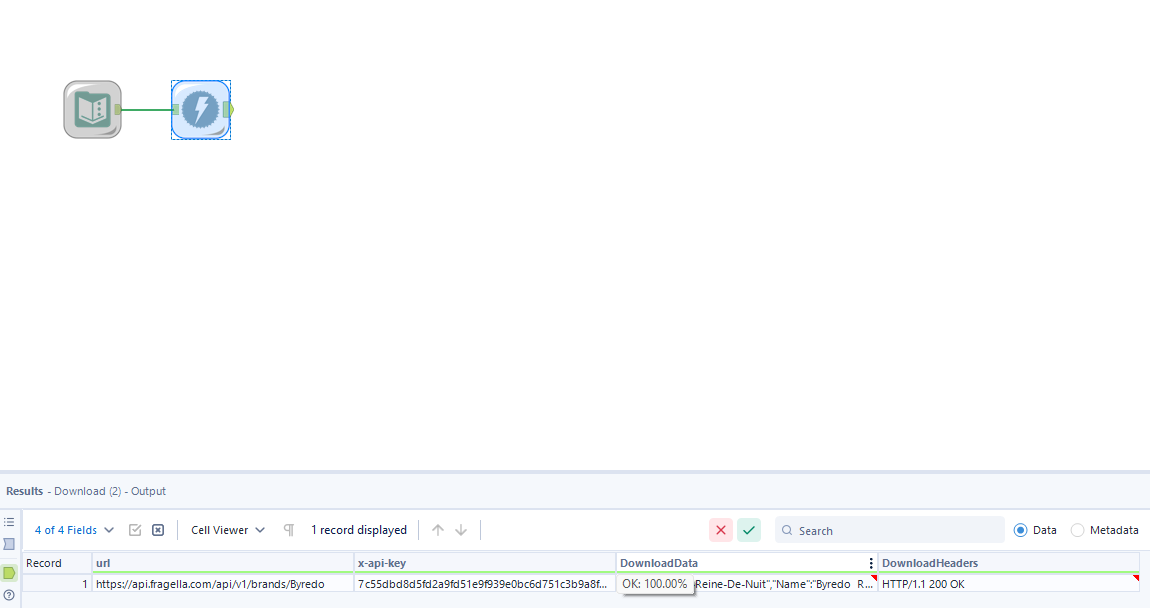
- Therefore, we should right click on the tool and hit cache and run. This stores the results of that run in memory, so when you continue adding tools downstream and hit run, Alteryx will use that cached data instead of hitting the API again.
- If you do need to change what is in either tool, you will have to clear the cache and run it again. So make sure you check your URL and settings before you cache otherwise you will very quickly hit the limit.
3.Cleaning the Data
JSON Parse
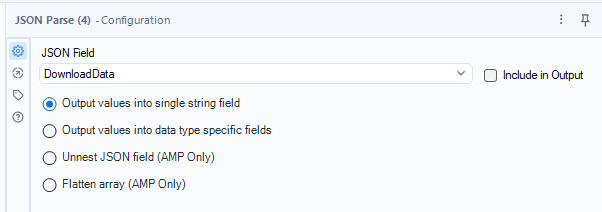
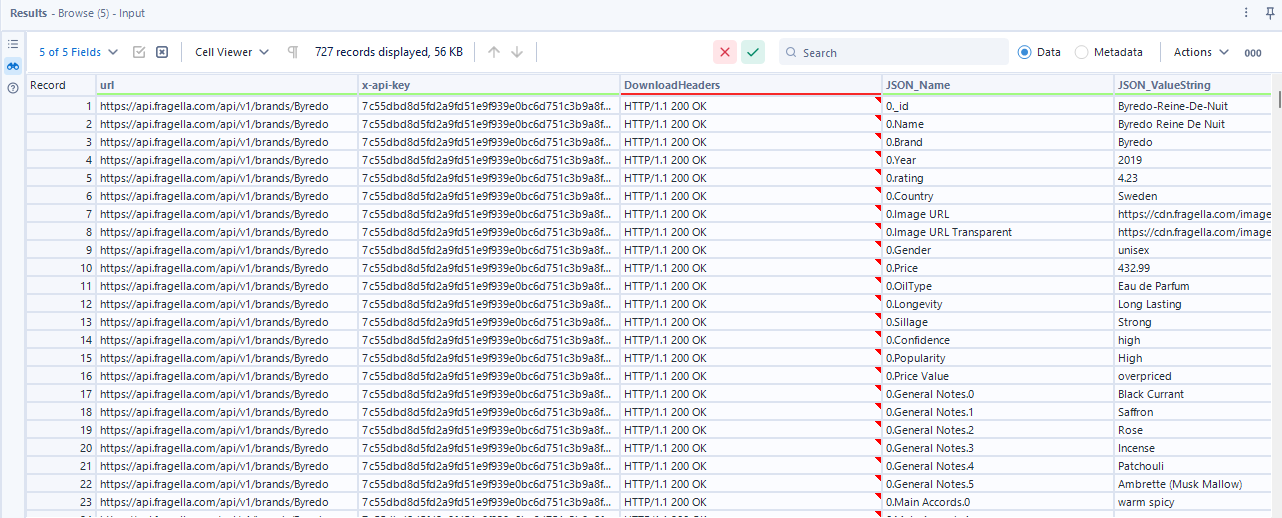
- The API returns data in a JSON format. Using the JSON Parse tool we can convert it into a readable string structure.
Tool Configuration
Results
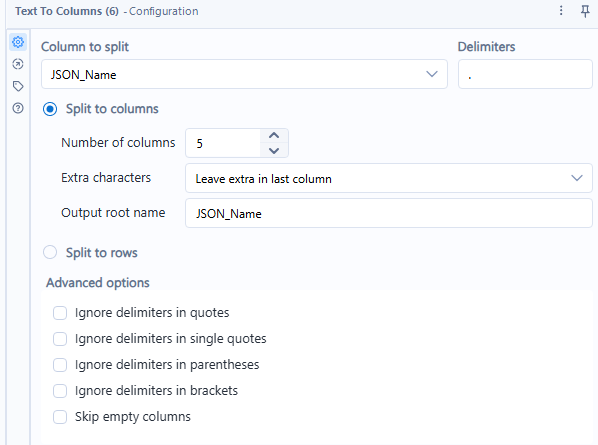
Splitting the Name field using Text to Columns
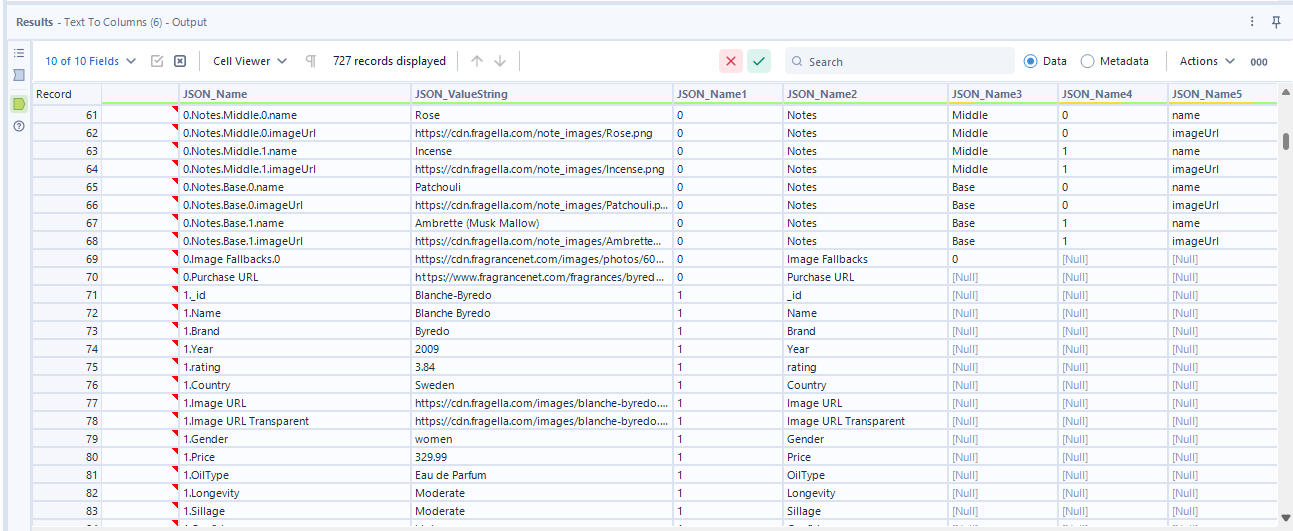
Next I wanted to split the JSON_Name which left me with separate columns for the different field names.
Results
At this point I filtered out some data, removing some note information just to keep things simple.
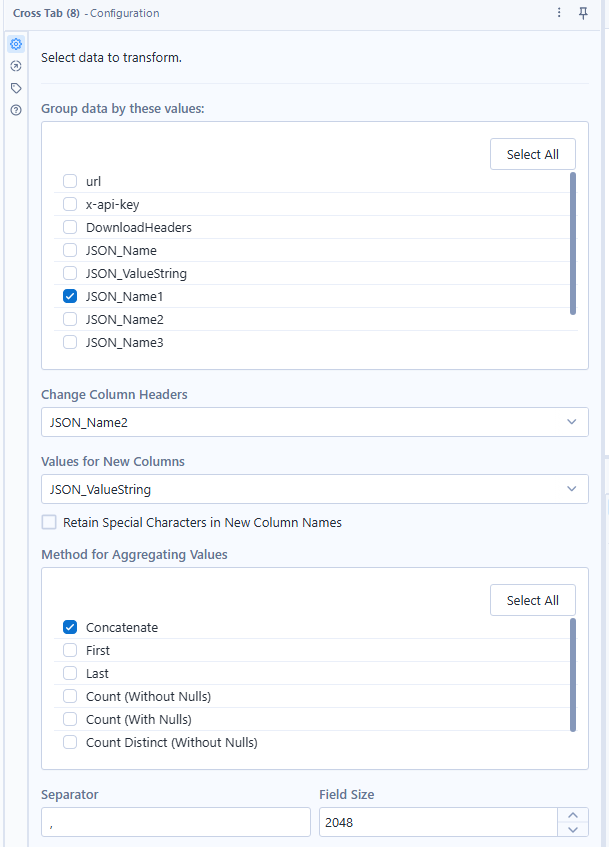
Cross-tab
- I used the cross-tab tool to transform my data so that one row equals one fragrance.
Results:
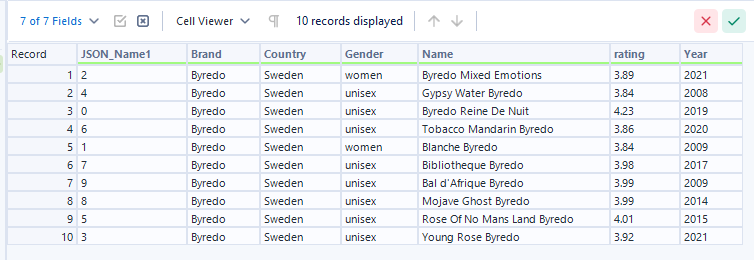
Now this is exactly the kind of format we want our data in and it is ready to be pushed into a data visualisation tool.
Notes
- Take your time with the documentation and count yourself lucky if it is well documented.
- Check your rate limits and always cache so you don't waste requests!