


This blog isn't for complete beginners. You've done some tutorials, you know what git commit does in theory but you're still not totally sure where your code actually is at any given moment. That's what this is for.
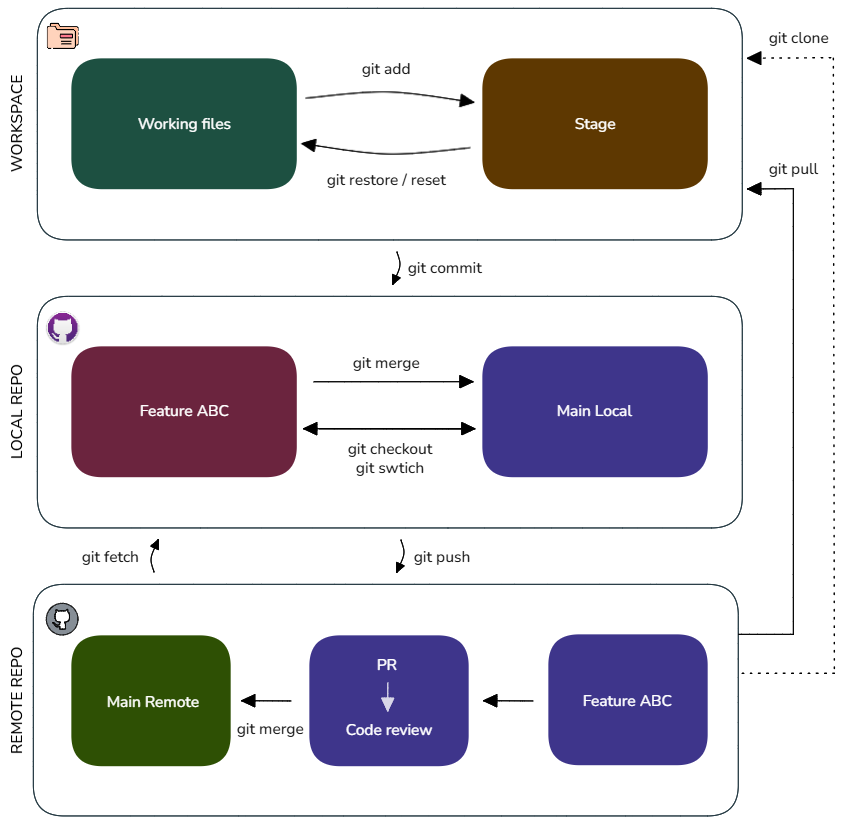
The sketch above is the mental model I keep coming back to. Three layers. Once it clicks, most Git confusion goes away.
Workspace: Your Machine, Before Git Knows About It
When you edit a file e.g., in VS Code or Jupyter, Git hasn't done anything with it yet. Those changes just exist on disk. Git is watching, but not recording.
git add is you telling Git: "okay, include this in the next snapshot." That moves files into the Stage: a holding area. Nothing is saved yet, you're just deciding what goes into the next commit.
Changed your mind? git restore or git reset pulls it back out of the Stage. No harm done.
Your Local Repo
git commit is the actual save. It takes everything staged and logs it permanently into the hidden .git folder on your machine. This is your full local history- every commit you've ever made on this project lives here.
The branching side of this layer trips a lot of people up. Feature ABC and Main are just two separate timelines living on the same machine. git switch (or the older git checkout) is how you jump between them. Your feature branch lets you experiment without touching the stable code which is the whole point of Git.
Remote Repo: GitHub Online
This is the copy of your repo that lives in the cloud and that your team shares.
git push uploads your local commits to GitHub. But your code doesn't land directly on the main branch. It goes to a feature branch on GitHub, then sits in a Pull Request for review. Someone checks it, approves it, and then it gets merged into Main Remote. That PR step is a deliberate checkpoint, not a bureaucratic annoyance.
git pull is the reverse. It grabs the latest from GitHub and updates your local copy. git fetch does the same download but doesn't apply the changes yet, so you can have a look first.
"Wait, where even am I right now?"
Three commands that answer this:
git status : are my changes still unsaved, or have I staged them?
git branch : which branch am I on?
git log : what does the commit history look like from here?
Run these when you're disoriented. They're free to run, they change nothing, and they almost always un-stick you.
switch vs checkout
git checkout is the old multi-tool. It can switch branches, restore files, detach your HEAD. It does a lot, which is why it can feel confusing.
git switch was introduced specifically to move between branches and nothing else. If you're just trying to get from Main to your feature branch, use switch. It's clearer about what it's doing.
The flow in one line
Upstream : git add → git commit → git push
Downstream : git pull (or git fetch to look before you leap)
Sideways : git switch <branch>
That's most of what you'll do day to day. The diagram just makes it easier to remember which layer you're moving between.