


Sometimes you’ve got multiple files with the same schema (same columns, just different data) and you just want to stack them all together in one dataset. Here’s how I do it using two tools:
- Directory Tool -> Dynamic Input Tool
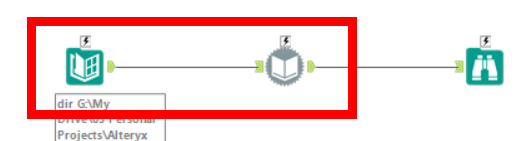
In my case:
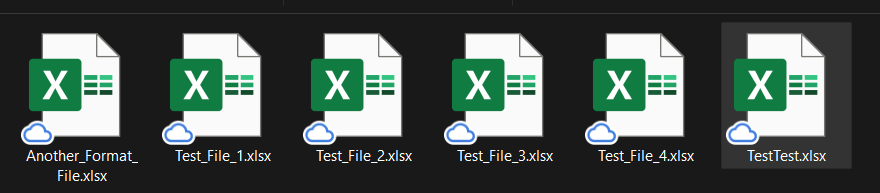
- I’ve got 6 Excel files
- Each has different name and sheet names
- Schema is the same
- My outcome → Union them into one table
Step 1: Directory Tool
- Drop a Directory tool on the canvas
- In Directory, point to the folder where your files live
- In File Specification, put
*.*- This tells Alteryx to grab any file type name and type.
- For me, they’re all
.xlsx, but if you’ve got a mix of.csvand.xlsx, this wildcard saves you effort
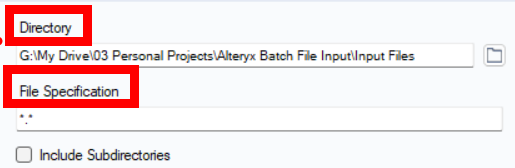
If your files are in subfolders, tick Include Subdirectories. Mine weren’t, so I left it off.
The Directory tool gives you a list of files, with fields like FullPath that we’ll use next.
Step 2: Dynamic Input Tool
- Drag in a Dynamic Input tool and connect it to the Directory tool.
- Under Input Data Source Template, browse to one of your example Excel files and select a sheet.
- This tells Alteryx what the schema looks like so it knows how to read the rest.
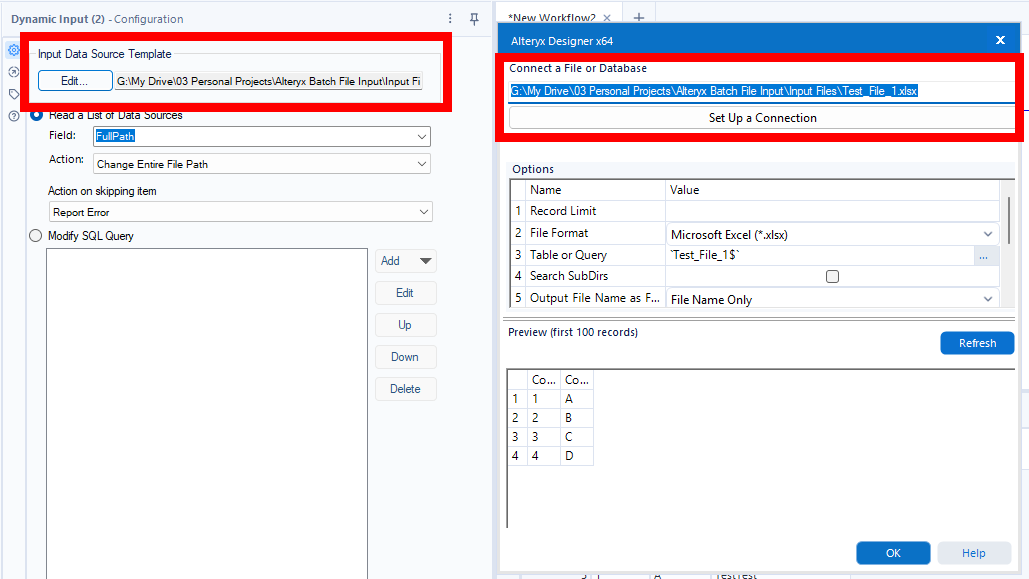
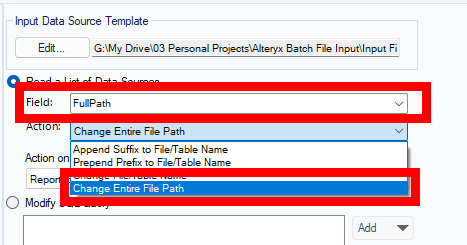
- In the Field dropdown, choose
FullPath.- This way, you are telling Alteryx: “For each row in the Directory output, replace the full path in my example file with the one from this row.”
Step 3: Run It
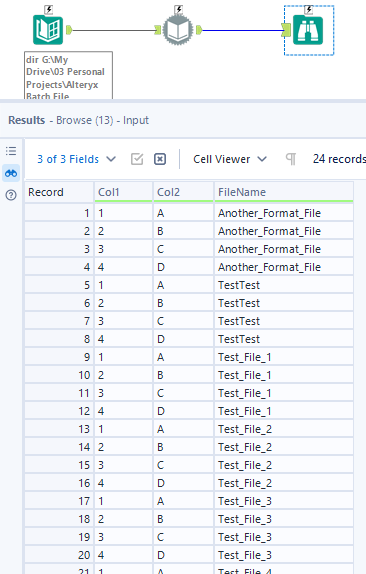
Hit run, and Alteryx will cycle through each file, read the data, and union it all into one clean dataset.
Bonus Read for Dynamic Input Tool : File Name Options
Dynamic Input lets you add a column to keep track of which file each row came from. Under Output File Name As (after you click 'Edit'), you can:
- Add the Full Path (folder + file + extension)
- Add just the File Name (handy if you don’t care about the folder)
Actions You Can Use (Optional)
- Append Suffix → e.g., if you want every sheet name to end with
_2025. - Prepend Prefix → e.g., add
Raw_before each file name. - Change File/Table Name → useful if sheet names differ slightly across files.
- Change Entire File Path → lets you redirect the tool to a different folder dynamically.