


Ever had a Tableau URL action fail because you selected too many filters? To find the breaking point, using the Superstore dataset, I pushed the URL action to its limits using Customer Name and Category filters. Here are two methods to 'zip' your data, moving from basic string aggregation to high-capacity numeric mapping.
Method Overview:
| Feature | Method 1: String Aggregation | Method 2: Numeric ID Mapping |
| Complexity | Low (Internal Calculations) | Medium (Requires Lookup Table) |
| Capacity | ~180-200 Values | 800+ Values |
| Best For | Quick fixes & smaller lists | Enterprise-scale & massive datasets |
| Data Source | Native Tableau Data | Requires Data Blending/Join |
Method 1: The String Aggregation (Text-Based)
Goal: Send actual Customer Names through a URL without repeating the field name for every person.
Capacity: Up to 186 names/filters (still limited by browser URL character limits).
Note: For this example I was using Customer Names and Categories as the filters. Customer Names had up to 800 to filter so it was good to be able to test bulk filtering and the limits for the methods.
Step 1: Create the "Zipping" Calculation
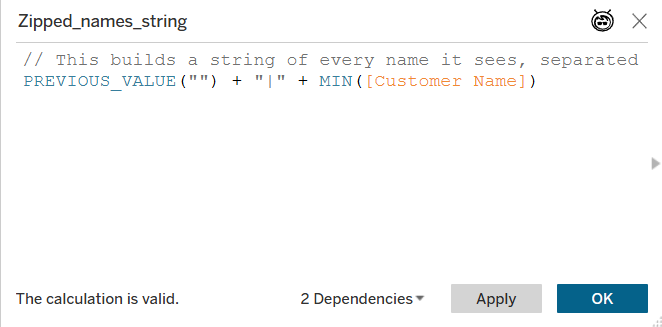
In your Source Workbook, create a calculated field to bundle all selected names into one long string. This prevents the URL from repeating &CustomerName= for every single person.
- Field Name: Zipped_names_string
- Formula: PREVIOUS_VALUE("") + "|" + MIN([Customer Name])
Note - After doing this method I realised “|” translates to three characters in the URL whereas “.” is only one so to make it more efficient I would replace it with a full stop which is what I did in Method 2.
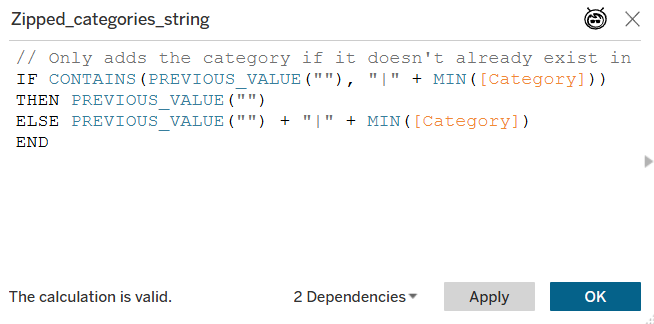
Now for the categories, as these are less granular and multiple customer names can be under each category, the above calculation is not sufficient to only get it to say the category once in the URL so you must use the below calc.
- Field Name: Zipped_categories_string
- Formula: IF CONTAINS(PREVIOUS_VALUE(""), "|" + MIN([Category])) THEN PREVIOUS_VALUE("") ELSE PREVIOUS_VALUE("") + "|" + MIN([Category]) END
Step 2: Set up the "Go Button"
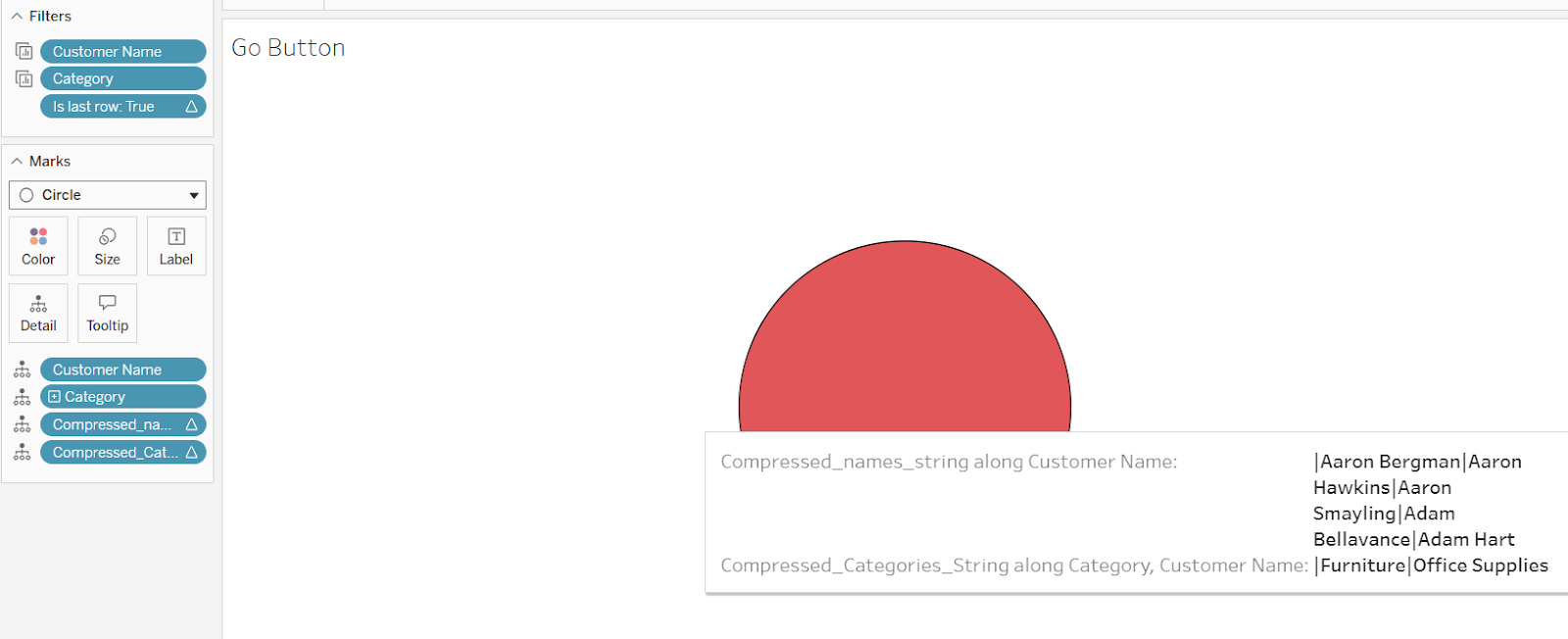
- Create a new worksheet named "Go Button".
- Drag Customer Name and Category to the Detail shelf.
- Drag Zipped_names_string to the Detail shelf.
- Right-click > Compute Using > Customer Name
- Drag Zipped_categories_string to the Detail shelf as well.
- Right-click > edit table calc. > specific dimensions > tick all boxes
- Create a filter field (Is last row): LAST() == 0. Set it to True and computed using all dimensions to ensure only one "button" appears. (Same as the above step for computing by all dimensions.)
Step 3: Configure the Receiver (Target Dashboard)
- In the Target Workbook, create a String Parameter named p_TargetNames and p_TargetCategories
- Create filter calculations:
Filter receiver: CONTAINS([p_TargetNames], "|" + [Customer Name]).
Category Filter receiver: CONTAINS([p_TargetCategories], "|" + [Category])
- Add these to the Filter shelf of all sheets and set it to True.
Step 4: The URL Action
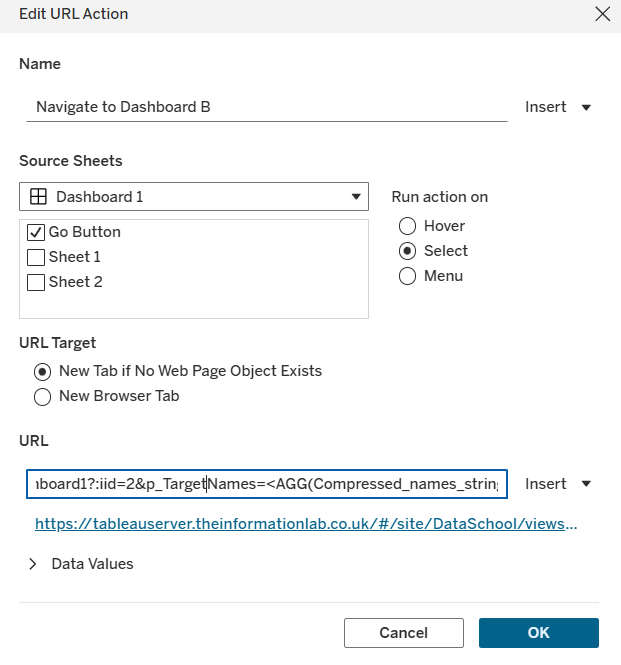
On the Source Dashboard, create a URL Action:
- First copy the Target Dashboard URL into the URL box in the action. Then add the bold on the end like below.
- URL: https://.../DashboardB-Test/Dashboard1?:iid=2&p_TargetNames=<AGG(Zipped_names_string)>&p_TargetCategories=<AGG(Zipped_categories_string)>
Result:
Source Dashboard: Hovering over the button to show what filters have been selected.
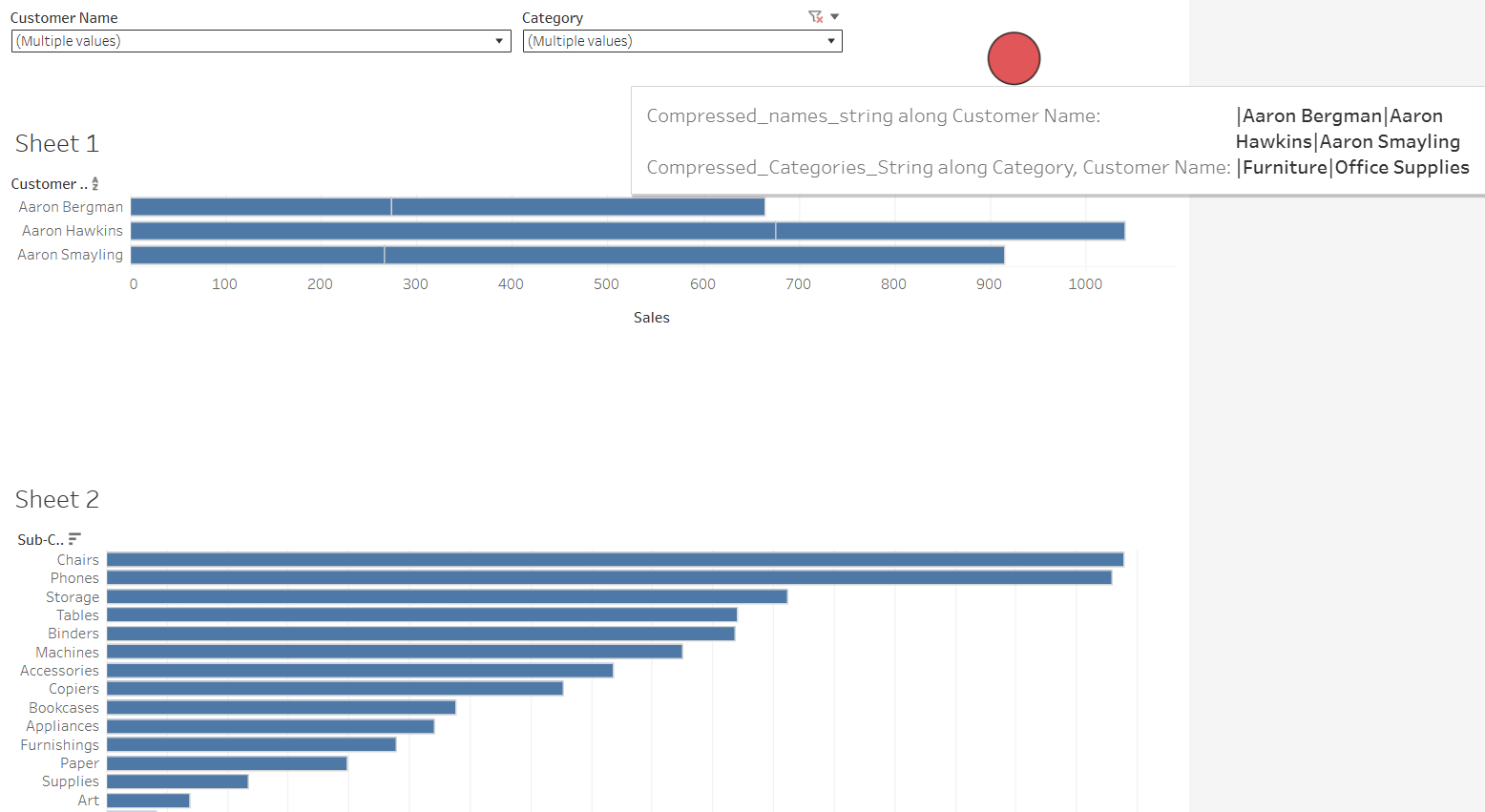
Target Dashboard: After clicking the go button you are taken to the target dashboard which is identically filtered with the following URL:
https://tableauserver….DashboardBTest/Dashboard1?:iid=1&p_TargetCategories=%7CFurniture%7COffice%20Supplies&p_TargetNames=%7CAaron%20Bergman%7CAaron%20Hawkins%7CAaron%20Smayling
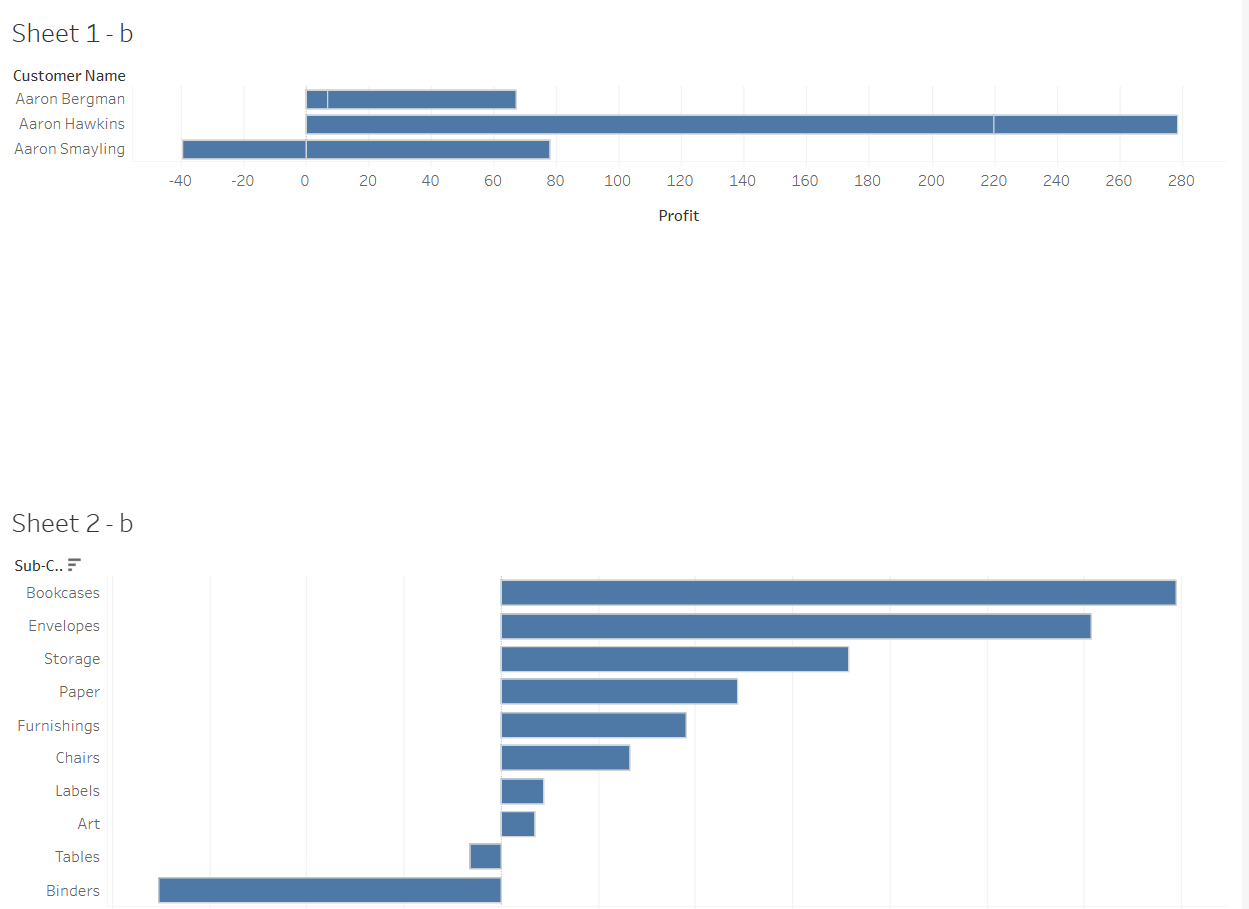
This could withstand 186 names/filters before erroring. (It could have taken a few more using the “.” delimiter instead of “|”.) This method is a quicker fix to most basic URL filtering issues arising but method 2 is much more efficient and can take on over 1,000 filter values. The steps for method 2 are below.
Method 2: Numeric ID Mapping (Integer-Based)
Goal: Replace long names with short numbers to handle massive selections.
Capacity: 800+ names/filters (Entire list of customer names and categories in this case).
Step 1: Create the "Dictionary" (Excel Lookup)
Because names are long (e.g., "Christopher Columbus"), we assign each one a unique ID (e.g., 42).
- Export a list of unique Customer Names (in this case) to Excel.
- Assign each name a number from 1 to 800.
- Save as Customer_Lookup.xlsx.
For mapping the categories, as there are only three options we can do this directly in a calculated field:
CASE [Category]
WHEN 'Furniture' THEN 1
WHEN 'Office Supplies' THEN 2
WHEN 'Technology' THEN 3
END
Step 2: Connecting via "Data Blending"
In Tableau, we must connect this Excel file to our main data.
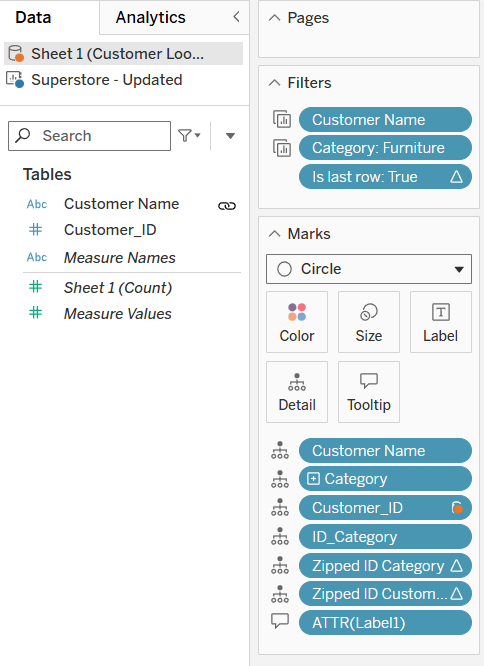
Why Blending? Because the main data source in my case is published to Tableau Server, Tableau prevents us from creating a "Noodle" (Relationship). We must use Data Blending (the orange link icon) to join the local Excel file to the server data. The chain next to Customer Name shows it is linking on this field.
Step 3: Optimised "Dot" Delimiters
To save even more space, we use a period (.) instead of a pipe (|). Browsers encode pipes as three characters (%7C), but periods stay as one character.
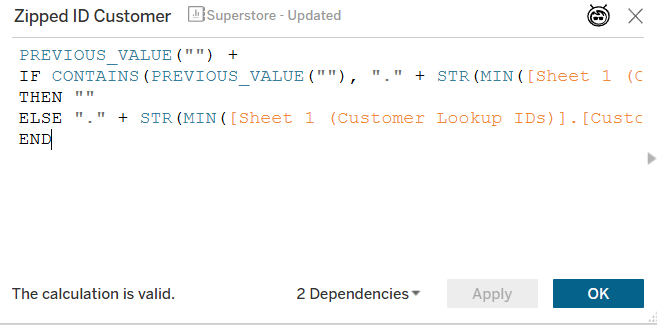
- Updated Zipping Formula (Customer):
PREVIOUS_VALUE("") + IF CONTAINS(PREVIOUS_VALUE(""), "." + STR(MIN([Sheet 1 (Customer Lookup IDs)].[Customer_ID]))) THEN "" ELSE "." + STR(MIN([Sheet 1 (Customer Lookup IDs)].[Customer_ID])) END
- Updated Zipping Formula (Category):
PREVIOUS_VALUE("") + IF CONTAINS(PREVIOUS_VALUE(""), "." + STR(MIN([ID_Category]))) THEN "" ELSE "." + STR(MIN([ID_Category])) END
Step 4: Set up the "Go Button"
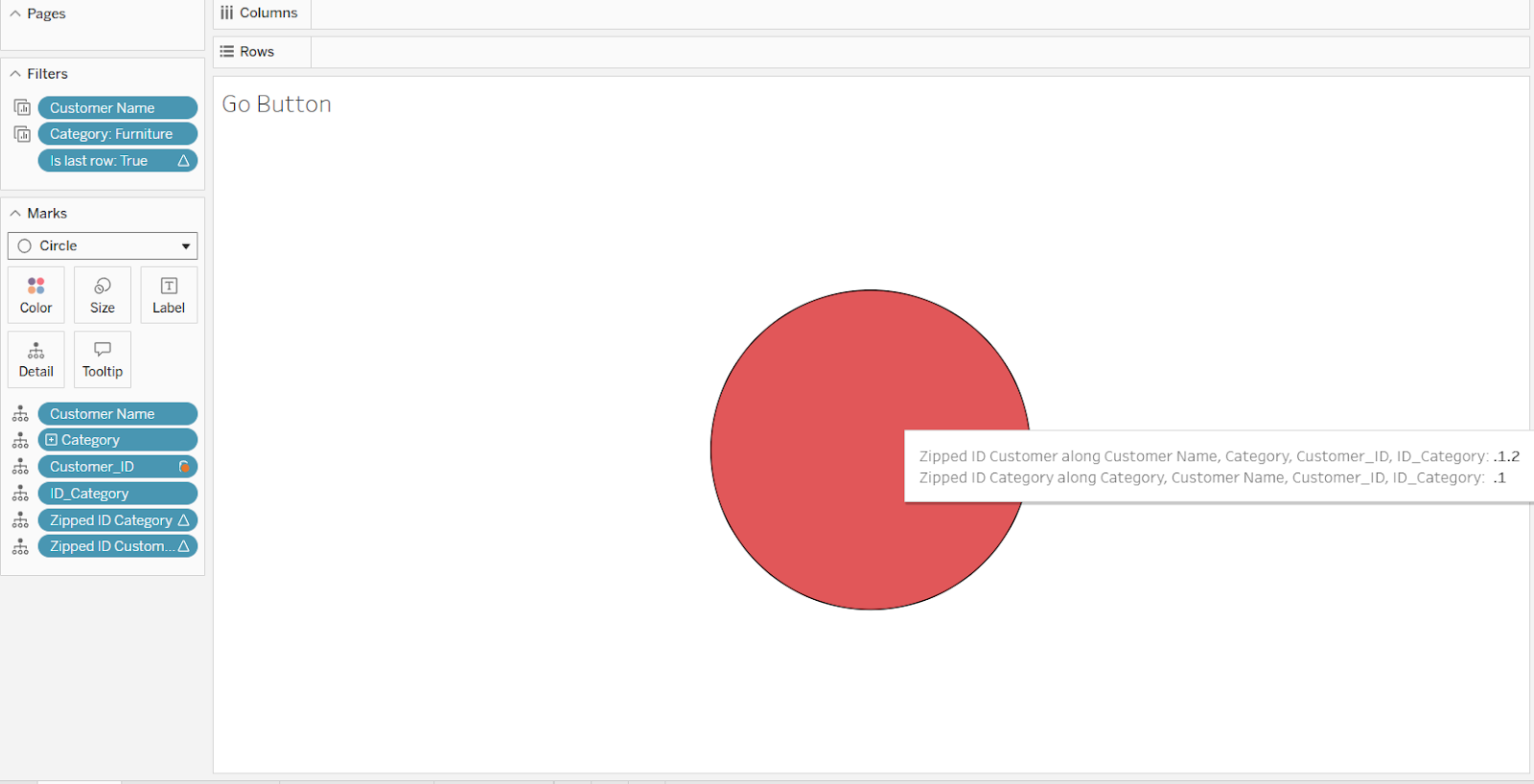
Step 5: The Receiver Filter (Aggregate-Safe) - Target Dashboard
Because we are blending, the receiver filter must be "Aggregate-Safe" to prevent errors:
- Formula: CONTAINS(MIN([p_Customer ID]), "." + STR(ATTR([Sheet 1 (Customer Lookup IDs)].[Customer ID]))) AND CONTAINS(MIN([p_Category ID]), "." + STR(MIN([ID_Category])))
- Critical Step: Drag Linking fields to the Detail shelf of all charts on the Target Dashboard to "activate" the blend link.
Drag this to the filter shelf on all sheets. It needs to be set to ‘True’. If true doesn’t show, hard code it by doing the following: edit filter > custom value list > True
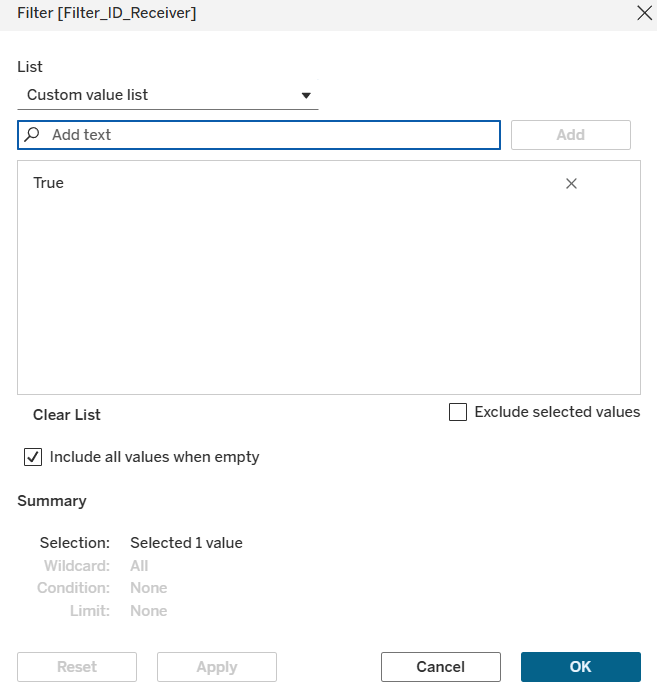
Step 6: URL Action
Same set up as Method 1 but with the new fields. The URL input for the action should look like this:
https://tableauserver….DashboardD-Method2LookupID/Dashboard1?:iid=5 &p_Customer ID=<AGG(Zipped ID Customer)>&p_Category ID=<AGG(Zipped ID Category)>
Result:
Source Dashboard: All 800 customer names filtered and all three categories.
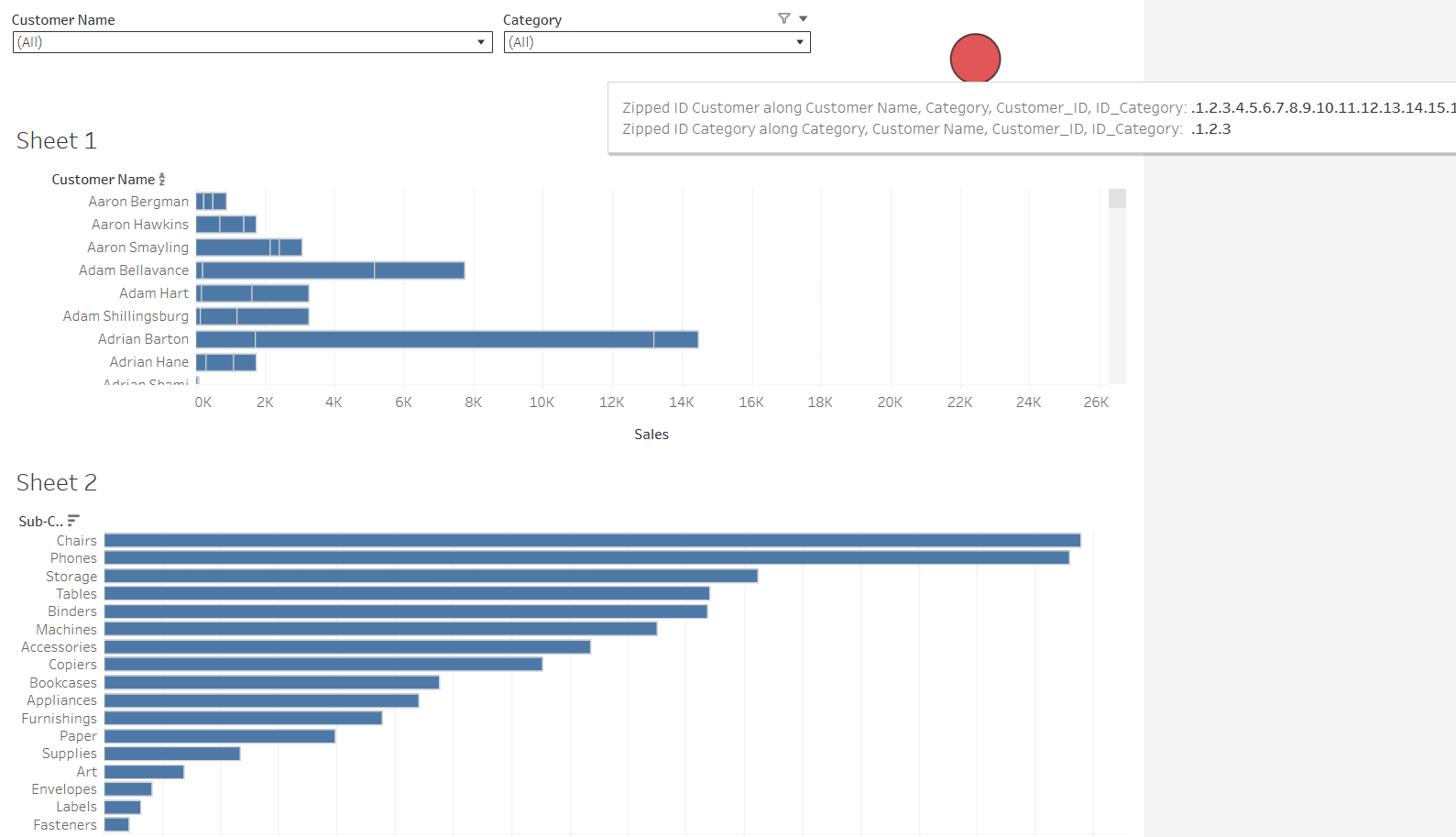
Target Dashboard: After clicking the go button you are taken to the target dashboard which is identically filtered with the following URL:
https://tableauserver….DashboardD-Method2LookupID/Dashboard1?:iid=1&p_Category%20ID=.1.2.3&p_Customer%20ID=.1.2.3.4.5.6.7.8.9.10.11.12.13.14.15.16.17.18.19.20.21.22.23.24.25.26.27.28.29.30. ……….. Up to 800.
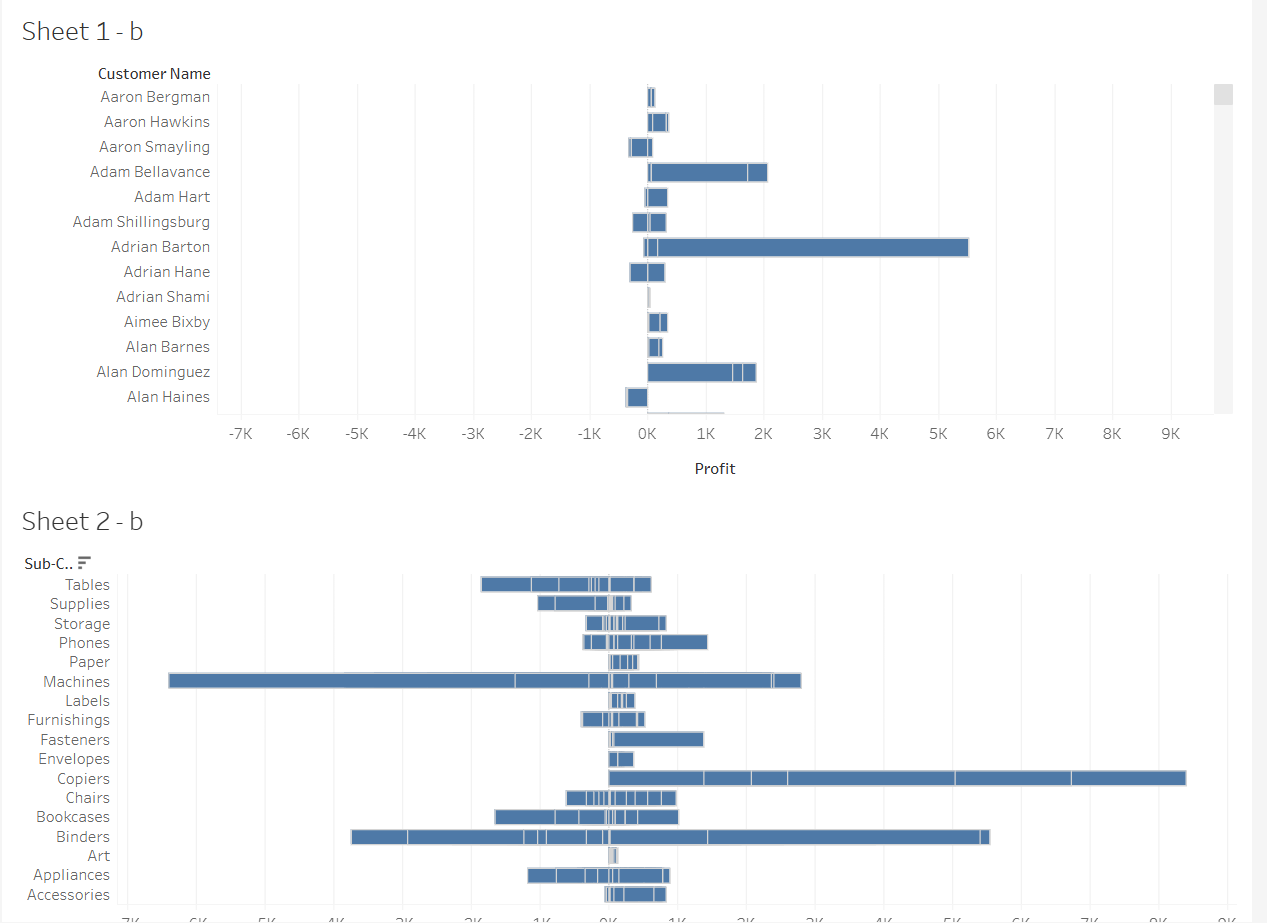
Final Comparison
- Method 1: Easy to set up, but "breaks" if the user selects more than ~200 names/filters (depends on size of your filter values. The character limit for the URL was ~3,540 - 3,550).
- Method 2: Uses numeric IDs and period delimiters to reduce URL size by over 80%. This allows a user to select all 800+ names/filters without hitting a character limit.
Important Note: The limit calculated of 3,540-3,550 characters is based off The Information Lab's server. Therefore I cannot guarantee when tried on other company servers, the limit will 100% be the same. Hence these methods should be taken as if you need a quick fix with a small amount of filters, use method 1. If you have a larger amount of filters to parse, use method 2 and take the 800+ as a rough estimate (it could be less or more).