


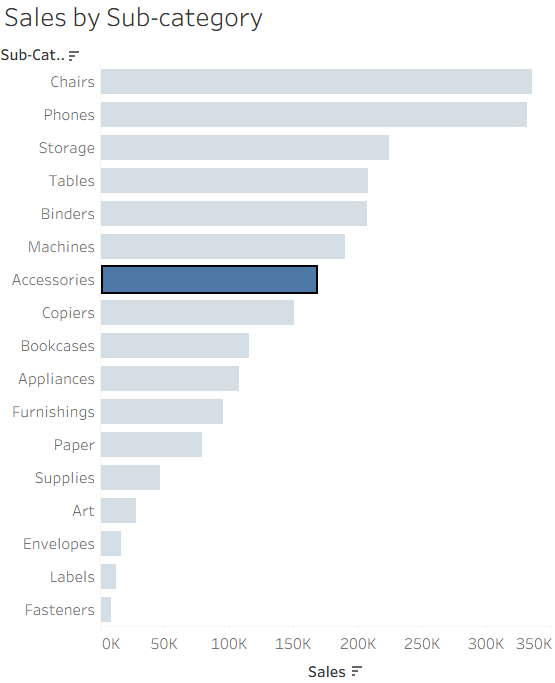
Tableau’s default highlighting helps users focus on a selected mark, but it can sometimes remove useful context by fading everything else. Disabling it can keep the full view visible, make comparisons easier, and create a cleaner interaction.
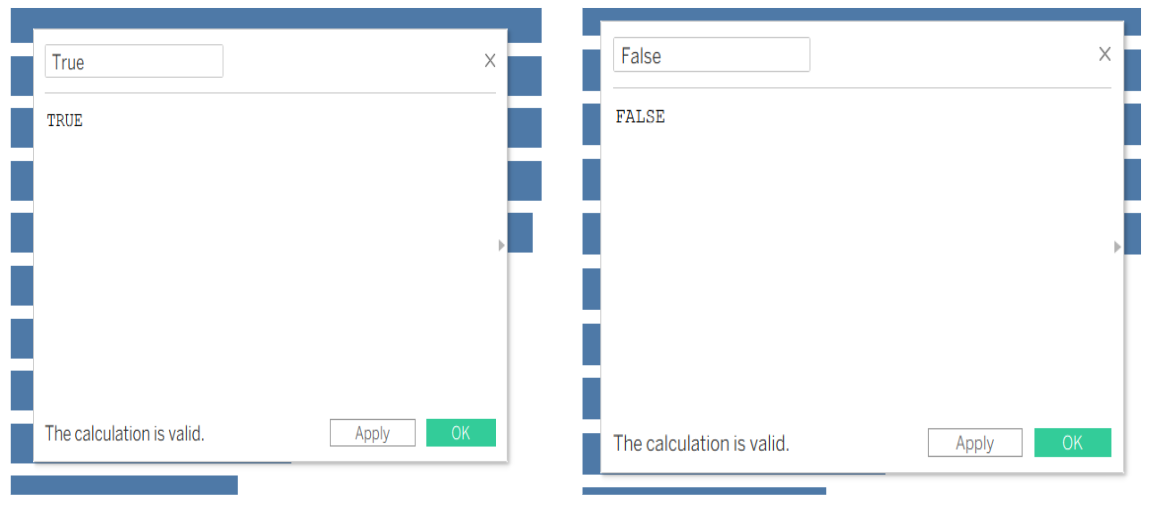
First, create a calculated field for True and False.
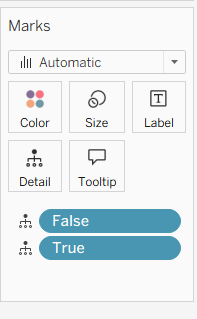
Second, place both of the calculated fields on the marks card as it will be required to set dashboard action so the calculations need to be in the view.
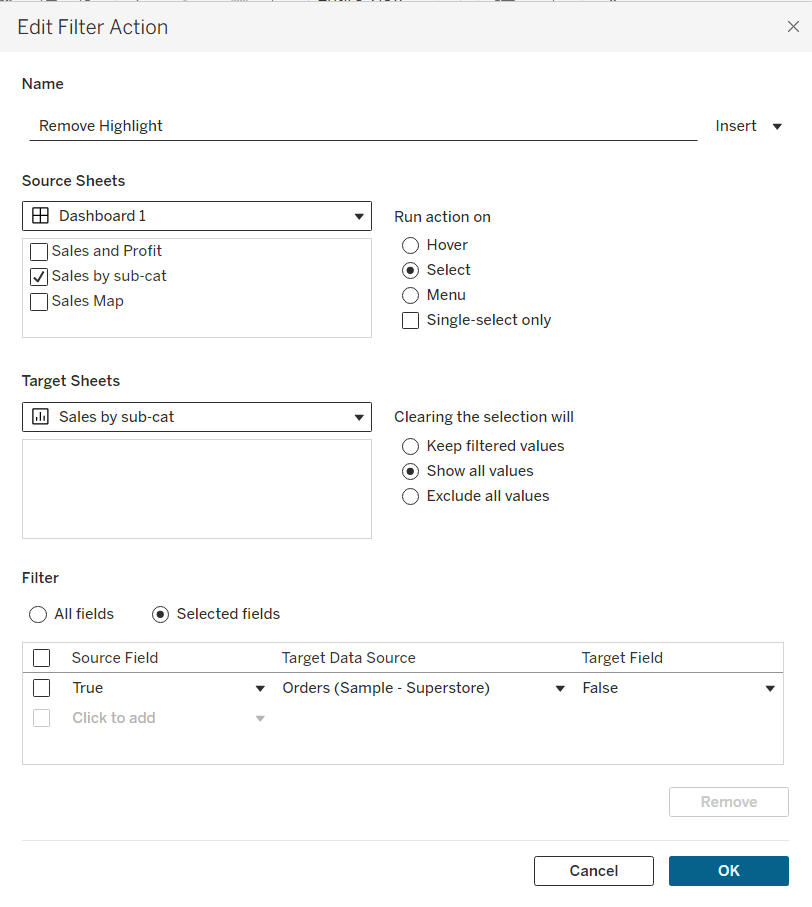
Third, create a filter action on the dashboard.
- Select the sheet where you want to remove the highlight on the
Source Sheetssection. SetRun action onSelect. - In
Target Sheetssection, select the same as the sheet selected onSource Sheet. SetClearing the selection willto Show all the values. - In
Filtersection, choose Selected fields. Select Source Field as True and Target Filed as False.
Done!