


If you've ever had any experience with excel this may sound familiar. Imagine having 12 separate monthly excel reports and you have been tasked with copy-paste them into one massive spreadsheet. A tedious process, prone to human error as you panic that you may have deleted a row by accident or worse.
Thankfully, Tableau Prep has a built-in feature designed for this situation called unions. A union allows you to stack tables on-top of one other given that they share the same columns, perfect for data that has been recorded in separate tables like on a monthly basis.
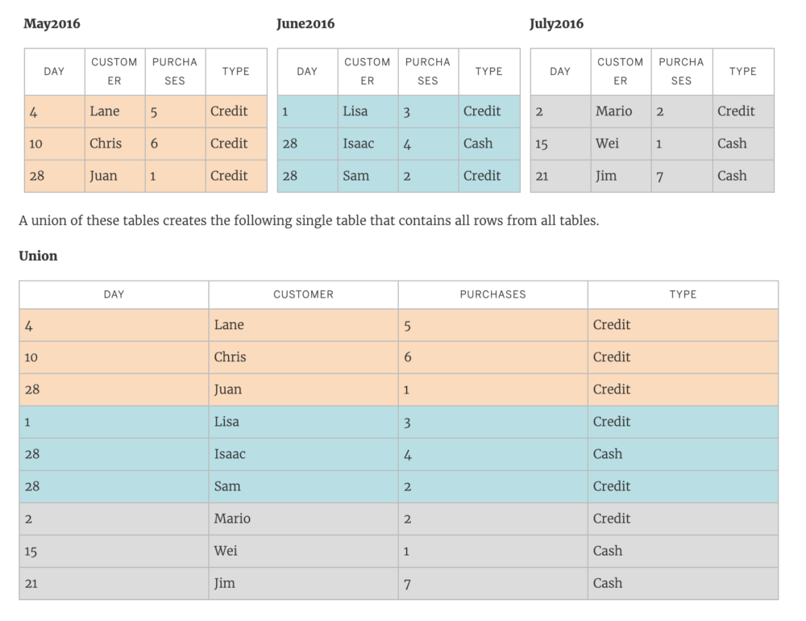
Take a look at this next example. A business has recorded their data in separate regional files (South, West, East, Central). All the tables share the identical structure and therefore are applicable for a union. This is what a union would look like in your Tableau Workflow.
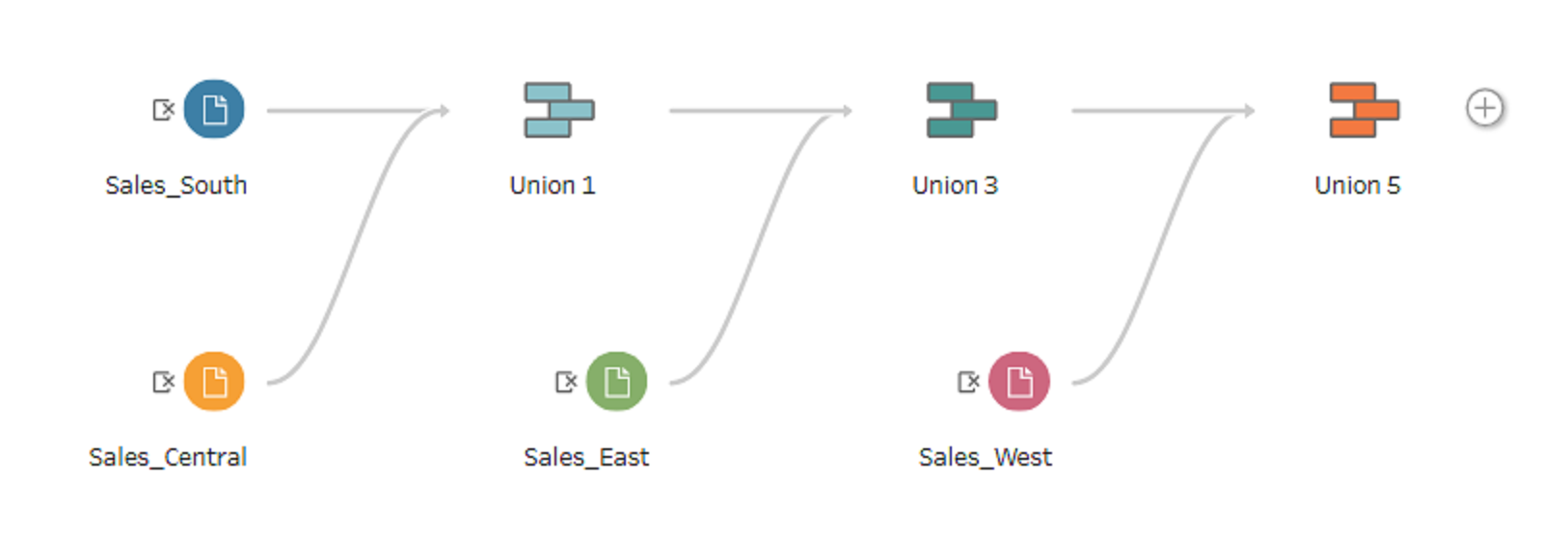
What makes Tableau such a popular data prep software is its clear visuals that allow a user to understand the actions they have taken.
As much as I love the visual workflow that outlines all my unions, this method feels clunky and inefficient the more files you need to union to each other. Tableau Prep has a built-in feature designed specifically for this scenario: the Wildcard Union. It allows you to stitch scattered files together automatically
Step 1: Pointing Prep at the Folder
When you are ready to stitch your files together, you don't need to add ten separate Input steps onto your canvas and manually wire them up.
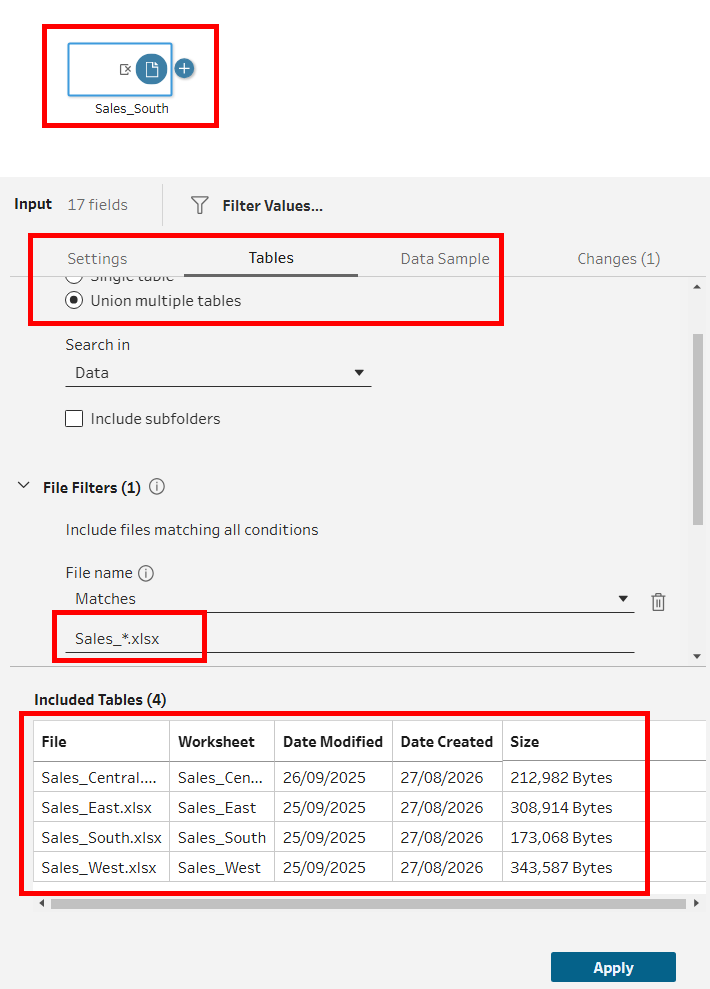
- Select your Input step and navigate to the Tables tab in the configuration pane.
- Select Union multiple tables.
- Set your Search Pattern: Define your target folder and matching criteria using wildcards (
*). For example, enteringSales_*.xlsxtells Prep to automatically pull every CSV in that directory starting with "Sales_".
In a matter of seconds, separate regional spreadsheets merge into a single data stream.
Step 2: Fixing "Schema Drift" (When Headers Don't Match)
In a perfect world, every region or department uses the exact same template. In reality, the West Coast team names a column Sales_Tax, while the East Coast team names it Tax_Amount.
When column names don't match, it is called schema drift. In traditional tools, this breaks your union or creates ugly duplicated columns. In Tableau Prep, resolving it takes two clicks:
- Spot the Mismatch: Prep flags mismatched fields right in the Union pane, showing you exactly which source files are missing specific columns.
- Select the mismatching fields
Sales_Taxand the plus sign next to the column you want to merge it with ex.Tax_Amount. Prep instantly combines them into one seamless column across all underlying files.
Step 3: Automating the Future
The true payoff comes next month. When the new Sales_*.xlsx export lands in your inbox, you don't need to touch your flow, write macro code, or open Excel.
Simply save the file into your targeted folder and hit Run Flow. Prep automatically detects the new file matching your wildcard rule, applies your pre-built pipeline and schema fixes, and outputs clean, updated data.
Pro Tip: Build on One File First for Speed
Before setting up your union, here is a massive workflow efficiency trick: do not load all your files on step one.
If you load dozens of heavy files right at the start, Tableau Prep has to process all that data continuously while you build your flow. This can slow down your interactive previews and drag out your design process.
Instead:
- Connect to just one sample file.
- Build out your entire cleaning workflow—doing your string splits, filters, and field renames on that single file while Prep runs at lightning speed.
- Once your workflow is ready, go back to your original Input step and switch it to a Wildcard Union.
Prep instantly passes all incoming files through the exact same assembly line you just built. You get a fast design experience, and your final workflow cleans every file identically.