


Every time you connect Tableau Desktop to data, two radio buttons sit in the top right of the Data Source page: Live and Extract. The default is Live, and it is easy to never touch it.
That choice decides how fast your dashboard feels, how fresh its numbers are, and what happens when someone opens it next. It is worth thirty seconds of thought before you build.
What each one does
A live connection sends a query to the original data every time the view needs data. Drag a field onto Rows and Tableau asks the database, spreadsheet or file for the answer. Nothing is copied. The view shows whatever the source holds at that moment.
An extract is a copy of the data, saved as a .hyper file. Tableau queries the copy, not the source. The copy is a snapshot: it holds the data as it was when the extract was created or last refreshed.
The easiest way to remember the difference:
- Live asks the source.
- Extract asks a photo of the source.
What happens when the data changes
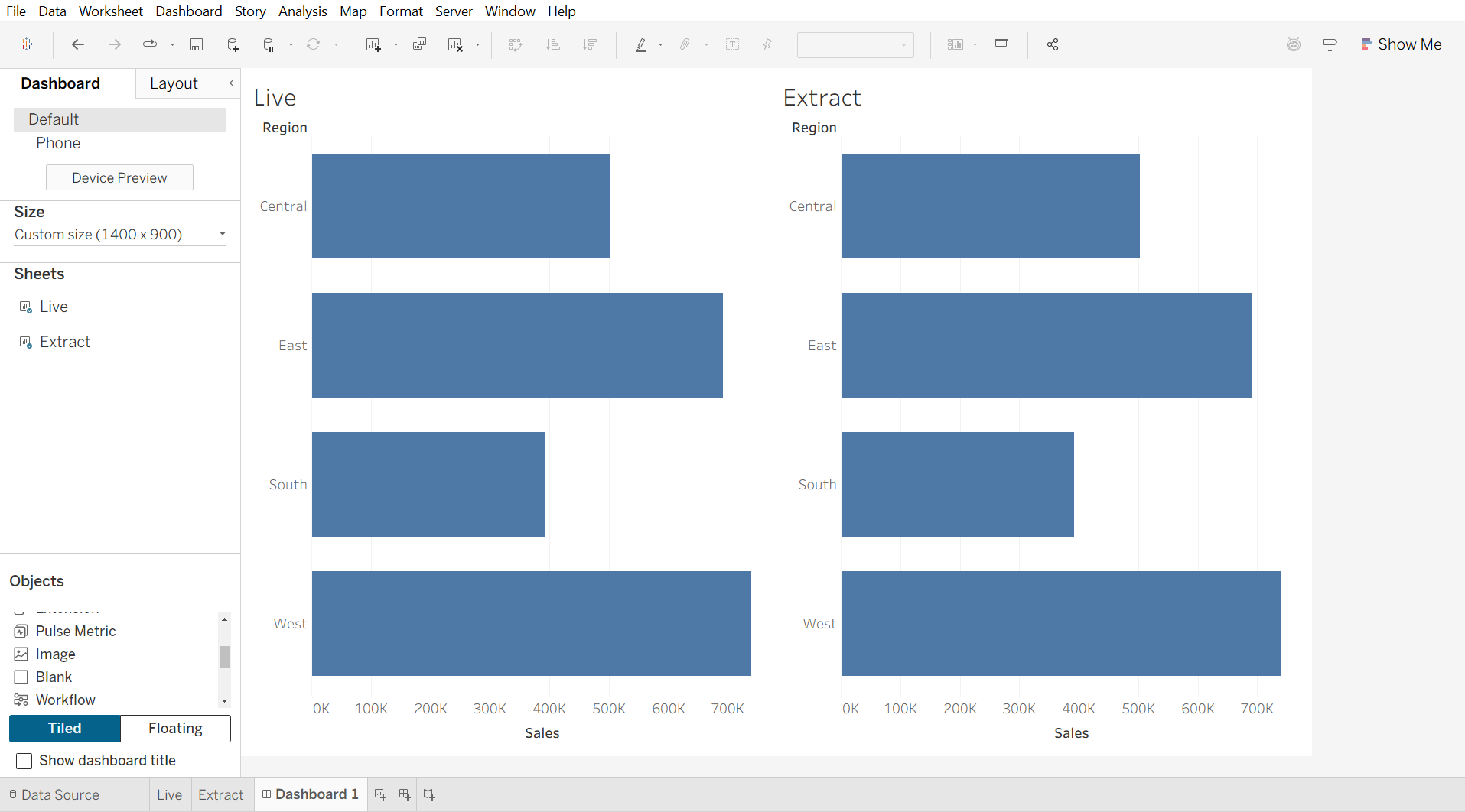
This is the part that matters in client work. To test this, I connected to a copy of Sample: Superstore twice in the same workbook: once live, once as an extract. I built the same chart, sales by region, from each.
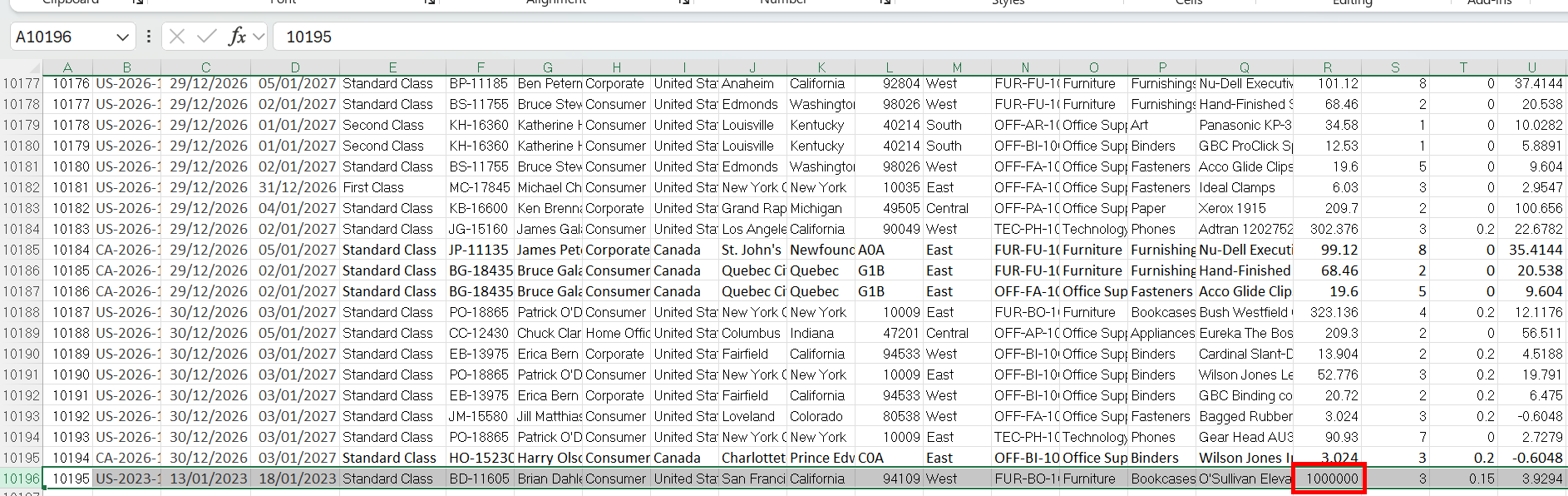
Then I added one row to the Excel file: a West order with 1,000,000 in sales.
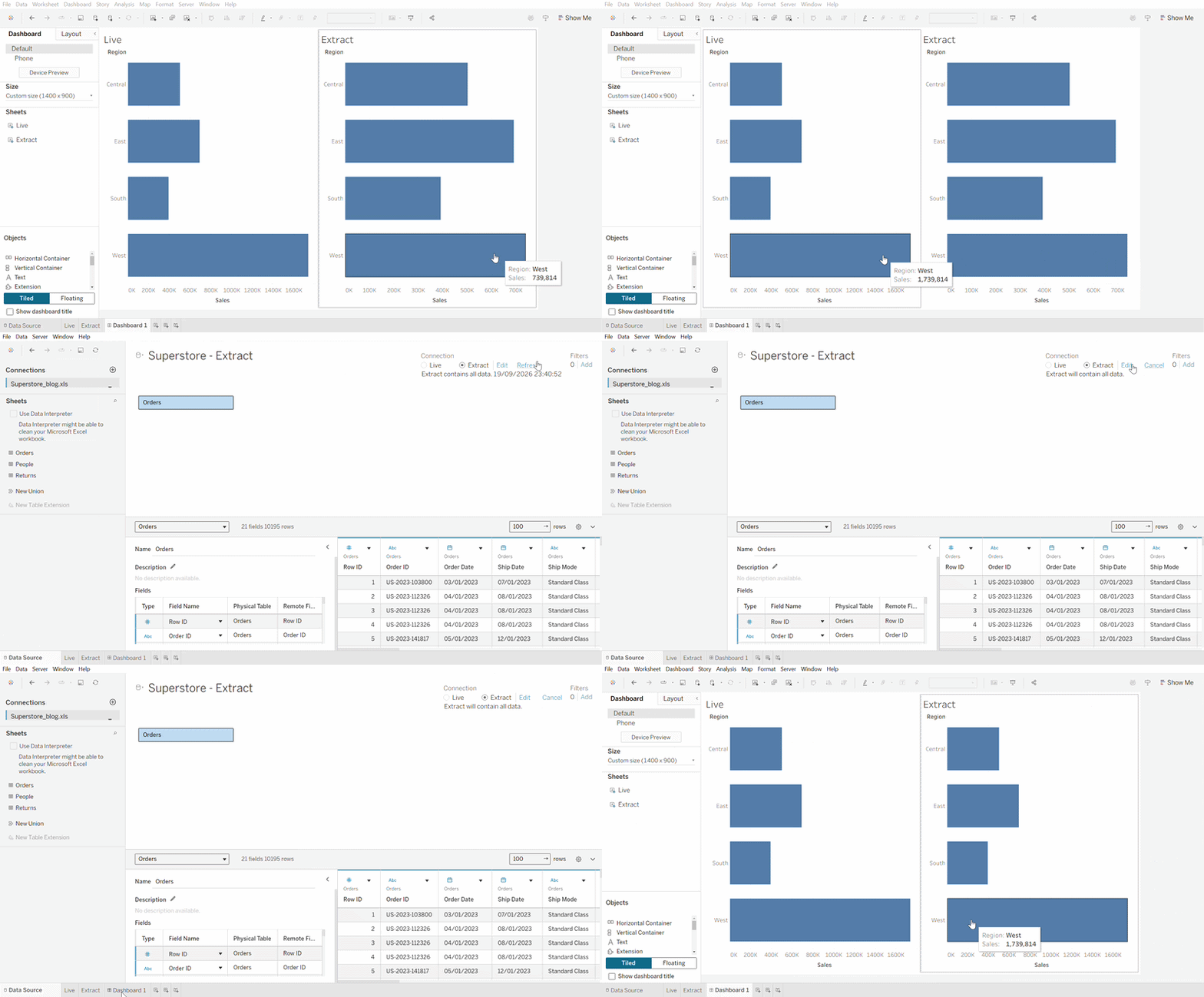
When I reopened the workbook, the live chart showed the new total straight away. The extract didn't. It only caught up when I refreshed it.
If you try this on Windows: while Tableau has a live connection open to an Excel file, Excel may refuse to save it. Close Tableau, save the file, then reopen the workbook.
To refresh an extract in Desktop, go to the Data menu, choose the data source, then Extract > Refresh. Choosing Refresh directly under the data source name only reloads the existing extract. It does not pull new data from the source. On Tableau Server or Cloud, extracts are usually refreshed on a schedule, so a dashboard might show last night's data, updated every morning.
A dashboard on an extract that nobody refreshes does not look broken. It just quietly shows old numbers. That is the risk to design around.
When to use an extract
- Performance. The source is slow, remote or large, and the dashboard needs to feel quick.
- Working offline or sharing a packaged workbook. A .twbx can carry its extract, so someone without access to the source can still open it.
- Only part of the data is needed. Extract settings let you filter rows, hide unused fields, and aggregate to a granular level, so the copy holds only what the dashboard uses.
- The data changes on a known rhythm. If the source only updates once a day, a daily refresh loses nothing.
When to stay live
- The numbers must be current. An operational dashboard someone checks during the day to make decisions.
- The source is already fast. A well-built cloud data warehouse can answer queries quickly, and copying its data adds a refresh job to manage.
- Security or governance lives in the database. If the database controls who sees which rows, a copy of the data can sit outside those controls.
- The data is too large to refresh in the time you have. If a full refresh takes two hours and the dashboard is wanted hourly, the refreshes queue up and the data is never current.
How to tell which one you are using
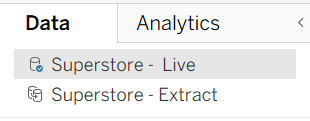
Check the Live / Extract setting on the Data Source page. In the Data pane, the icon next to the data source name changes when it uses an extract. If you have inherited a workbook and do not know, check before you trust a number on it.
The question to ask
Before choosing, ask the client, or yourself: how old can this data be before a decision made on it is wrong?
- Minutes: stay live.
- A day or more: extract, refreshed on that rhythm.
- Not sure: find out. That is a requirements question, not a Tableau question and it belongs at the start of the project.