


Branching is one of GitHub’s most useful features: it enables version control and lets teams collaborate without overwriting each other’s work. However, switching branches and handing work off between your local and online repositories can be daunting, especially if you’ve only used GitHub for solo projects. This step-by-step guide walks you through the process.
Say you’re logged in, have cloned the repository, and are ready to start making changes in VS Code. Before changing any code, create a new branch. This makes it easy for the project manager to review and merge your work, and easy to undo it if needed, since the main branch stays untouched.
1. Open your repository in VS Code, then open the terminal. Switch to the main branch by entering git switch main.
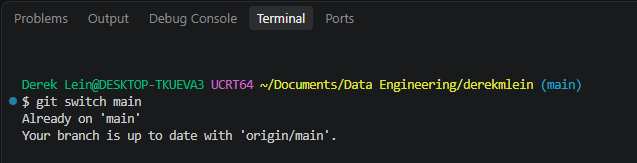
2. Ensure your local repository is up to date with the remote repository on GitHub by entering git pull.

3. Create your new branch by entering git switch -c branch-name, replacing branch-name with a short, descriptive name.

4. Confirm you’re on the new branch by entering git branch. It lists your local branches and marks the current one with an asterisk (*).

5. Now you're set to perform your work on the project, and remember to save your files as you go.
6. When you’re finished, review your changes by entering git status. It lists the files you’ve modified.
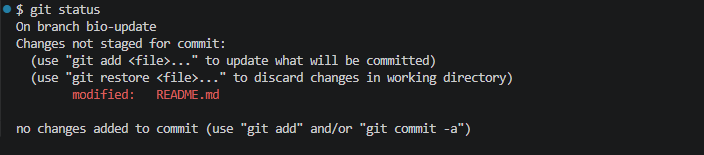
7. Stage and commit your changes (and include a commit message noting those changes) by entering git add .&& git commit -m "change description".

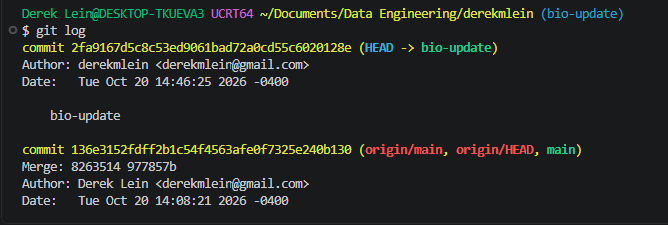
8. Confirm the commit worked by entering git log. Important: afterward, your terminal may appear frozen. It isn’t. Press q to exit the log and type again.
9. Push your branch to GitHub by entering git push -u origin branch-name.
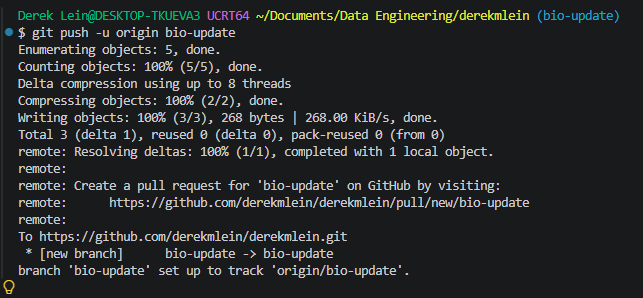
10. From here, whoever manages the repository on GitHub takes over. They’ll see your push on GitHub and can preview your changes by opening the Branches page and selecting your branch.
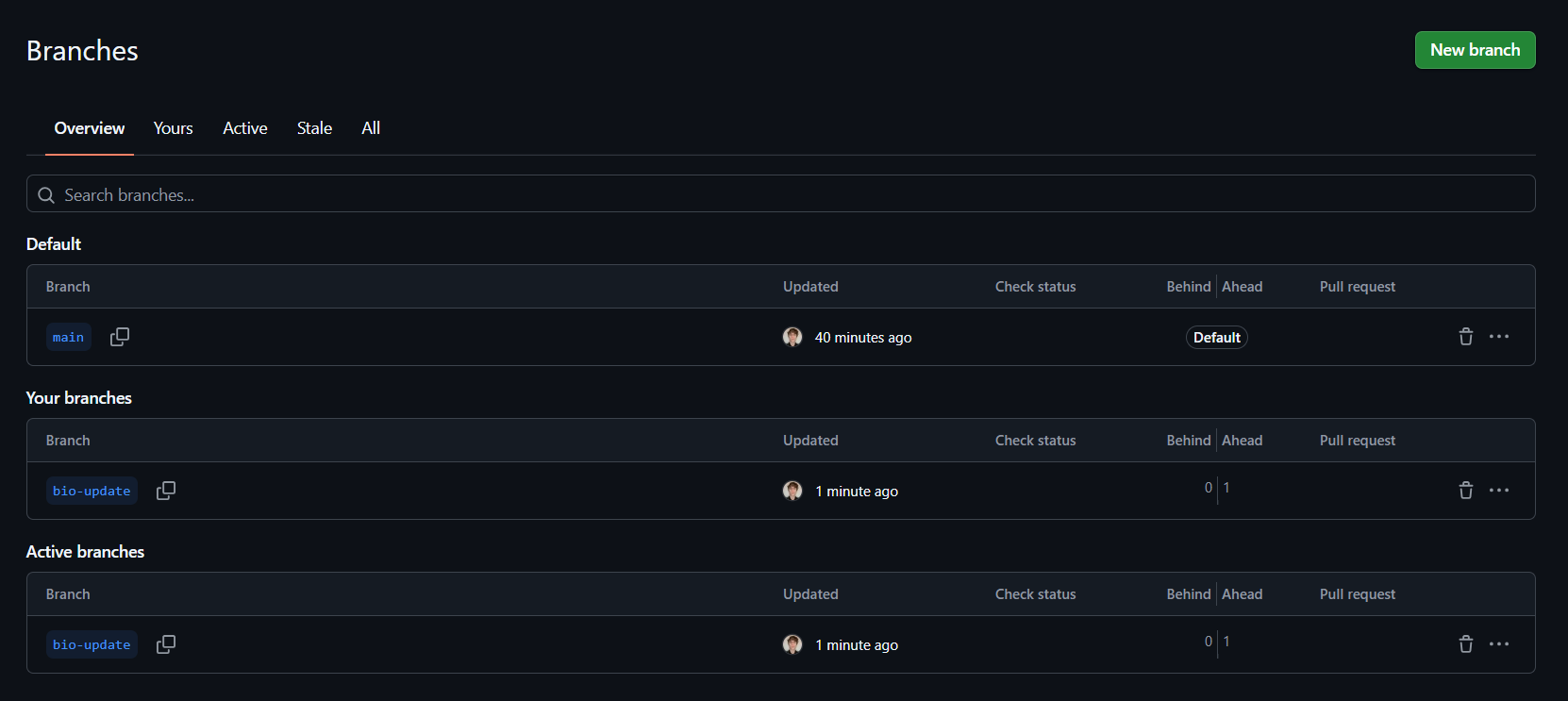
11. If everything looks good, they can either return to the previous page or navigate to the "Pull requests" tab and click “Compare & pull request”.

12. This page shows the differences between your branch and the main branch. If they approve, they click “Create pull request.”
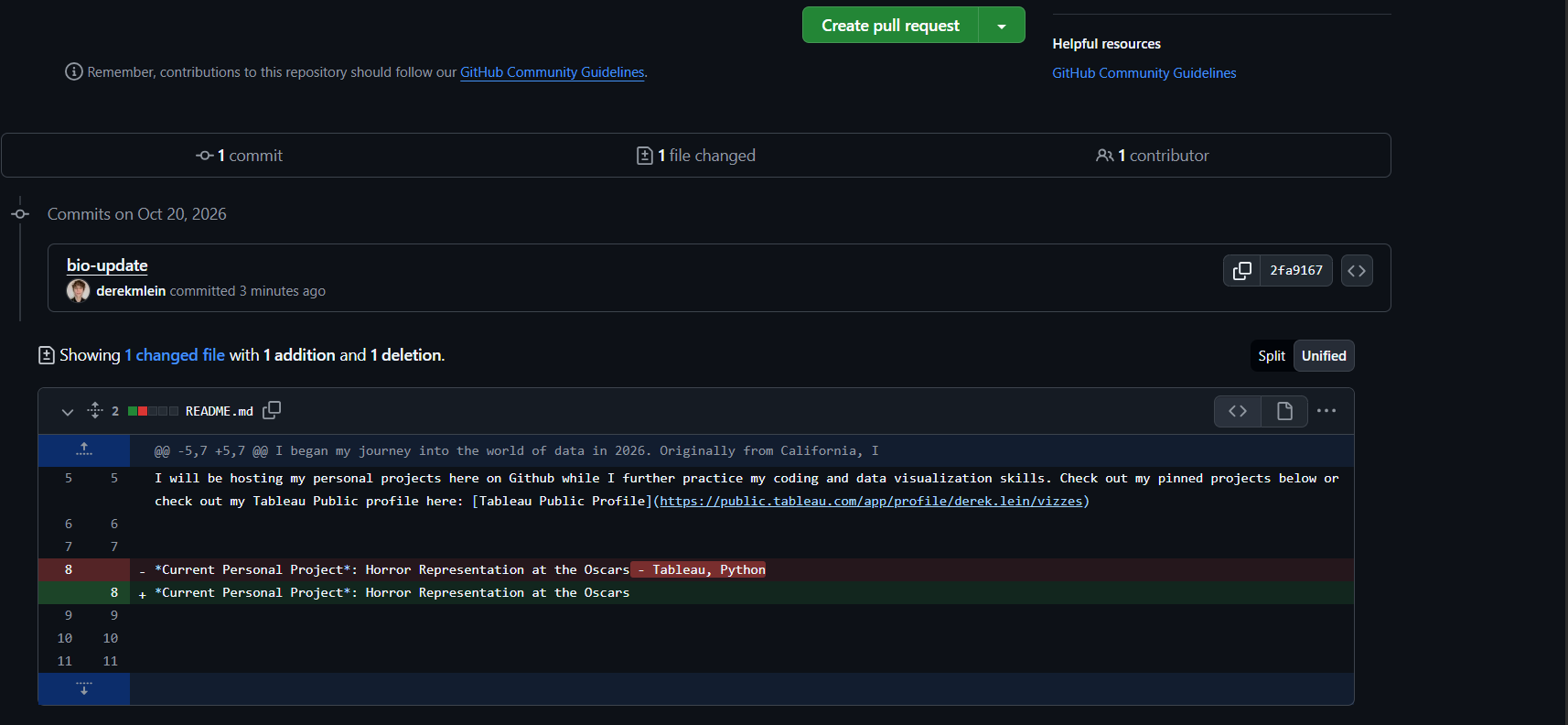
13. Once GitHub confirms there are no conflicts, they click “Merge pull request.”
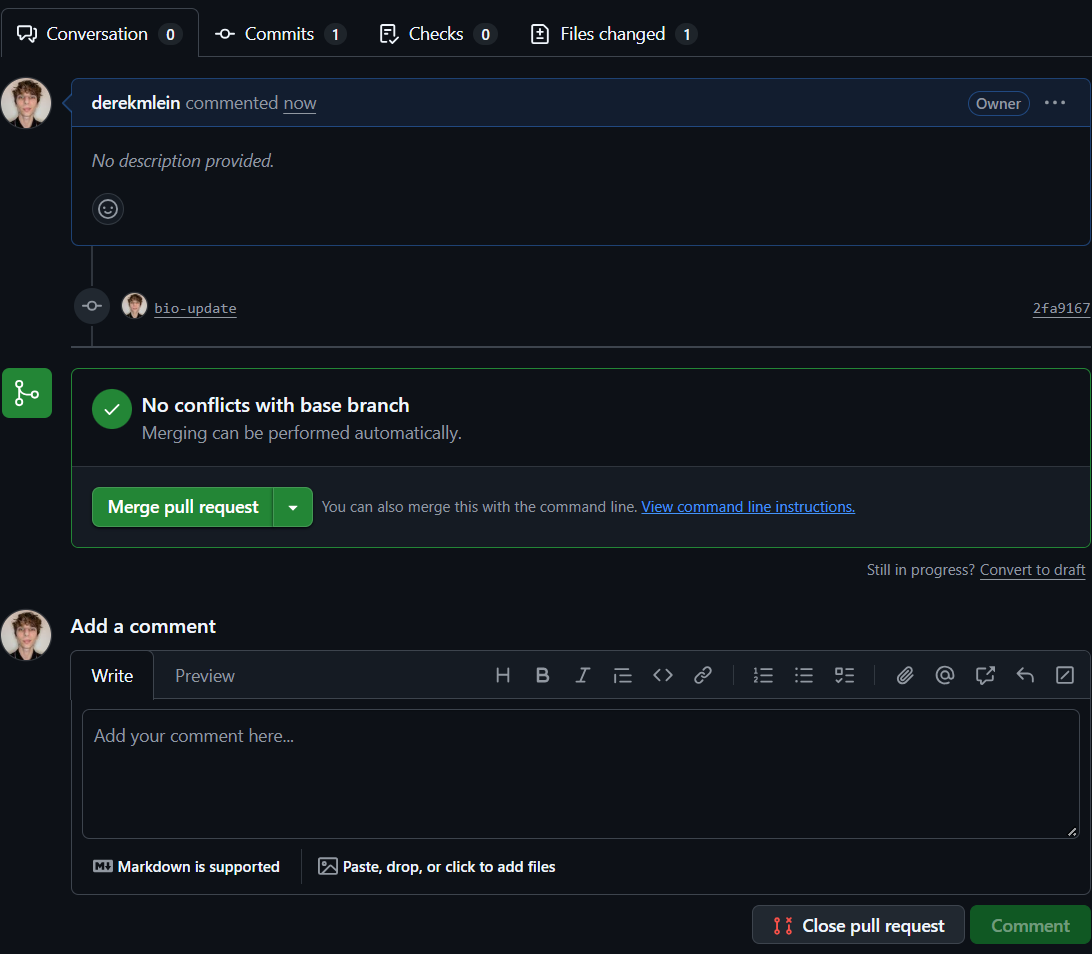
14. GitHub asks for one more confirmation. They click “Confirm merge.”
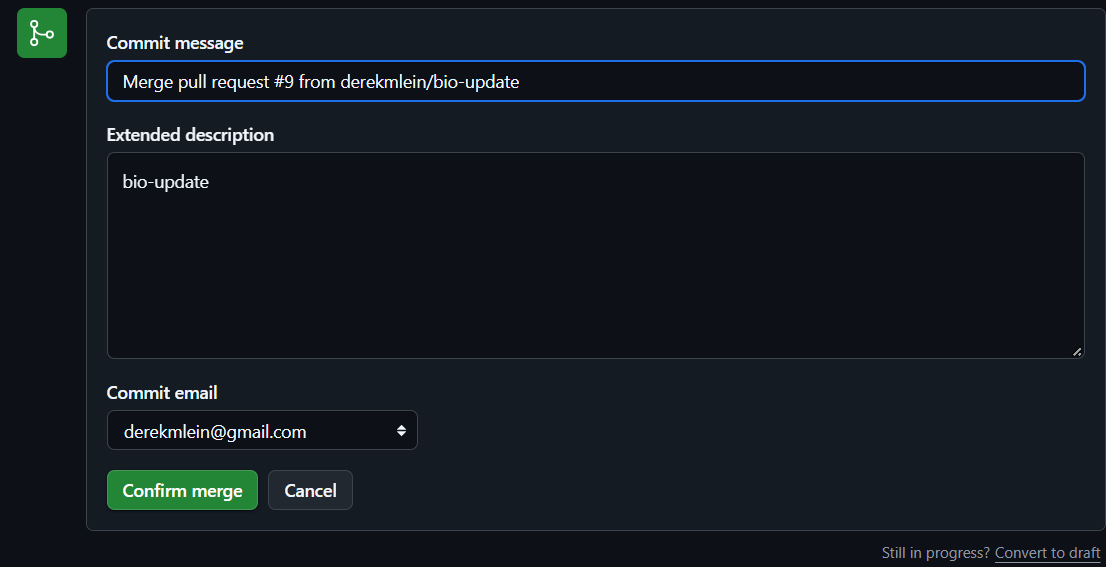
15. The merge is complete! GitHub now offers to delete the branch, which they can do if it’s no longer needed.

16. Once the branch has been merged and closed, you should sync your local repository with the merged version on GitHub so they match. In VS Code, enter git switch main. Don’t panic: your work may appear to vanish, which is normal because your local main branch hasn’t been updated yet.

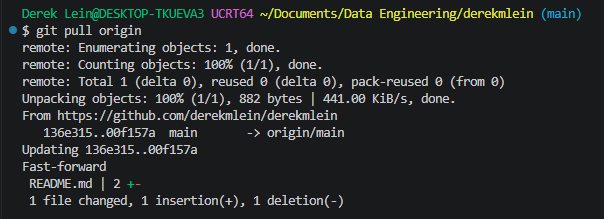
17. Enter git pull. This updates your local repository with the merged changes and restores your work.
18. Finally, delete your local copy of the branch by entering git branch -d branch-name.

And that’s it! It may feel like a lot of steps, but writing them down and practicing them will make them second nature, and the safety net that version control provides is well worth the effort.