


For this blog, I'll assume some prior knowledge, including what JSON is and why it's necessary to be able to parse it with SQL. Here's the agenda:
- Semi-structured data types in Snowflake
- Accessing values of arrays and objects
- Useful functions for working with arrays and objects
Semi-structured data types in Snowflake
Snowflake has three data types for semi-structured data:
- array - Holds a collection of zero or more values separated by commas. Arrays are akin to lists in Python
Ex: Sometimes books have more than one author. If a library has a table of data with one row per book, the author column might look like this:
["Malcolm X", "Alex Haley"] - object - Contains key-value pairs. Object is the data type used in Snowflake to work with JSON objects. Both are akin to dictionaries in Python
Ex: In keeping with the library data example above, the raw data for a book might look like this:
{
"title": "The Autobiography of Malcolm X",
"author": ["Malcolm X", "Alex Haley"]
}
Note that this object's keys (title and author) are both strings (which is a requirement). The values, however, contain one string and one array. Any data type – including arrays and objects themselves – can be the value within an object. - variant - Variants are the catch-all data type. Anything can be cast to a variant type. Their utility comes from their flexibility; if you've ingested raw JSON data, you can store it in a table as a variant. Whether it's an array, object, or something else, this won't raise an error. This is useful if the schema of your data is subject to change.
It's important to note that variant data is compatible with variant-specific functionality but also with the functionality of its original data type; Snowflake is good at understanding what the actual data type is, even if it's officially stored as a variant.
Accessing values of arrays and objects
If your end goal is to visualize your data using a business intelligence tool, semi-structured data isn't what you want. Tools like Tableau are built to work with data types like integers, booleans, and strings. That makes it important to know how to parse JSON and get it into an analysis-ready format.
The parse_json and typeof functions
If you try to use array and object functions on a string, you'll end up getting an error. In this example, I've manually entered an array as a string.
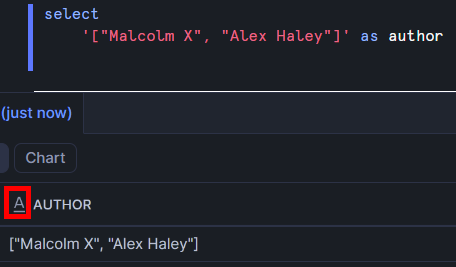
Note the outlined icon – Snowflake is interpreting this as a string and doesn't understand that I intended it to be used as an array. In order to tell Snowflake that it's JSON, I can use the parse_json function.
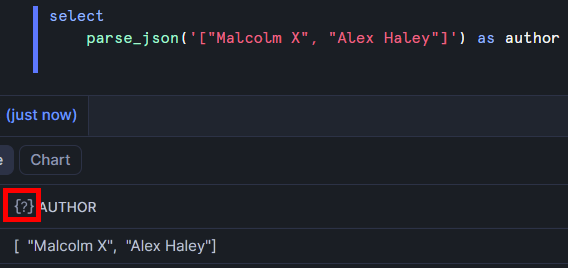
The icon has changed because Snowflake is now interpreting this as a variant (it also understands that it's an array and it's safe to use array functions on this). Often the parse_json function is used when raw JSON data is first loaded in to enable proper parsing of the data.
If you want to confirm that Snowflake understands the "true" type of a variant column, you can use the typeof function.
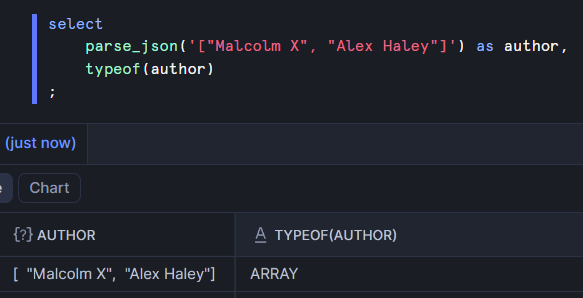
Even though the author column is officially a variant, Snowflake knows that it's truly an array and will allow the use of array functions on it.
Arrays
I'll continue with the same array for this demonstration. With the following code, I can pick out just one of the values of the array:
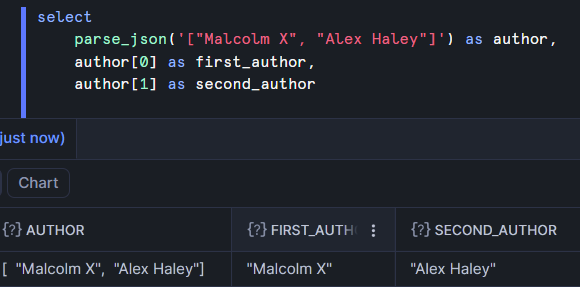
Note that arrays are 0-indexed. The first value is at position 0, the second is at position 1, etc. This is very similar to accessing a value from a list in Python. Both are 0-indexed and both use square brackets to access an individual element.
The author names were successfully extracted but they still have quotes around them. That's because they're still regarded as variants. Performing string functions on them will work and convert them into strings. Alternatively, we can explicitly cast them to correct their data type.
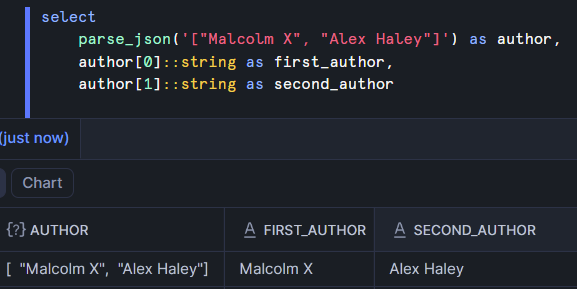
If you want to pull out multiple values, you can use the array_slice function. Here I'm working with an array of numbers and creating a new array containing the values at positions 0 (inclusive) through 3 (exclusive).
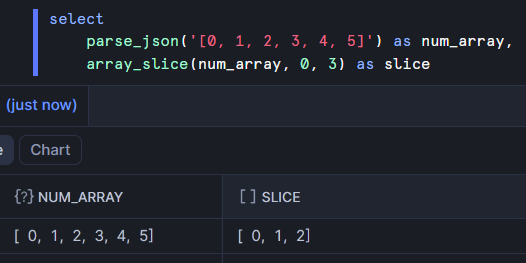
The icon above the slice column indicates that it's an array (not a variant). That's because it was created with a function that outputs an array. The num_array column is still treated as a variant but the array function worked correctly on it.
Objects
Here I used the parse_json function with the previously mentioned object example. I also expanded the object by double clicking on the cell of data that contains it to get the more easily readable view on the bottom right. You might notice that the title and author keys have swapped places. That's because objects are not ordered. It won't affect the way we access their values, though.
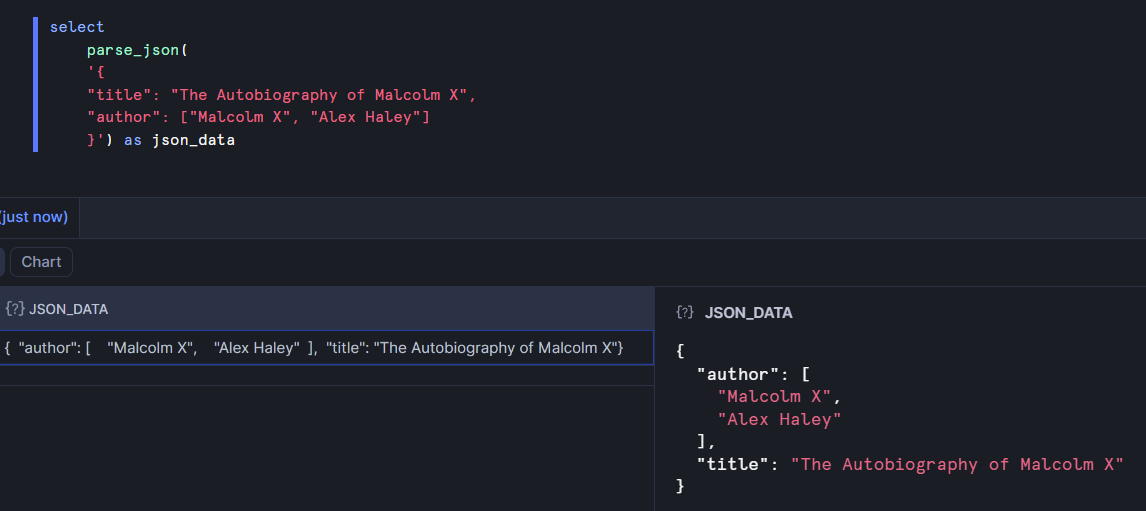
If we want to pull out just the title of the book, we can use Snowflake's dot notation (and explicitly cast the title as a string to avoid Snowflake regarding it as a variant).
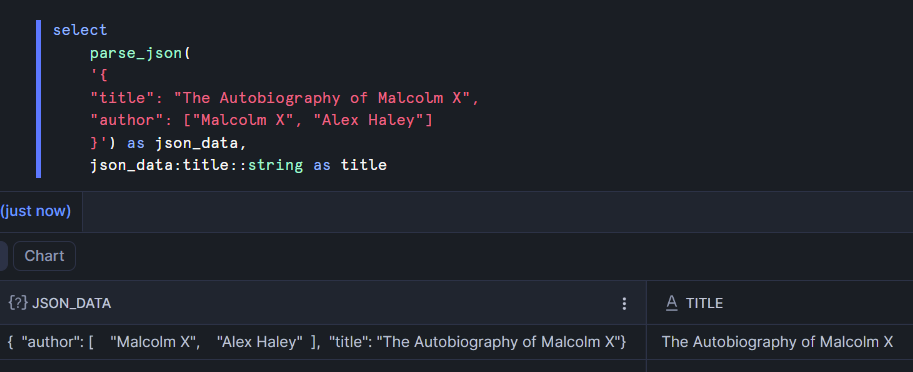
The first part is json_data, which is the name of the column that contains the object. This is followed by a colon and the name of the key that we want to extract (title). Finally it's explicitly cast as a string and aliased.
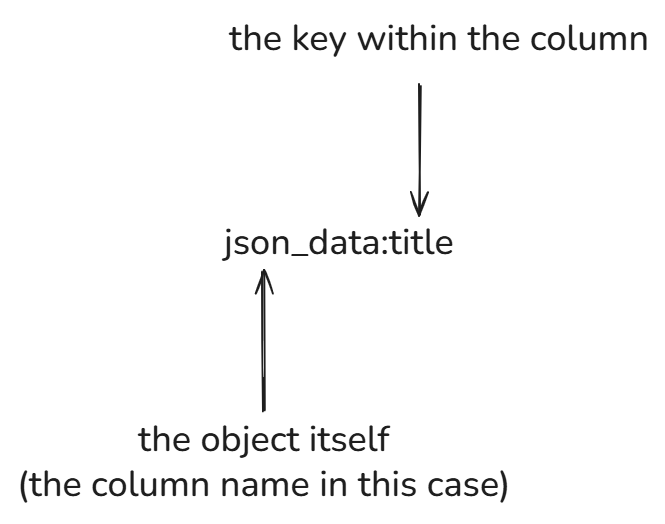
There's a lot of this to do when parsing raw data. Sometimes there are arrays or objects nested inside an object, though. We have that here with the author array. In the example below, the author array is accessed with dot notation. Then the two authors are pulled from the array by specifying the index within the array from which we want to extract the value.
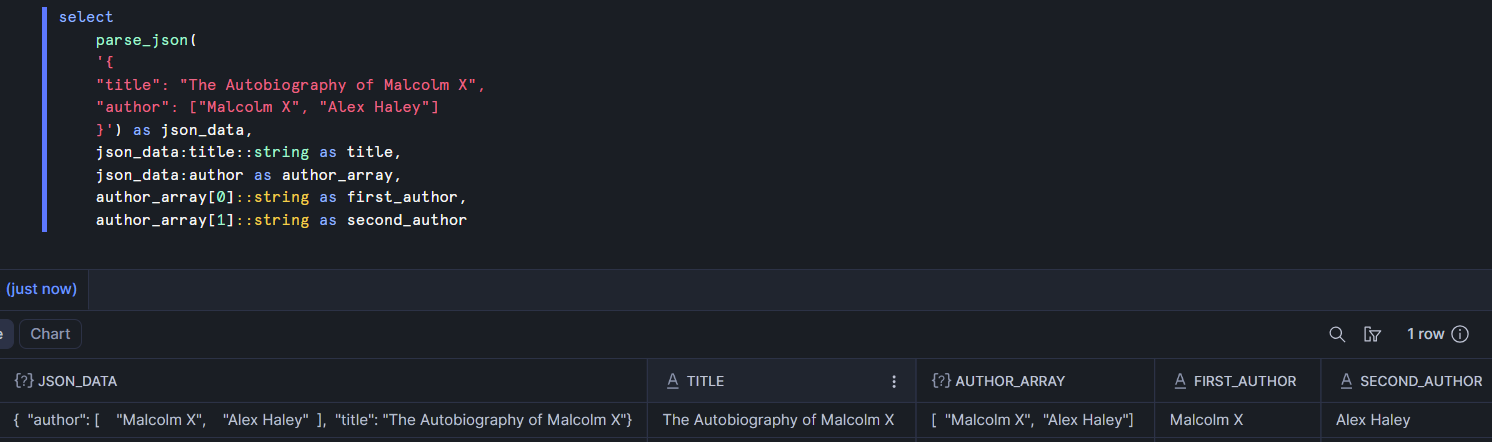
Parsing can become more complicated when there's a lot of nesting. When that's the case, it can be helpful to have more tools at your disposal.
Other functions for semi-structured data
For most of the remaining demonstrations, I'll be using the same table. Here's the code I used to create the raw table in case you want to try it for yourself. In the flatten section, I'll be parsing it into a more usable format.
create table library_books_raw as (
    select parse_json(
        '[
            {
                "title": "The Autobiography of Malcolm X",
                "author": ["Malcolm X", "Alex Haley"],
                "metadata": {"isbn": "978-0345350688", "genre": "Biography", "pages": 528},
                "checkouts": [
                    {"user_id": 101, "date": "2023-01-15", "days_kept": 14},
                    {"user_id": 205, "date": "2023-03-10", "days_kept": 21}
                ]
            },
            {
                "title": "The Overstory",
                "author": ["Richard Powers"],
                "metadata": {"isbn": "978-0393356687", "genre": "Fiction", "pages": 512},
                "checkouts": [
                    {"user_id": 405, "date": "2023-05-12", "days_kept": 30},
                    {"user_id": 99, "date": "2023-07-20", "days_kept": 5}
                ]
            },
            {
                "title": "Norwegian Wood",
                "author": ["Haruki Murakami"],
                "metadata": {"isbn": "978-0375704024", "genre": "Fiction", "pages": 296},
                "checkouts": [
                    {"user_id": 101, "date": "2023-08-15", "days_kept": 10}
                ]
            },
            {
                "title": "David Copperfield",
                "author": ["Charles Dickens"],
                "metadata": {"isbn": "978-0582541603", "genre": "Classic", "pages": 1024},
                "checkouts": []
            },
            {
                "title": "Little Women",
                "author": ["Louisa May Alcott"],
                "metadata": {"isbn": "978-0143135562", "genre": "Classic", "pages": 449},
                "checkouts": [
                    {"user_id": 303, "date": "2023-09-01", "days_kept": 14},
                    {"user_id": 102, "date": "2023-10-05", "days_kept": 12}
                ]
            },
            {
                "title": "A Game of Thrones",
                "author": ["George R. R. Martin"],
                "metadata": {"isbn": "978-0553381689", "genre": "Fantasy", "pages": 694},
                "checkouts": [
                    {"user_id": 501, "date": "2023-11-20", "days_kept": 45}
                ]
            },
            {
                "title": "Harry Potter and the Deathly Hallows",
                "author": ["J.K. Rowling"],
                "metadata": {"isbn": "978-1408855713", "genre": "Fantasy", "pages": 607},
                "checkouts": [
                    {"user_id": 602, "date": "2023-12-01", "days_kept": 20},
                    {"user_id": 101, "date": "2023-12-28", "days_kept": 15}
                ]
            }
        ]'
    ) as json_data
);
flatten
Here's how this data looks now.
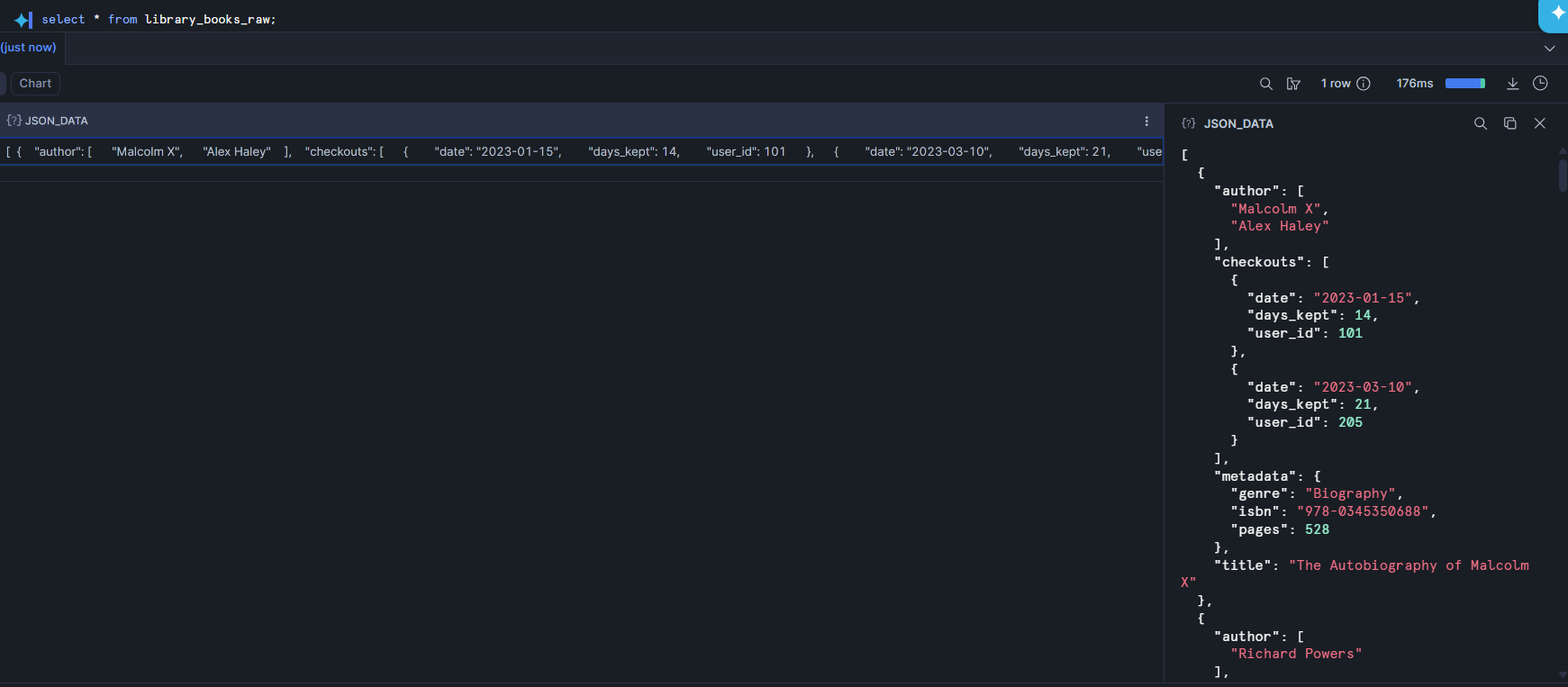
We have a single cell of data here, which is an array containing objects as its values. What we want is to have one row per book with separate columns for things like the title and author. Each object in the array pertains to one book so our first step is to flatten the array – expand it so that each value in the array has its own row.
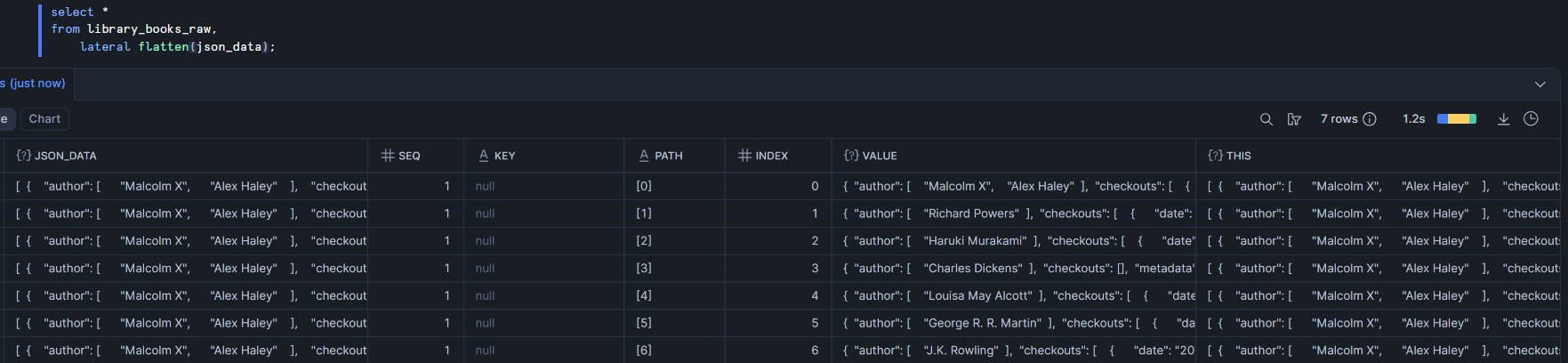
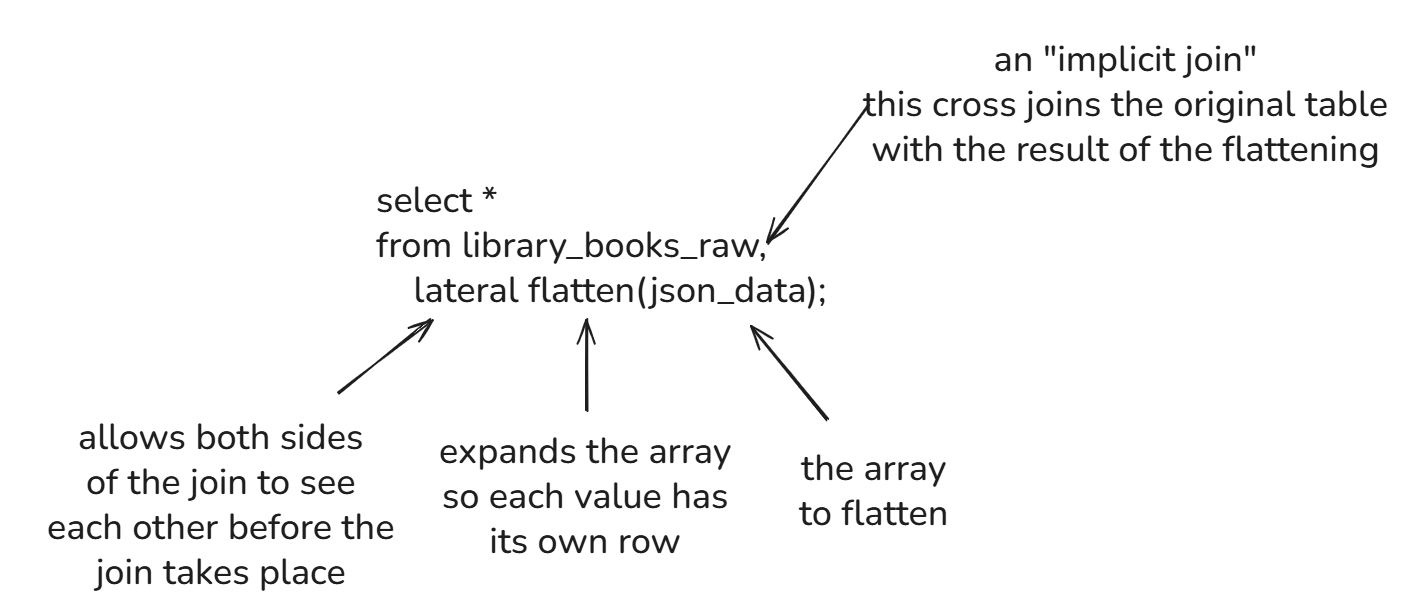
Before explaining the syntax, I'm first going to explain the output. There are 7 rows – one for each book. The original column (json_data) is included on each row but six other columns are created through the flattening. I'll focus on just the most important ones here:
seq - the index of the original row of data (which row number from the original table did this new row come from?)
index - the index within the array that was flattened that was used to create this row of data
value - the item within the array. This is the most important column created because it now contains the object for an individual book
Now to explain the syntax.
The comma - this is used to perform an implicit join, which is a join performed without using the join keyword. Since we returned the column from library_books_raw but also columns from the flattened data, this is performing a cross join between the two of them, essentially appending the original data to each row in the output
lateral - this allows the left and right sides of the join to be aware of each other before the join takes place. This is necessary because the right side of the join uses the flatten function on a column from the left side. Without lateral, this would error because it wouldn't know which table to search for the json_data array
flatten - takes the input array and splits it up so each value has its own row
json_data - the array that we want to flatten
Now that each book has its own row, we can parse through the value object and create a cleaner table.
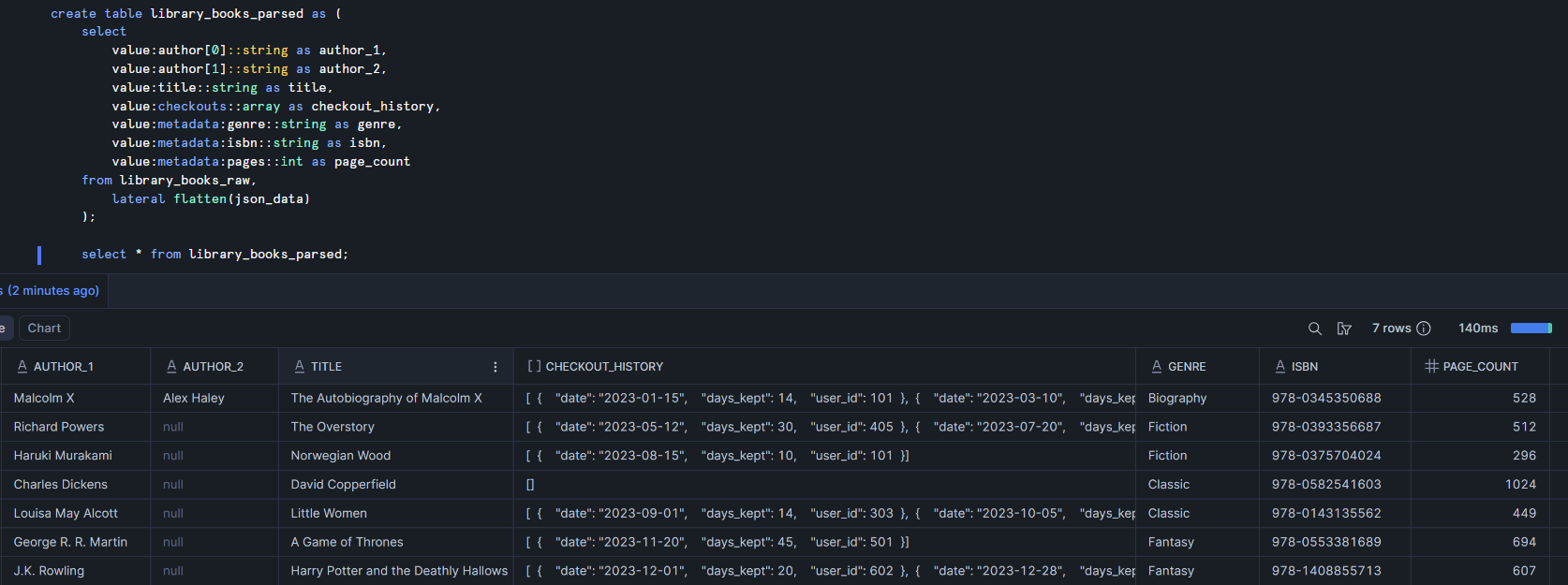
The checkout_history column is still an array of objects but everything else is neatly structured.
array_append
Returns: array
Purpose: adds an additional value to the final position in an array
Example: in the library data, the checkout_history column is an array. Each time someone takes a book out, a new value is appended to the array. Here's how that would look.
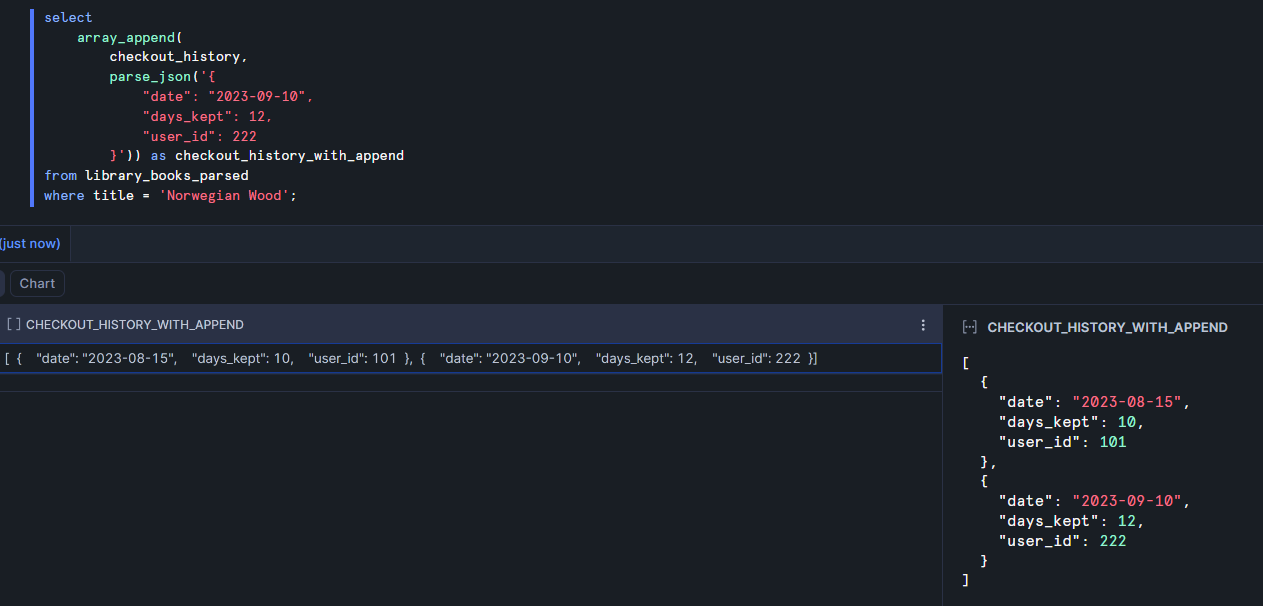
The original array had just one checkout. Now this second object has been appended to the end of the array. In real life, we wouldn't be manually inserting these new checkouts every time we queried the table but I think this example is helpful to demonstrate how the function works.
array_size
Returns: integer
Purpose: counts the number of values in an array
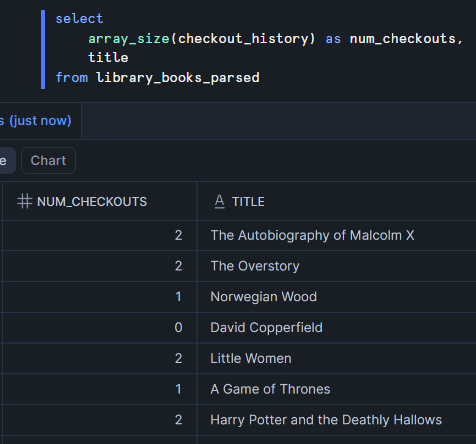
Example: here I create a new column containing the number of times each book has been checked out.
array_contains
Returns: boolean
Purpose: checks if a value is a member of an array
Example: I'll return to the author array for this example since the checkout_history array doesn't lend itself nicely to this function.
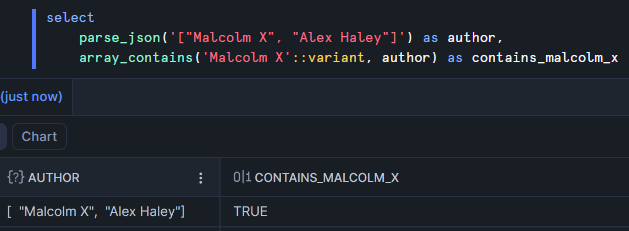
A common mistake when using this function is forgetting to cast a string to a variant. If you use a string for the first argument it will cause an error. The same isn't true for other data types like integers.
array_agg
Returns: array
Purpose: an aggregation that collects all values from a column into an array
Example: if you wanted to collect all the titles the library has into a single array, you could do the following:

array_construct
Returns: array
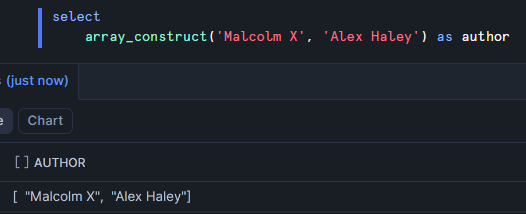
Purpose: creates an array containing the provided values
Example: this can be used as an alternative to the parse_json function. As many arguments as you'd like can be provided to this function to create an array.
object_construct
Returns: object
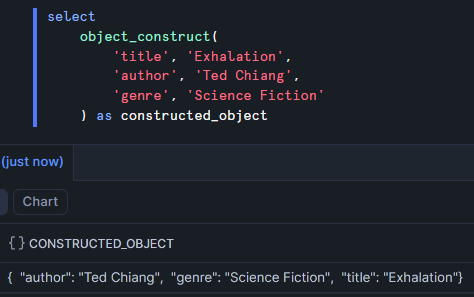
Purpose: creates an object from the provided keys and values
Example: this is another alternative to the parse_json function. Notice that I use spacing here to logically group the keys and values. Snowflake knows which are the keys and which are the values by alternating key-value-key-value... through the comma-separated arguments.
object_insert
Returns: object
Purpose: adds a new key-value pair to an object
Example: here I add an extra key to identify the country of the book with a value of Japan.
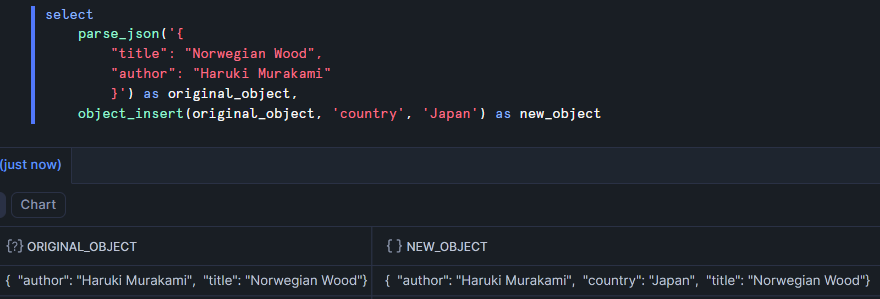
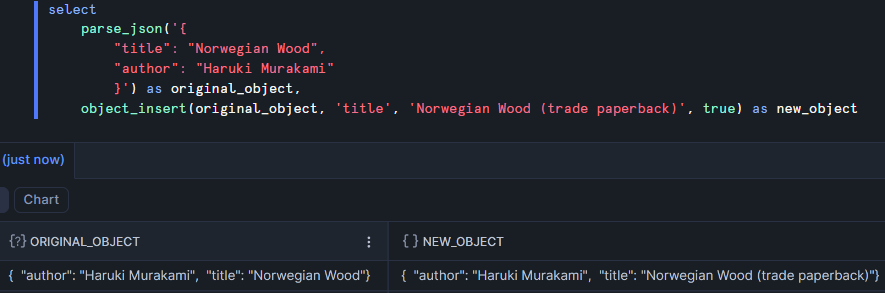
There's an optional fourth argument with which you can indicate that you want to replace the value for an existing key.
{*}
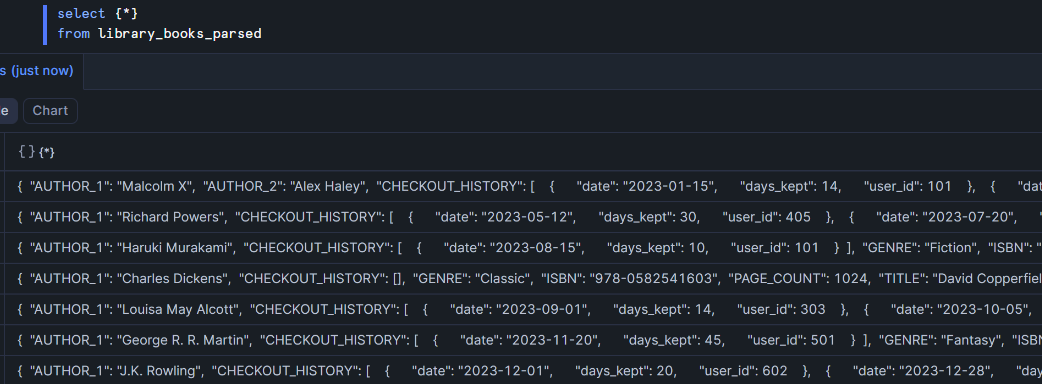
This isn't actually a function but it's a cool feature. When I select {*} from library_books_parsed, it returns an object for each row containing the column name as the key and its value as the value.
Conclusion
These are just a handful of ways to work with JSON in Snowflake but I'd say this covers the most important parts. There are plenty more functions, which you can find on Snowflake's documentation site.