


RegEx (short for Regular Expression) is a sequence of characters that allows a user to extract a subset of a string from a field. It's a powerful data preparation and transformation tool to check for incorrect data formats (think e-mail addresses, phone numbers, postal codes), scan data for key words (e.g., in customer feedback), and/or extract characters of interest (like a domain name or codes).
In practice, RegEx acts quite similarly to the CONTAINS() function, with which a user can search a string in a field and receive a Boolean (True/False) output. With RegEx, expressions can be customized much more than with the CONTAINS() function. And in Alteryx, the built-in RegEx tool has four distinct functions that allow users to specify an action in addition to looking for a given expression.
In this blog, I'll provide a practical example using each of the four RegEx tool functions.
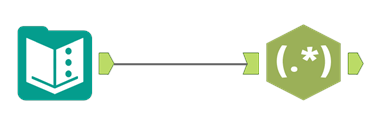
An Alteryx workflow using RegEx will look something like the image below: A given tool (Text Input, in this case) on the left that feeds into the RegEx tool on the right.
For this exercise we'll be working with this small dataset:

- Replace: Replaces a given expression with a string of your choice. To replace the 'Miss' and 'Mrs' in Field1 with 'Ms,' we can enter the following:
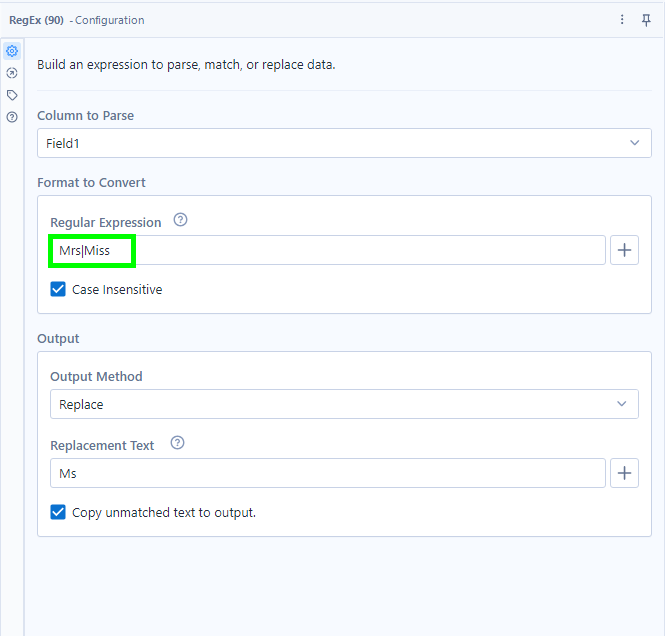
What this RegEx expression does:
| looks for fields containing either the expression to the left OR right
- Tokenize: Allows you to split text to columns. Each time the expression is found in a field, a new column is created. Here we want to create 3 new columns for 'Title,' 'First Name,' and 'Last Name.'

What this RegEx expression does:
[A-Z] looks for uppercase characters
\w looks for alphanumeric characters
+ looks for multiple alphanumeric characters
- Parse: Extracts a given expression from a string. To extract each person's age from the Approximate Age field and output an integer data type, we can add an expression in parentheses:
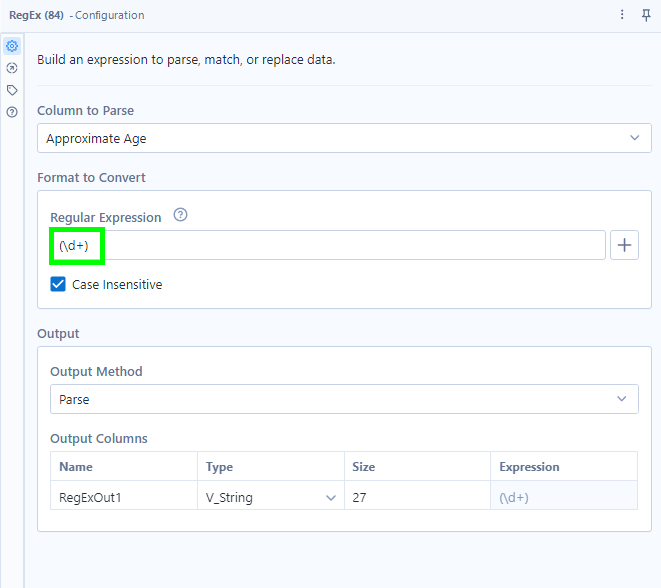
What this RegEx expression does:
() indicates that we want to create a new column for our output
\d looks for digits
+ looks for multiple digits
- Match: Checks whether the input expression can be found in a field (whether there are any matches). This function outputs a True/False in a new column, which you can then clean up using the Filter tool to extract only those that are True.
To find all people whose name starts with an M and does not end in a space, we enter the following:
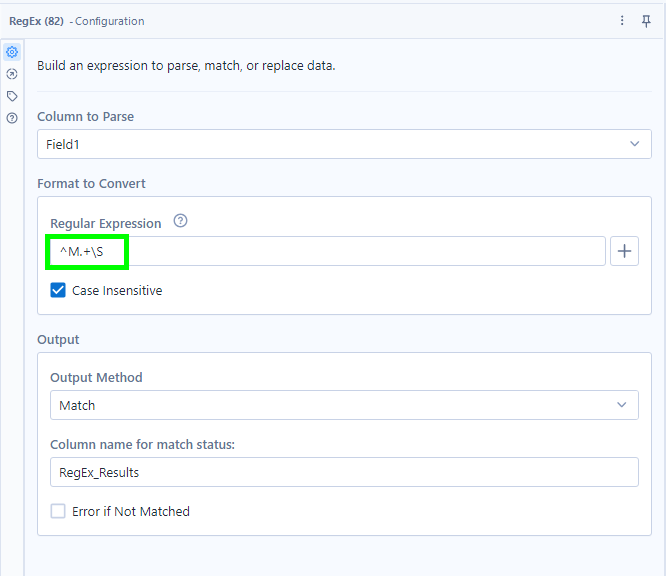
What this RegEx expression does:
^M looks for words beginning with M
. looks for wildcards (basically anything)
+ looks for multiple wildcards
\S looks for anything not ending in a space