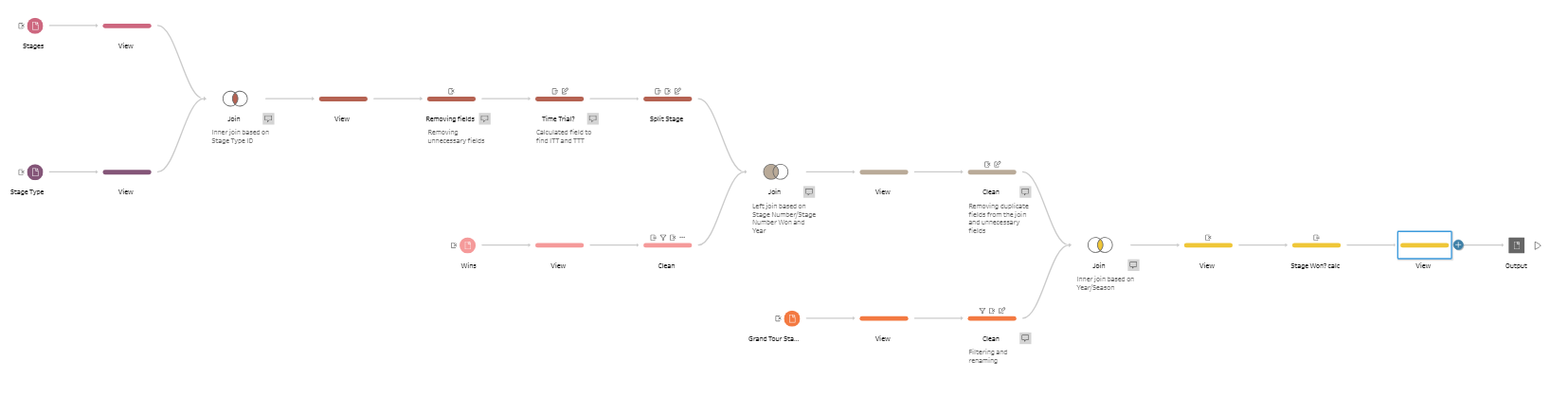
This blog follows on from the previous blog titled Preppin' Data 2024 Week 27 Part 1: Joins in Tableau Prep Builder where we completed Steps 1-6 of the Preppin' Data 2024 Week 27 challenge.
Steps to be completed in Part 2:
- Joining the Wins data
- Removing the duplicate fields created from joining
- Inputting the Grand Tour Starts (and only keeping the Tour de France starts)
- Renaming fields
- Joining the races started to the overall data set
- Create a Stages Won? field
- Outputting the data
Let's start with joining the data!
1) Joining the Wins data
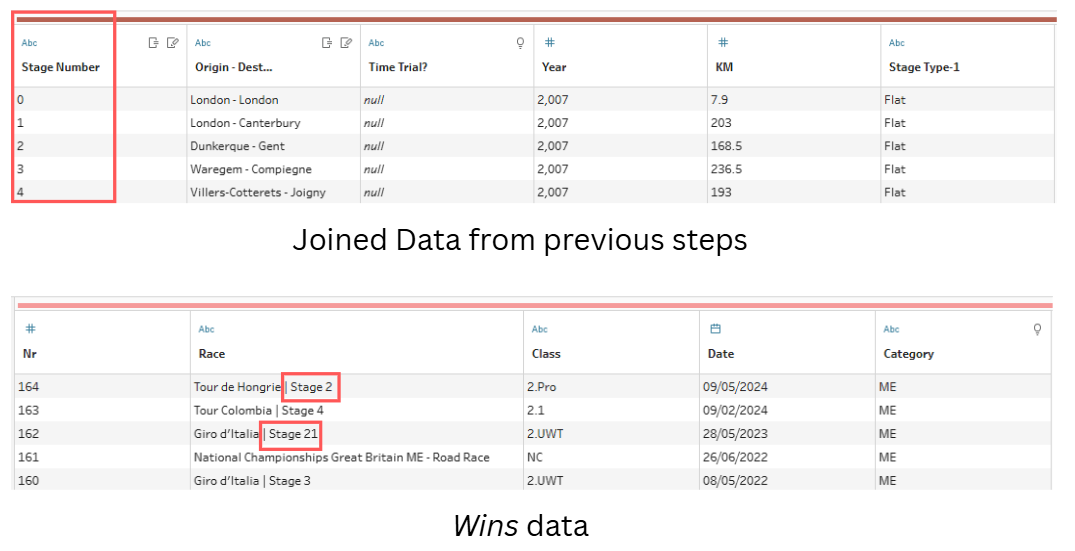
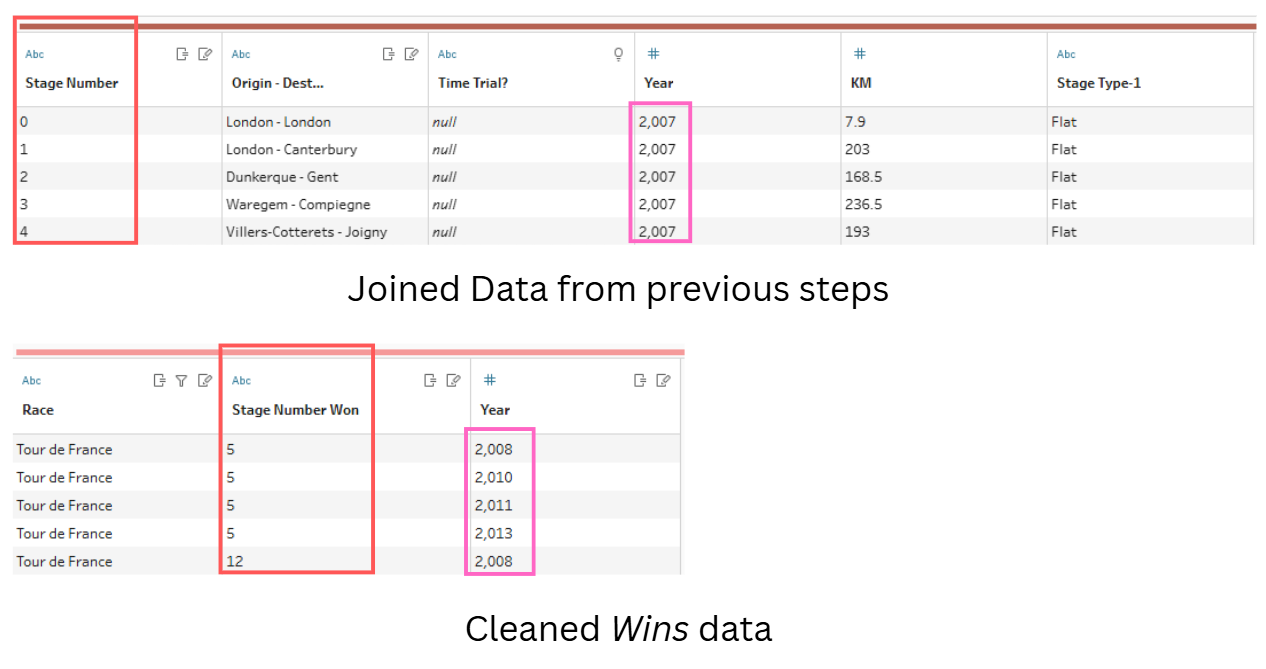
To perform a standard join, we need at least one common field in both tables of data. The table of data that we made from the first steps of this Preppin’ Data challenge (in Preppin' Data 2024 Week 27 Part 1: Joins in Tableau Prep Builder blog) has a field called Stage Number. The only field that matches this information in the Wins data table, is the Race field. However, it is not in the correct format (i.e. Race | Stage Number). We need to extract the stage number from this field to perform the join. We would also like to join the data on the year of the race which can be found in the Year field and Date field in the Wins data (year needs to be extracted from this).
- Use the Custom Split function where the separator is ‘ | ‘.
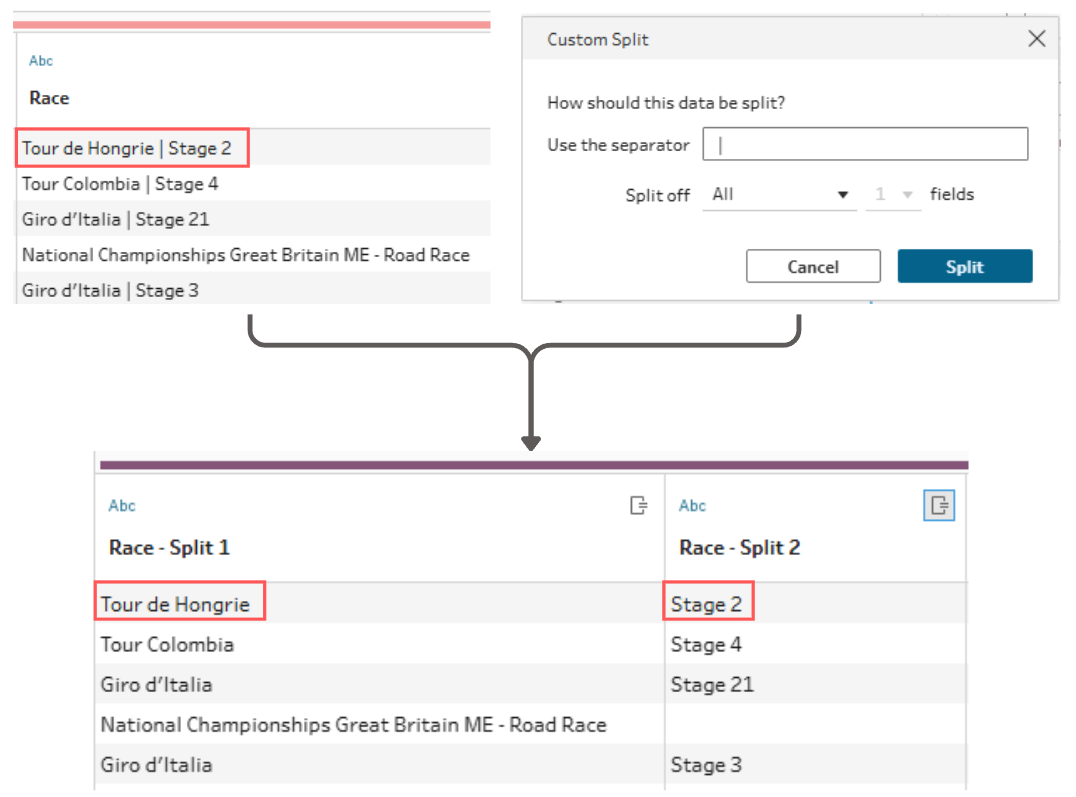
- Remove the old Race field and rename Race - Split 1 and Race - Split 2 fields to Race and Stage Number
- Change the Prologue stage in Stage Number to be 0 by double clicking and manually typing 0.
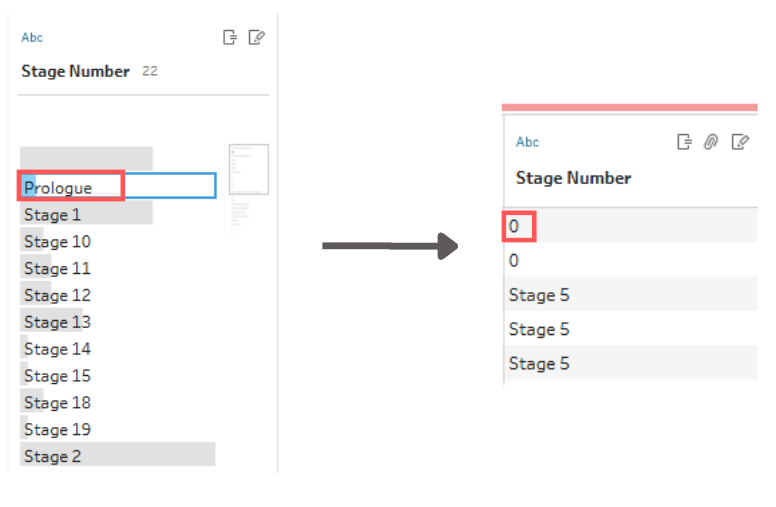
- Remove Stage text from the Stage Number field, using the Custom Split function (separator is ‘ ‘ and ensure to split off on the last field!)
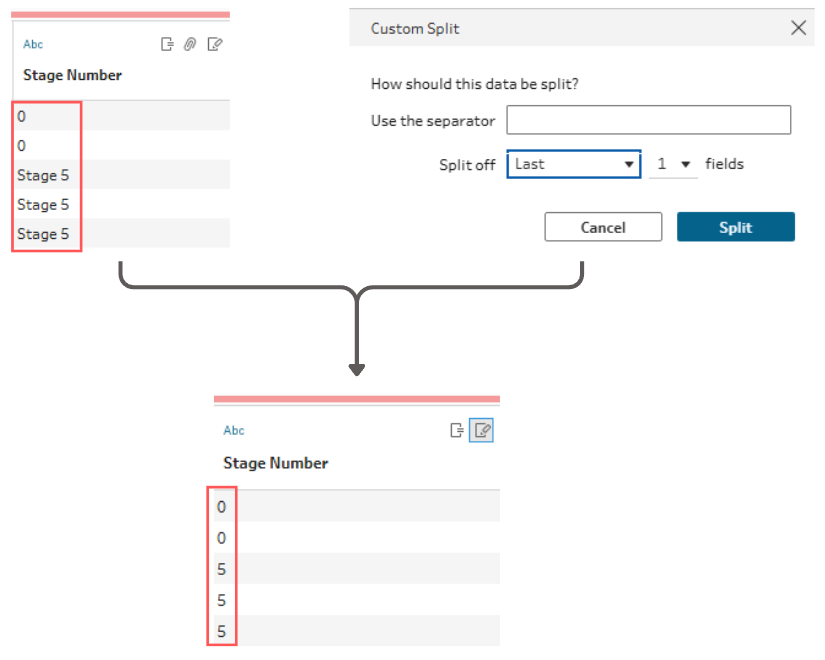
- Remove the original Stage Number field and rename the new field from Stage Number - Split 1 to Stage Number Won
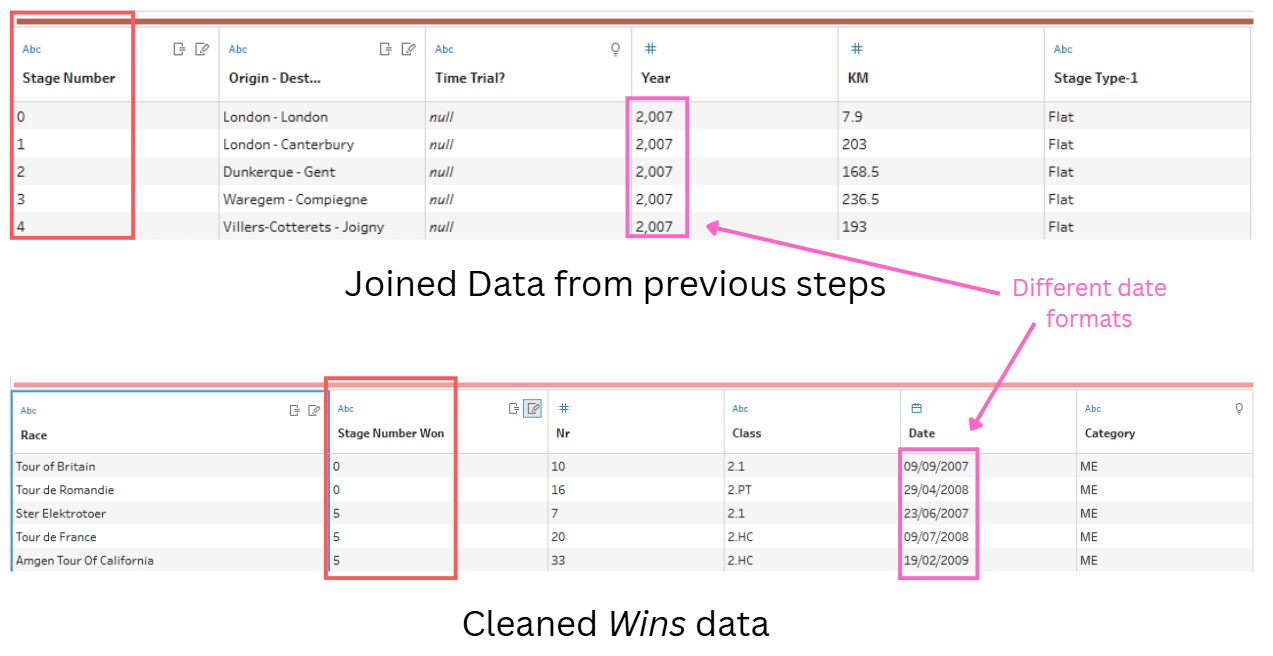
- Convert the Date field in the Wins table to only include the year and rename Date field to Year
- We have now got the same format for the Stage Number fields in both tables, but the Year/Date fields are different.
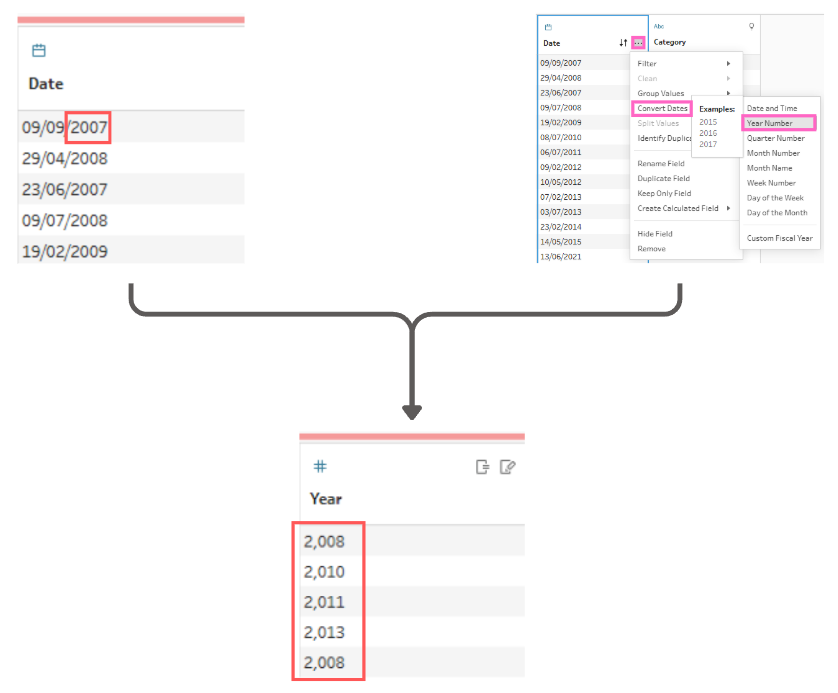
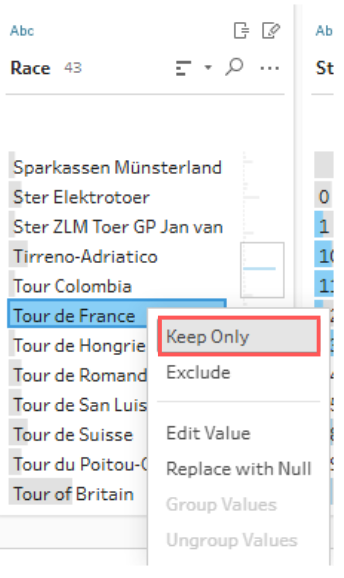
This is what the tables look like now! From the challenge, we want to ‘keep all of the stages and add additional details of the stages Cavendish has won’. So, we only want to include the ‘Tour de France’ races that Cavendish participated in by filtering to keep only ‘Tour de France’.
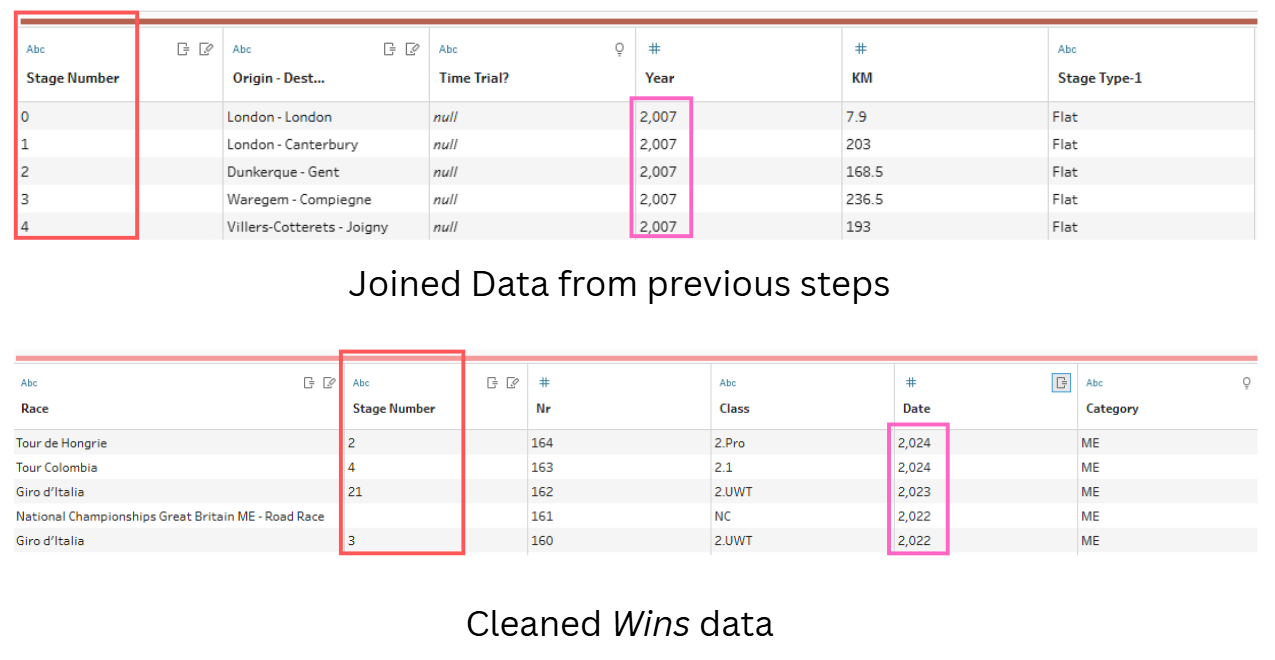
The tables are now in the correct format to join!
- Join the data
Let’s quickly recap what the data is showing us!
Joined Data from previous steps (294 rows)
Data from the Stages table (detailing the stages in the years that Cavendish raced the Tour and Stage Type table (detailing the type of stages raced) have been joined to show information about the stages in the years that Cavendish raced the Tour.
Cleaned Wins data (34 rows)
Shows the Tour de France Stage Numbers that Cavendish won and in what year he won.
We need to join these tables on Stage Number and Stage Number Won and Year.
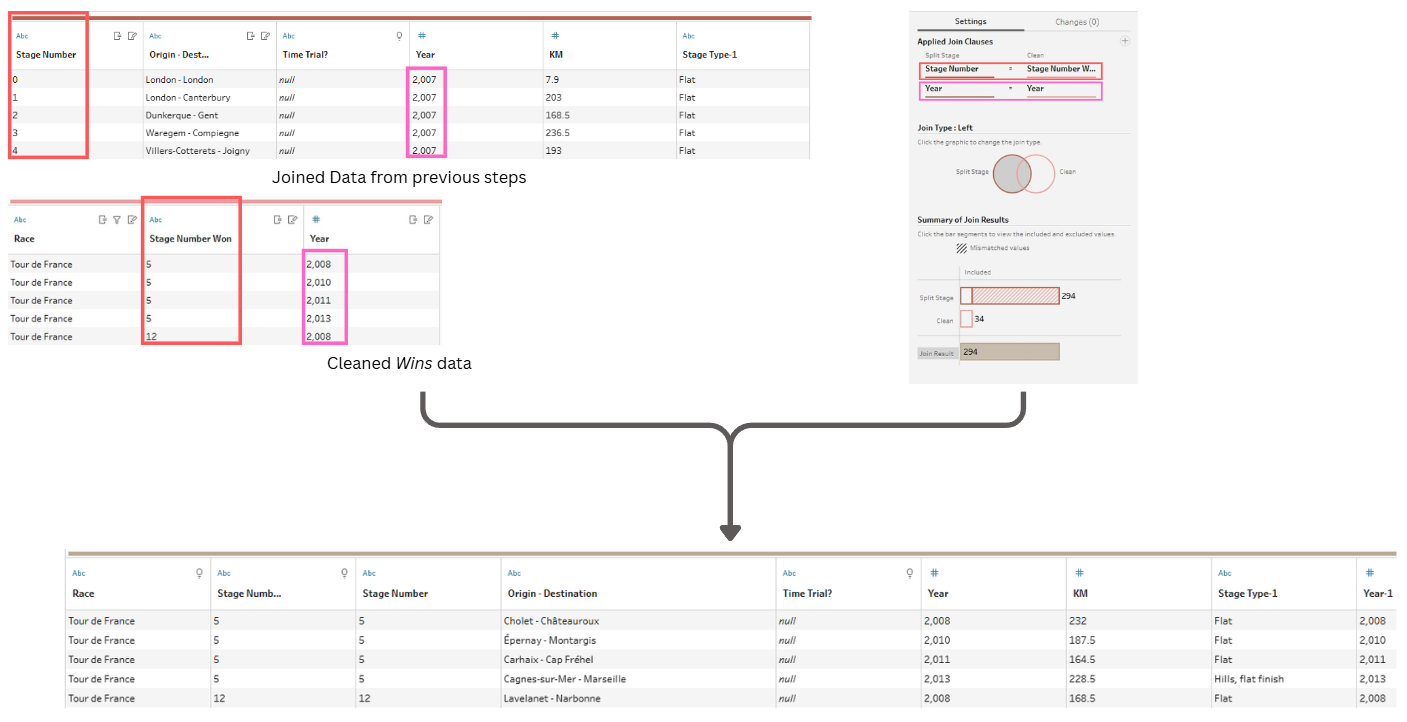
2) Removing the duplicate fields created from joining

3) Inputting the Grand Tour Starts (only keeping the Tour de France starts)
We need to join the Grand Tour Starts table to the new table we have just created from Step 2.
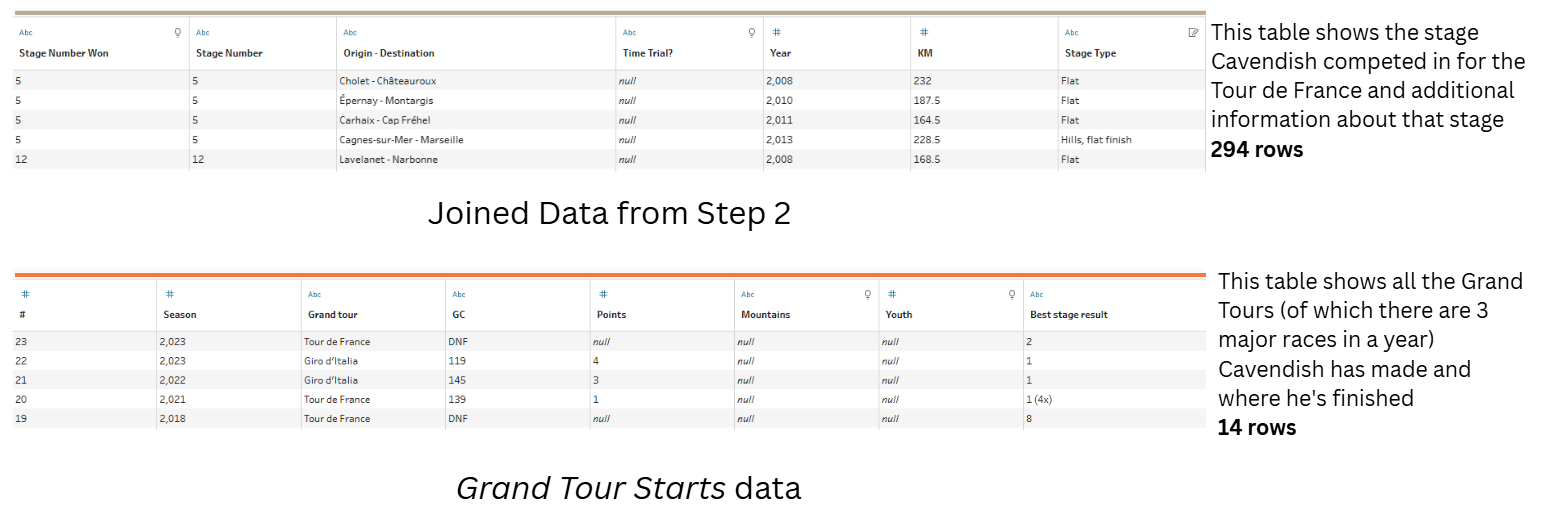
- Filter Grand tour field in Grand Tour Starts data to only include 'Tour de France'
- Remove Mountains, Youth, #, Grand tour and Best stage result fields
4) Renaming fields
- GC to 'General Classification Finishing Position'
- Points to 'Points Finishing Position'
5) Joining the races started to the overall data set
- Inner join on Year and Season fields
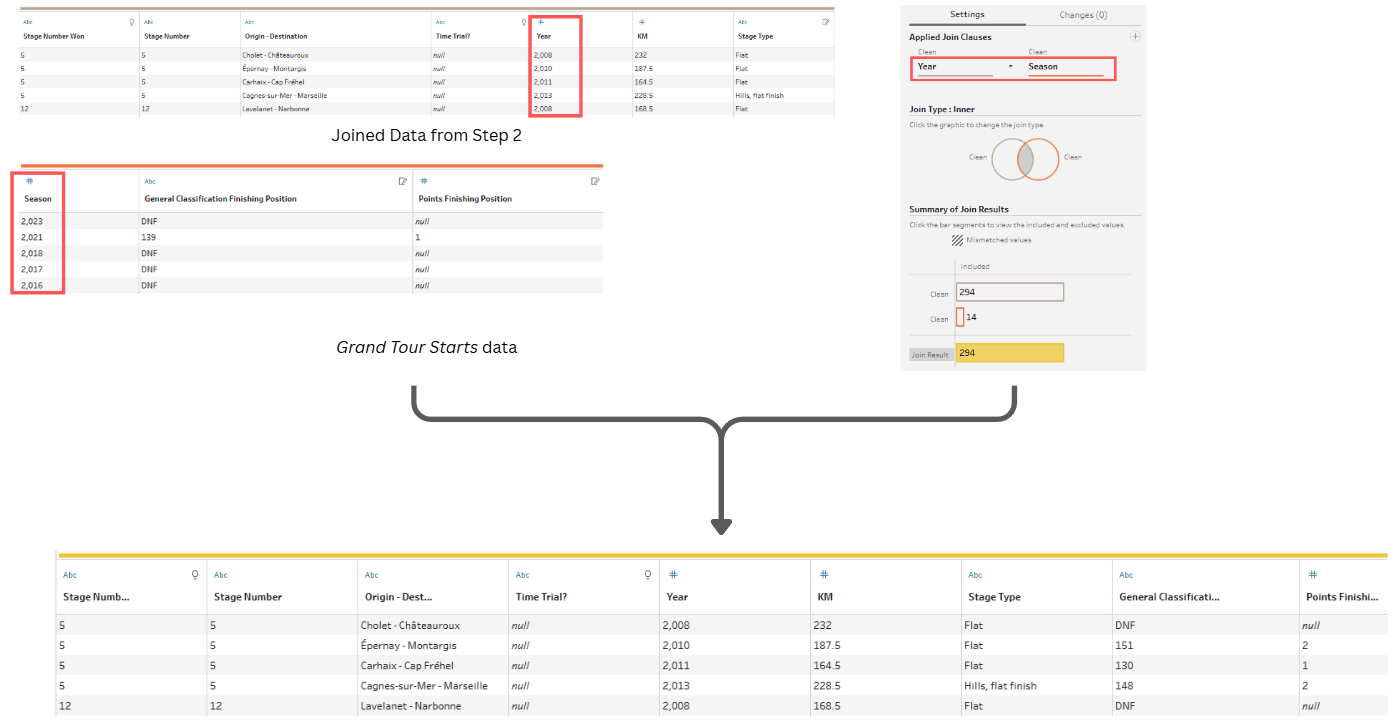
- Remove duplicate fields (Season)
6) Creating a Stages Won? field
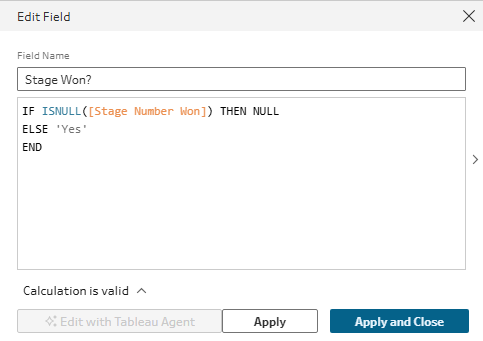
- If the Stage Number Won field is null, then Stage Won? will be No (Cavendish didn't win the stage).
- If the Stage Number Won field is a number, then Stage Won? will be Yes (Cavendish won the stage).
7) Outputting the data